MyAir 4 workaround
If you have an Advantage Air MyAir 4 air conditioning system that is more than 10 years old and the control app started crashing in May 2026, this guide will walk you through a workaround that gets it running again.
The MyAir 4 Android tablet is the only way to control these systems. There are no physical buttons, no thermostat, and no alternative interface. When the app crashes, the air conditioning is off-line.
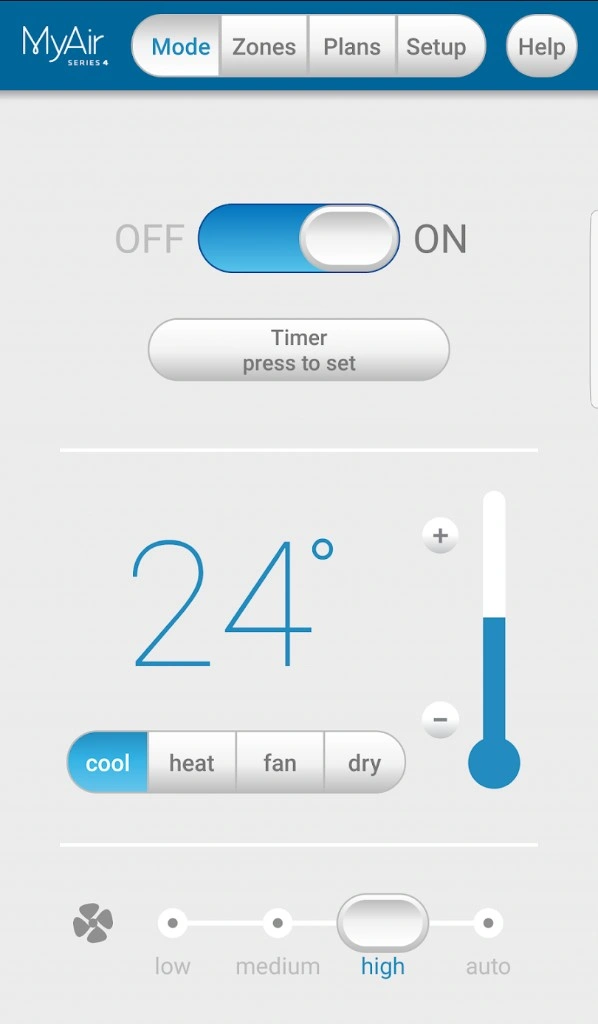
The MyAir 4 control app with on/off toggle, temperature, and mode selection
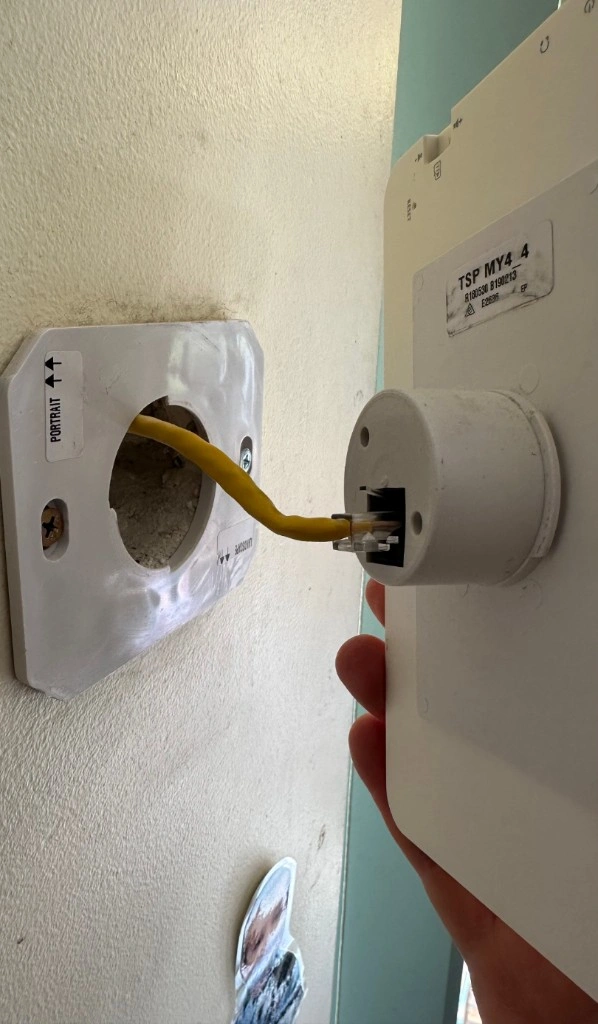
The only connection: a single Ethernet cable for power and data to the unit in the roof
Symptoms
You are likely affected if all of the following are true:
- The MyAir 4 app crashes within one second of launching.
- The app works when you disable wifi on the tablet.
- The tablet is running Android 4.4.2 (KitKat) or similar vintage.
- The system was working fine until recently.
If the app works with wifi off, the crash is caused by network requests failing. Read on.
Root cause
Two independent cloud services that the MyAir 4 app depends on have been retired.
1. Crashlytics SDK endpoint removed
The app includes the Fabric era Crashlytics SDK (version 1.4.2.22). Fabric shut down on 15 November 2020, but Google kept the DNS records for settings.crashlytics.com alive for years. Those DNS records have now been removed. When the tablet tries to resolve settings.crashlytics.com, it gets NXDOMAIN and the SDK crashes.
2. Firebase database deactivated
Advantage Air hosted their app configuration in a Firebase Realtime Database at aastringsv3.firebaseio.com. This database has been deactivated and now returns HTTP 423 Locked with the message "The Firebase database 'aastringsv3' has been deactivated". The app crashes when it cannot read its configuration.
Both problems must be solved. Fixing only one is not enough.
How the fix works
The workaround intercepts the tablet's DNS requests for the dead hostnames and redirects them to a local Linux VM running NGINX. NGINX serves mock responses that satisfy the SDK enough for the app to start.
Prerequisites
- A Linux VM or spare machine on the same network as the tablet. This guide was tested on Ubuntu 24.04.
- Packages:
nginx,dnsmasq,openssl. - A way to configure DNS on your network so the tablet resolves the intercepted hostnames to your VM. This could be a DNS override on your router, a DHCP option, or a static DNS setting on the tablet's wifi.
Install the packages:
sudo apt update && sudo apt install -y nginx dnsmasq openssl
Values you need to replace
Every configuration file below uses placeholders. Replace them with your own values before applying.
| Placeholder | Description | How to find it |
|---|---|---|
<VM_IP> | IP address of your Linux VM | Run ip addr on the VM |
<TABLET_IP> | IP address of the MyAir tablet | Check your router's DHCP leases or the tablet's wifi settings |
<GATEWAY_IP> | IP address of your router/gateway | Run ip route on the VM, look for default via |
<INTERFACE> | Network interface name on the VM | Run ip link on the VM (e.g. eth0, ens18, enp0s5) |
Step 1: Generate the TLS certificate
The tablet needs to trust a local certificate for the intercepted HTTPS connections. Generate a self-signed certificate with explicit Subject Alternative Names (SANs) for every hostname the app queries.
Do not use wildcard SANs like *.firebaseio.com alone. Android 4.4.2 does not reliably match wildcards. You must list every hostname explicitly.
openssl req -x509 -nodes -days 3650 -newkey rsa:2048 \
  -keyout /etc/ssl/private/myair4.key \
  -out /etc/ssl/certs/myair4.crt \
  -subj "/CN=MyAir4 Local Intercept" \
  -addext "subjectAltName=\
DNS:settings.crashlytics.com,\
DNS:reports.crashlytics.com,\
DNS:e.crashlytics.com,\
DNS:api.crashlytics.com,\
DNS:crashlytics.com,\
DNS:*.crashlytics.com,\
DNS:aastringsv3.firebaseio.com,\
DNS:aastringsv3.firebaseapp.com,\
DNS:myair4v3.firebaseio.com,\
DNS:betamyaccess-ghometest.firebaseio.com,\
DNS:*.firebaseio.com,\
DNS:*.firebaseapp.com"
Verify the SANs are present:
openssl x509 -in /etc/ssl/certs/myair4.crt -noout -ext subjectAltName
Step 2: Configure dnsmasq
Create the dnsmasq configuration. This tells dnsmasq to return your VM's IP for the intercepted hostnames and forward everything else to your normal gateway DNS.
sudo tee /etc/dnsmasq.d/myair4.conf >/dev/null <<'EOF'
# Replace <INTERFACE> with your VM's network interface name
# Replace <VM_IP> with your VM's IP address
# Replace <GATEWAY_IP> with your router/gateway IP

interface=<INTERFACE>
listen-address=127.0.0.1,<VM_IP>
bind-interfaces

no-resolv
server=<GATEWAY_IP>

# Crashlytics overrides
address=/settings.crashlytics.com/<VM_IP>
address=/reports.crashlytics.com/<VM_IP>
address=/e.crashlytics.com/<VM_IP>
address=/api.crashlytics.com/<VM_IP>

# Firebase overrides discovered from MyAir 4
address=/aastringsv3.firebaseio.com/<VM_IP>
address=/aastringsv3.firebaseapp.com/<VM_IP>
address=/myair4v3.firebaseio.com/<VM_IP>
address=/betamyaccess-ghometest.firebaseio.com/<VM_IP>

log-queries
log-facility=/var/log/dnsmasq.log
EOF
If dnsmasq conflicts with systemd-resolved on port 53:
sudo systemctl disable --now systemd-resolved
Test and restart:
sudo dnsmasq --test
sudo systemctl restart dnsmasq
Step 3: Configure NGINX
Create the NGINX site configuration with two server blocks: one for Crashlytics and one for Firebase.
sudo tee /etc/nginx/sites-available/myair4 >/dev/null <<'NGINX_EOF'
# Crashlytics mock server
server {
    listen 80 default_server;
    listen 443 ssl default_server;

    server_name settings.crashlytics.com reports.crashlytics.com e.crashlytics.com api.crashlytics.com;

    ssl_certificate /etc/ssl/certs/myair4.crt;
    ssl_certificate_key /etc/ssl/private/myair4.key;

    ssl_protocols TLSv1 TLSv1.1 TLSv1.2;
    ssl_ciphers 'ALL:@SECLEVEL=0';
    ssl_prefer_server_ciphers off;
    ssl_conf_command CipherString DEFAULT:@SECLEVEL=0;

    access_log /var/log/nginx/crashlytics-access.log;
    error_log  /var/log/nginx/crashlytics-error.log info;

    default_type application/json;

    location ~ ^/spi/v[12]/platforms/android/apps/(?<pkg>[^/]+)/settings {
        return 200 '{"settings_version":2,"cache_duration":7200,"app":{"identifier":"$pkg","status":"activated","url":"https://api.crashlytics.com/spi/v1/platforms/android/apps/$pkg","reports_url":"https://reports.crashlytics.com/spi/v1/platforms/android/apps/$pkg/reports","ndk_reports_url":"https://reports.crashlytics.com/sdk-api/v1/platforms/android/apps/$pkg/minidumps","update_required":false,"report_upload_variant":1,"native_report_upload_variant":1},"session":{"log_buffer_size":64000,"max_chained_exception_depth":8,"max_custom_exception_events":64,"max_custom_key_value_pairs":64,"identifier_mask":255,"send_session_without_crash":false,"max_complete_sessions_count":4},"features":{"collect_logged_exceptions":true,"collect_reports":true,"collect_analytics":false,"prompt_enabled":false,"push_enabled":false},"analytics":{"url":"https://e.crashlytics.com/spi/v2/events","flush_interval_secs":600,"max_byte_size_per_file":40000,"max_file_count_per_send":1,"max_pending_send_file_count":20,"forward_to_google_analytics":false,"include_purchase_events_in_forwarded_events":false,"track_custom_events":false,"track_predefined_events":false,"track_view_controllers":false,"flush_on_background":true,"sampling_rate":1},"expires_at":253402300799000}';
    }

    location / {
        return 200 '{}';
    }
}

# Firebase mock server
server {
    listen 80;
    listen 443 ssl;

    server_name aastringsv3.firebaseio.com aastringsv3.firebaseapp.com myair4v3.firebaseio.com betamyaccess-ghometest.firebaseio.com ~^.+\.firebaseio\.com$ ~^.+\.firebaseapp\.com$;

    ssl_certificate /etc/ssl/certs/myair4.crt;
    ssl_certificate_key /etc/ssl/private/myair4.key;

    ssl_protocols TLSv1 TLSv1.1 TLSv1.2;
    ssl_ciphers 'ALL:@SECLEVEL=0';
    ssl_prefer_server_ciphers off;
    ssl_conf_command CipherString DEFAULT:@SECLEVEL=0;

    access_log /var/log/nginx/firebase-access.log;
    error_log  /var/log/nginx/firebase-error.log info;

    default_type application/json;

    location ~ ^/\.ws {
        return 426 '{"error":"websocket not supported"}';
    }

    location ~ ^/\.lp {
        add_header Cache-Control "no-cache";
        return 200 '{"t":"d","d":{"t":"a","d":{"b":{"p":"/","d":{}}}}}';
    }

    location ~ \.json$ {
        return 200 '{}';
    }

    location = / {
        default_type text/html;
        return 200 '<!DOCTYPE html><html><body></body></html>';
    }

    location / {
        return 200 '{}';
    }
}
NGINX_EOF
Enable the site and restart NGINX:
sudo ln -sf /etc/nginx/sites-available/myair4 /etc/nginx/sites-enabled/myair4
sudo rm -f /etc/nginx/sites-enabled/default
sudo nginx -t
sudo systemctl restart nginx
Step 4: Install the certificate on the tablet
The tablet has no USB port and no way to install apps, so you need to serve the certificate over HTTP and download it using Chrome on the tablet.
Start a temporary web server on the VM:
cd /etc/ssl/certs && python3 -m http.server 8080
On the tablet, open Chrome and navigate to:
http://<VM_IP>:8080/myair4.crt
The certificate will download. Then go to Settings > Security > Install from SD card (or "Install from storage") and select the downloaded certificate. Give it a name when prompted (e.g. "MyAir4 Local").
Stop the Python server when done (Ctrl+C).
Step 5: Point the tablet's DNS at the VM
You have two options:
Option A: Static DNS on the tablet. Go to the tablet's wifi settings, switch from DHCP to static, and set the DNS server to your VM's IP (<VM_IP>). Keep the gateway as your router (<GATEWAY_IP>).
Option B: Router DNS forwarding. If your router supports conditional DNS forwarding or DNS overrides, create entries for the intercepted hostnames pointing to <VM_IP>. This is cleaner because the tablet stays on DHCP and other devices are unaffected.
Step 6: Verify
Test DNS resolution from another machine or the VM itself:
dig @<VM_IP> settings.crashlytics.com +short
# Should return: <VM_IP>

dig @<VM_IP> aastringsv3.firebaseio.com +short
# Should return: <VM_IP>

dig @<VM_IP> myair4v3.firebaseio.com +short
# Should return: <VM_IP>
Test the NGINX responses:
curl -k https://<VM_IP>/spi/v2/platforms/android/apps/com.air.advantage.myair4/settings \
  -H "Host: settings.crashlytics.com"
# Should return the Crashlytics JSON

curl -k https://<VM_IP>/test.json \
  -H "Host: aastringsv3.firebaseio.com"
# Should return: {}
Now reboot the tablet. The MyAir 4 app should start and stay running.
Gotchas
Wildcard SANs fail on Android 4.4.2. The old TLS stack does not reliably match wildcard certificates like *.firebaseio.com against hostnames like myair4v3.firebaseio.com. Always list every hostname explicitly in the certificate SAN. The wildcards are included in the cert above as a fallback, but the explicit entries are what make it work.
Crashlytics response shape does not matter. The Crashlytics SDK in this app tolerates any HTTP 200 response, even invalid JSON. The crash is always downstream on the Firebase database call. Do not waste time iterating on Crashlytics response formats.
Auto-restart muddies diagnostics. The tablet auto-restarts the MyAir app on crash as part of its kiosk mode. What looks like the app retrying every 6 seconds is actually the system relaunching the app. Force Stop does not help because the app comes back within seconds.
NGINX "client closed connection" errors are normal. After the app starts, you will see client closed connection while waiting for request in the NGINX error log. These are non-fatal. They appear to be the Firebase SDK probing for a WebSocket connection and giving up cleanly.
Monitoring
Tail all logs to see what the tablet is doing:
sudo tail -f \
  /var/log/dnsmasq.log \
  /var/log/nginx/crashlytics-access.log \
  /var/log/nginx/crashlytics-error.log \
  /var/log/nginx/firebase-access.log \
  /var/log/nginx/firebase-error.log
Clear logs before a fresh test:
sudo truncate -s 0 /var/log/dnsmasq.log
sudo truncate -s 0 /var/log/nginx/crashlytics-access.log
sudo truncate -s 0 /var/log/nginx/crashlytics-error.log
sudo truncate -s 0 /var/log/nginx/firebase-access.log
sudo truncate -s 0 /var/log/nginx/firebase-error.log
Check the dnsmasq log periodically for new hostnames the app queries. If a new hostname appears that is not intercepted and resolves to a dead endpoint, the app may crash again. Add the hostname to dnsmasq, regenerate the certificate with the new SAN, and reinstall it on the tablet.
What could break next
This workaround is stable but the underlying system is architecturally fragile. The MyAir 4 app depends on:
- A Crashlytics SDK whose vendor (Google) has retired the backend.
- Firebase databases that the vendor (Advantage Air) has deactivated.
- TLS ciphers that modern internet endpoints no longer accept.
- An Android version (4.4.2) that has not received security updates since 2017.
Each of these is a potential future failure. If the app starts querying new hostnames that are not intercepted, or if a future Android system update (unlikely on this hardware) changes TLS behaviour, the workaround may need updating.
Long-term options include replacing the tablet with a current controller from Advantage Air, upgrading to a new MyAir system, or continuing to maintain the mock infrastructure.
Read more: Andy the Muppit