Setup
Install, launch, redact, and save. The whole path from download to cleaned transcript runs about two minutes.
1. Download and install
Grab the installer from Downloads.
macOS. Double-click the DMG, drag the app to Applications, eject the DMG, launch from Applications or Spotlight. The app is signed and notarised so Gatekeeper opens it without friction.
Windows. Double-click the .exe to run the installer, accept the licence, choose an install location, and finish. On first launch, SmartScreen may ask you to click through; see the note on Downloads.
2. First run
The app opens straight into the wizard, and a free licence is generated on first launch, so there is no account, no licence key, or sign-in to manage.
Step 1. Input. Drag and drop a transcript, or click Open file to load a .txt, .md, or .vtt from disk.
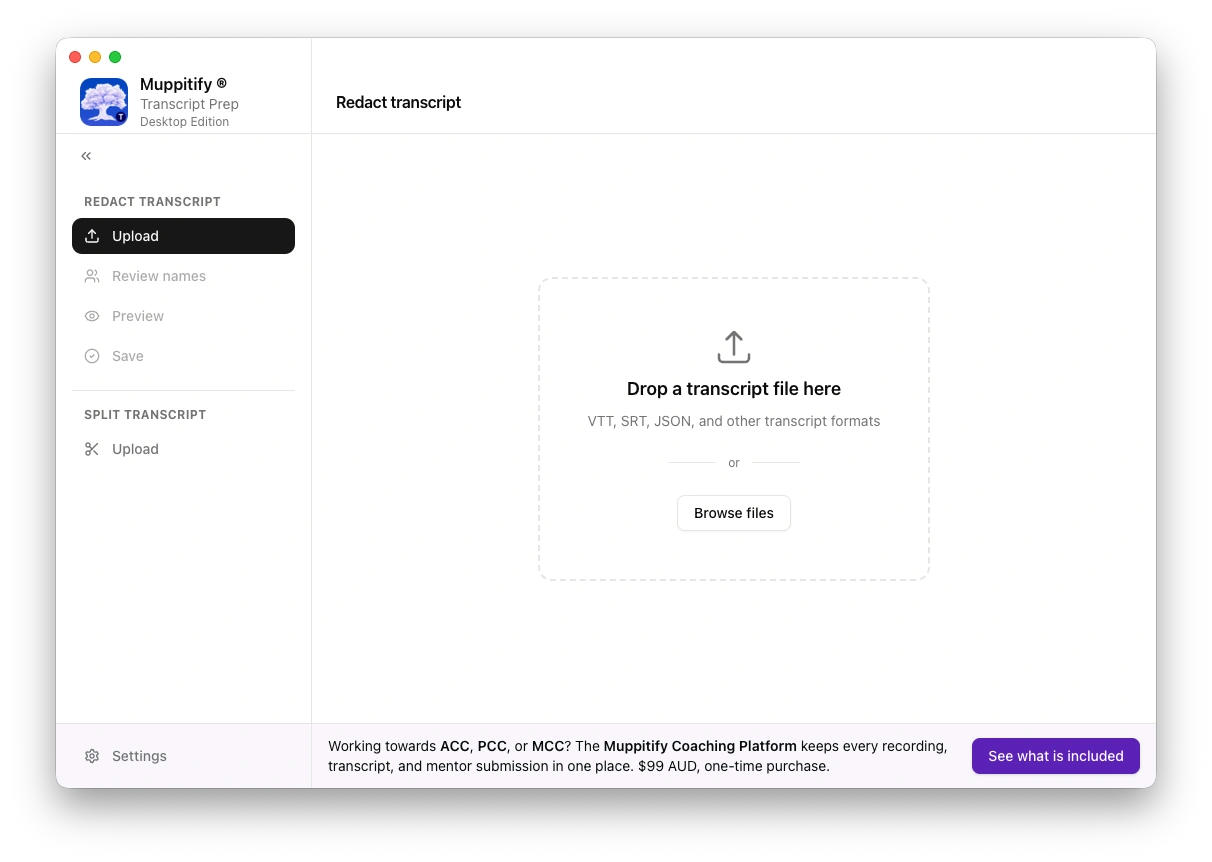
Step 2. Detect. The detector scans and highlights every candidate for redaction. This runs locally on your machine.
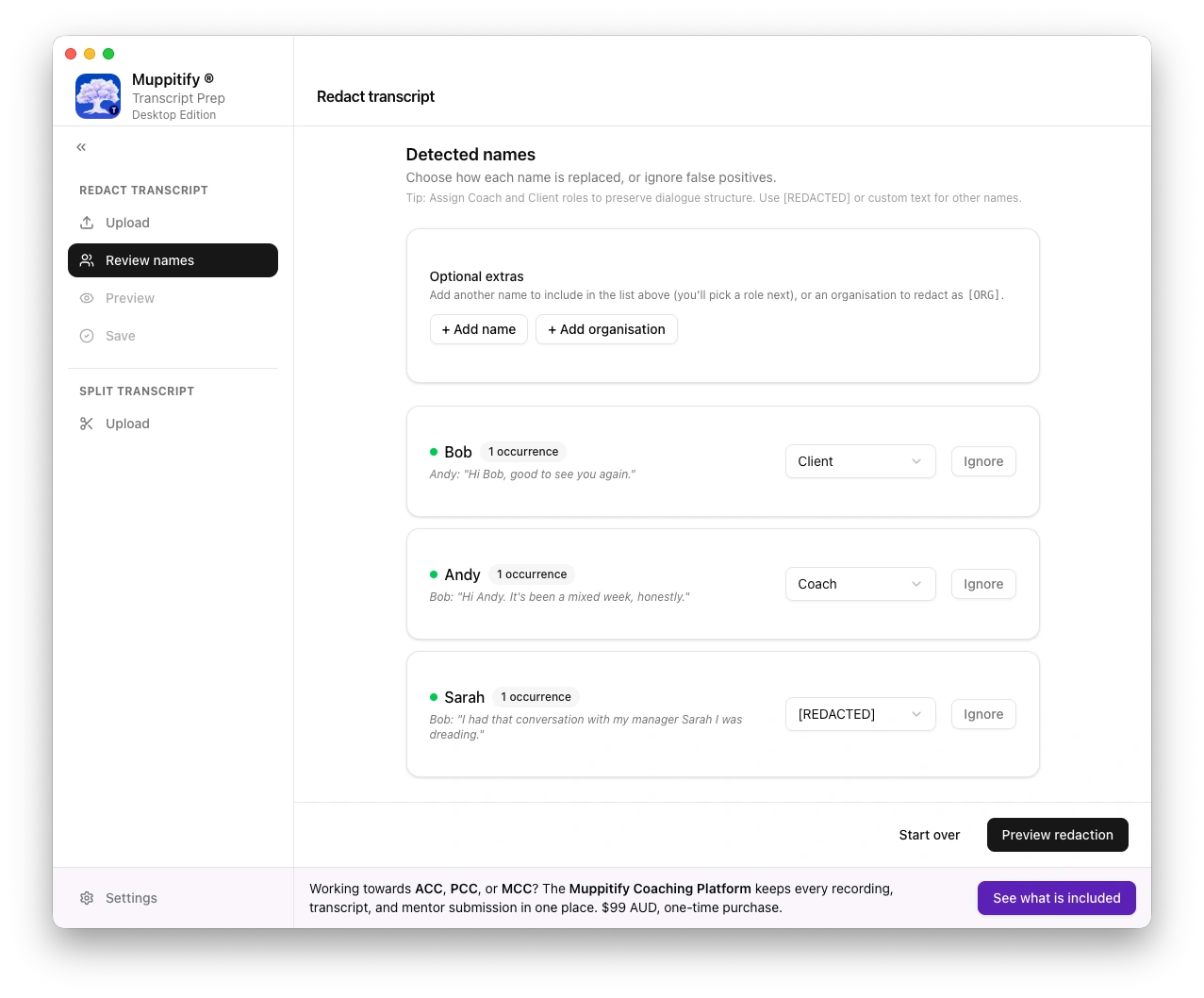
Step 3. Review. Go through the suggestions. Accept, reject, or edit each one. Use search to jump around, or trim to drop the first or last stretch of the transcript.
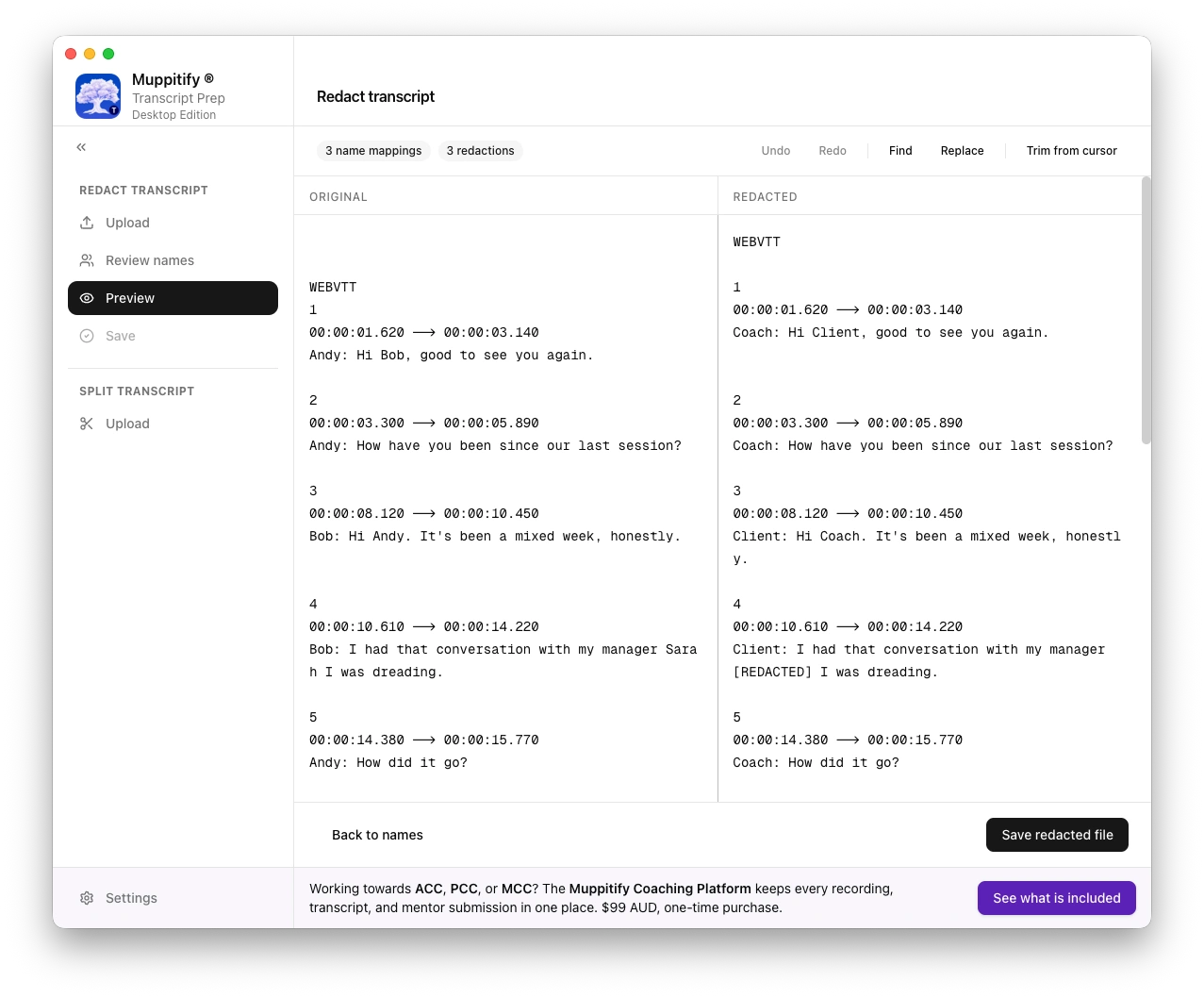
Preview the cleaned output alongside the original to confirm nothing useful was lost.
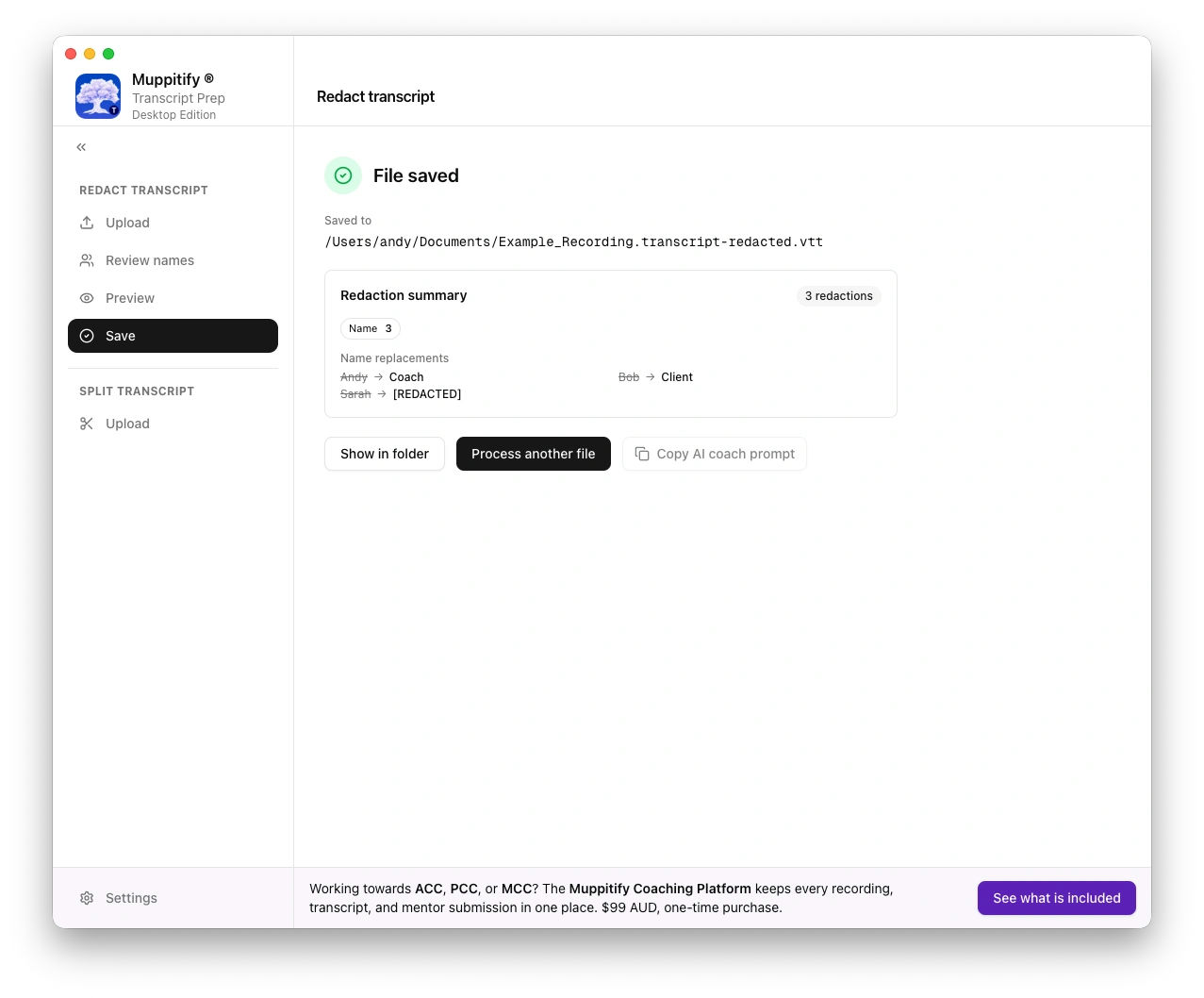
Step 4. Save. Export the cleaned version to a new file. The original is left untouched.
3. Keep it up to date
The app checks for updates in the background on launch and prompts you when one is available, with release notes and a one-click install.
To opt in to beta releases, open Settings (gear icon in the top right) and tick Receive beta updates.