Downloads
Transcript Prep is free to download. A free licence is generated on first launch, so there is no account, no licence key, or sign-in to manage.
Stable releases
| Platform | Download | Size | Date released |
|---|---|---|---|
| macOS (Apple Silicon) | Stable release | n/a | n/a |
| Windows (64-bit) | Stable release | n/a | n/a |
macOS. Download the DMG, drag the app to Applications, and launch. The installer is signed and notarised by Apple, so Gatekeeper allows it through on first open.
Windows. Download and run the installer. It is signed with an Extended Validation code-signing certificate, so Windows identifies the publisher correctly; you will however see one or two Microsoft Defender SmartScreen prompts on the first download and first launch of each release. The Common install prompts section below walks through the click-through flow.
Beta releases
Beta releases include upcoming features and fixes before they reach stable, so use them when you want early access.
| Platform | Download | Size | Date released |
|---|---|---|---|
| macOS (Apple Silicon) | Beta release | n/a | n/a |
| Windows (64-bit) | Beta release | n/a | n/a |
Beta updates are independent of the stable channel, so a running install can hop between the two at any time by toggling Receive beta updates in Settings.
System requirements
| Platform | Requirements |
|---|---|
| macOS | macOS 12 (Monterey) or later on Apple Silicon (M1, M2, M3, M4 or later). Intel Macs are not supported from v0.4.0 onwards. |
| Windows | Windows 10 (build 19045+) or Windows 11, 64-bit. |
After installation
The app opens straight into the wizard: drag and drop a transcript or open one from a file, review the suggested redactions, then save the cleaned copy. The setup guide has the full walkthrough.
If you do not have a recording of your own to try, download this example transcript and drop it on the app.
Common install prompts
The Windows installer is signed with an Extended Validation code-signing certificate, which tells Windows who published the file. Microsoft Defender SmartScreen runs a separate check called application reputation: it grades each binary by how many clean installs it has already seen. Fresh installers from small publishers effectively always fail that check, so every new release shows at least one prompt the first time someone downloads or runs it. Clicking through is safe. The signature is still validated.
Each prompt below is a one-time event per machine and release.
macOS: two apps in Applications after upgrade
If the upgrade leaves both Muppitify Transcript Prep and Transcript in your Applications folder, drag the older Muppitify Transcript Prep app to the Trash. From v0.4.0 or later the app detects this and offers to move the old bundle for you on first launch.
Windows: firewall prompt on first launch
Windows Firewall asks whether to allow Transcript on private and public networks the first time you launch the app. The app needs network access for two things: fetching your free licence on first run and checking for updates. Tick both boxes and click Allow access. The prompt does not recur on subsequent launches or upgrades.
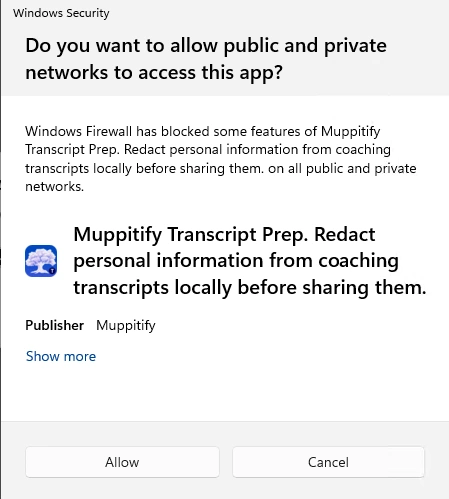
Windows 11 and Windows 10 both show this prompt with slightly different layouts, but the buttons and the decision are the same either way.
Windows: SmartScreen prompts when downloading and running the installer
What you see depends on which browser you use. Microsoft Edge checks file reputation at download time and at run time. Chrome, Firefox, and other non-Edge browsers only mark the file with Mark-of-the-Web, so the prompt appears at run time only.
Microsoft Edge (Windows 10 or Windows 11)
You see two prompts in sequence, the first on the download itself:

Click the three dots next to the download and choose Keep.
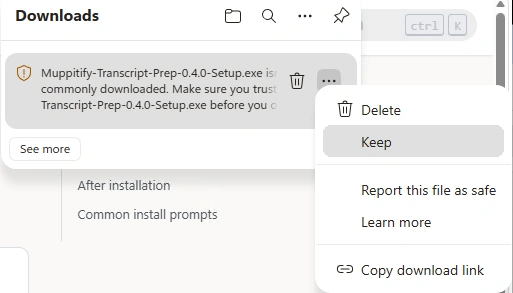
Then on first launch of the installer:
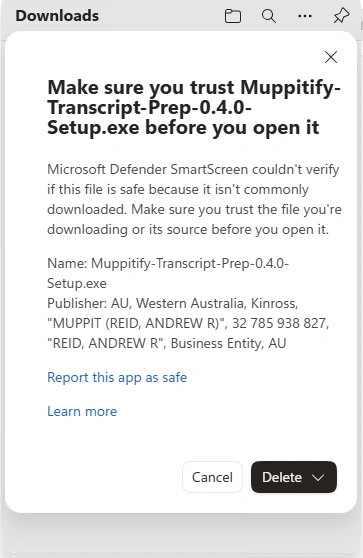
Click More info, then Run anyway.
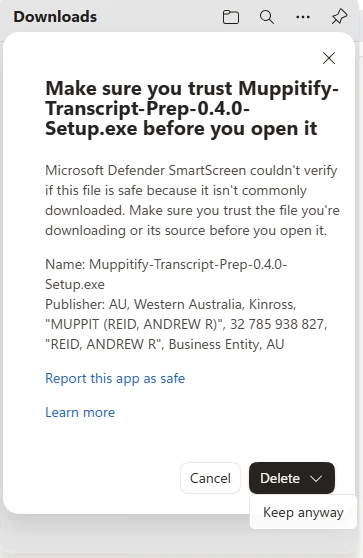
Chrome, Firefox, or another non-Edge browser (Windows 10 or Windows 11)
The browser downloads the file without a prompt. The SmartScreen block appears when you launch the installer:
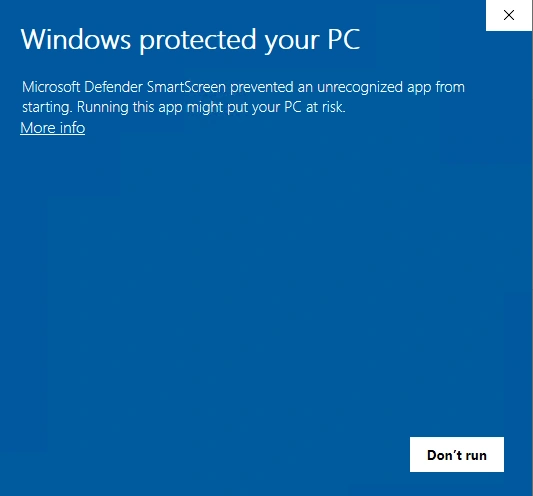
Click More info, then Run anyway.
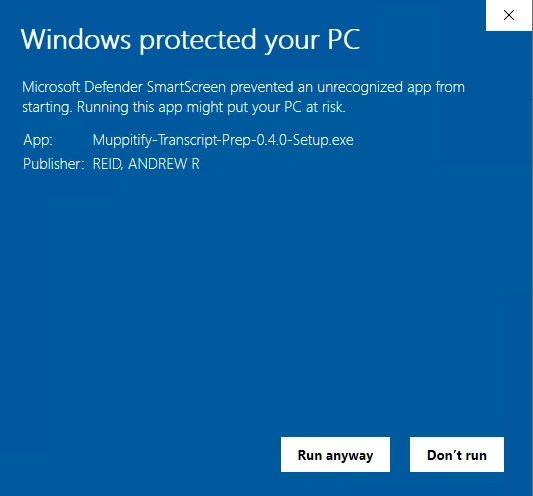
Users who upgrade through the app's built-in updater never see either prompt. The auto-updater downloads inside a trusted process and does not trigger SmartScreen's file-reputation check.