Calendar integration
This page covers the Google Calendar integration including OAuth connection, event sync, privacy masking for personal events, and linking calendar events to learning activities and study units.
School Platform series
- School Platform
- Architecture
- AI features
- Calendar integration - You are here
- Programme
- Explainers
- Schedule
- Integrations
- Deployment
Why calendar integration
Scheduling school activities alongside family life is easier when everything is on the same calendar. The platform connects to a Google Calendar account to display family events alongside school activities, create and manage school-specific events, link events to activities and study units, and protect personal event details from non-admin viewers.
Architecture
OAuth flow
- Admin clicks "Connect Google Calendar" on the Admin page
- App redirects to Google OAuth with
calendar.eventsanduserinfo.emailscopes - User authorises the app with Google
- Callback exchanges the code for tokens, fetches the user email, and upserts a
GoogleCalendarConnectionrecord - Admin is redirected back to the Admin page
Tokens are stored in a single database record (single-user model) and are automatically refreshed when within 5 minutes of expiry.
Event sync
The sync function pulls events from Google Calendar for a configurable date range (default: 3 months back, 6 months forward). Each event is upserted by its Google event ID into the local CalendarEvent table. Cancelled events on Google are deleted locally. All synced events have source: "sync".
| Trigger | How |
|---|---|
| Manual | Admin clicks "Sync" on Admin page |
| API | POST /api/admin/calendar/sync (admin auth required) |
| CronJob | Exists but not deployed (manual sync preferred) |
Privacy masking
Synced Google Calendar events may contain personal information. The public events API masks these for non-admin users:
| Field | Admin view | Non-admin view (synced events) |
|---|---|---|
| Title | Full title | "Busy" |
| Description | Full text | Hidden |
| Location | Full text | Hidden |
| Colour | Grey | Grey |
| Delete button | Shown | Hidden |
Events created locally in the school platform always show full details to everyone, displayed in teal.
| Event type | Background | Border |
|---|---|---|
| Synced (from Google) | Grey | Grey |
| Local (school event) | Teal | Teal |
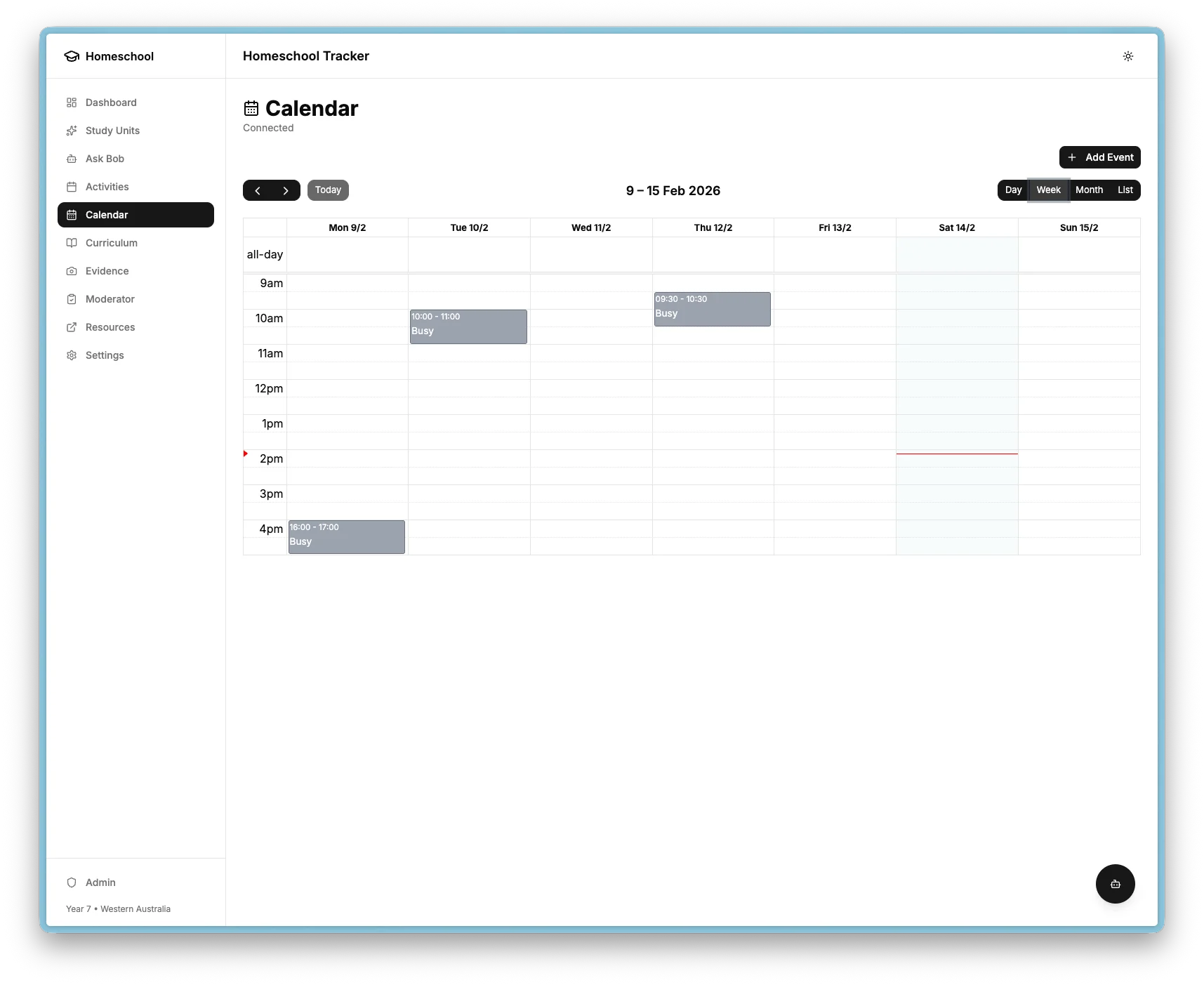
Activity and study unit linking
Calendar events can be linked to activities and study units when created. The add event dialog includes optional dropdowns for linking to a recent activity and linking to a study unit.
Schedule from study units
Each activity card on the study unit detail page has a calendar icon button. Clicking it opens the add event dialog pre-filled with the activity title, description, activity ID, and study unit ID. The user picks a date and time and the linked event is created.
Viewing links
The event detail dialog shows linked items as clickable badges. Linked events also appear under each activity card on the study unit detail page with the date and time in Australian format and a link to the calendar page. The study unit page auto-refreshes after creating an event so the link appears immediately.
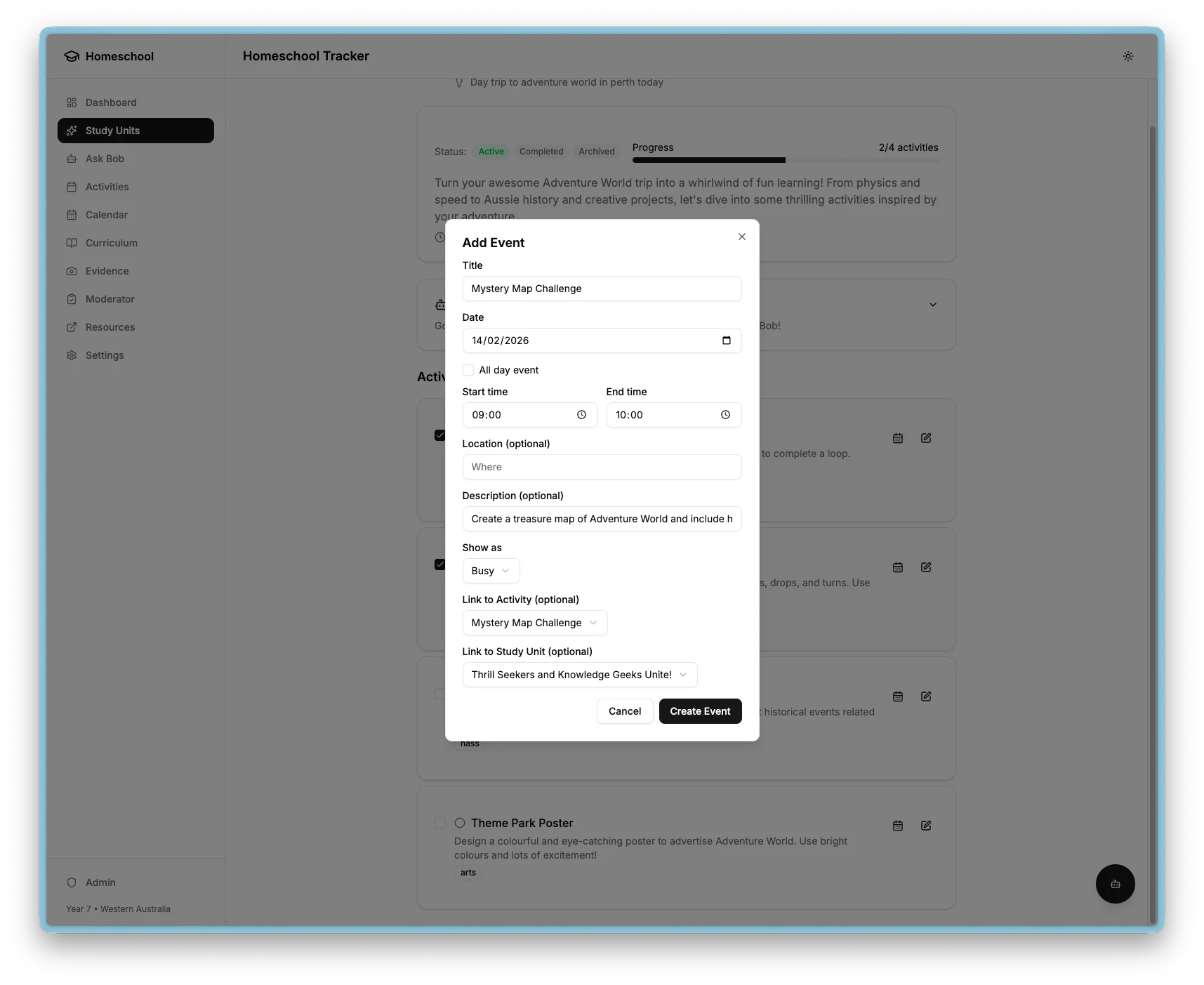
Event creation
All users can create events (local network trust model). Events are written to both Google Calendar and the local database with source: "local". The "Show as" dropdown allows choosing Busy (opaque, blocks the time slot) or Free (transparent, time remains available), which maps to the Google Calendar transparency field.
Only admins can delete events.
FullCalendar configuration
| Setting | Value |
|---|---|
| Locale | en-AU (Australian date format, day/month) |
| Default view | Day view |
| Slot range | 9:00 AM to 5:00 PM |
| Views available | Day, Week, Month, List |
| First day of week | Monday |
| Time format | 24-hour |
| Now indicator | Enabled |