Privacy Mode
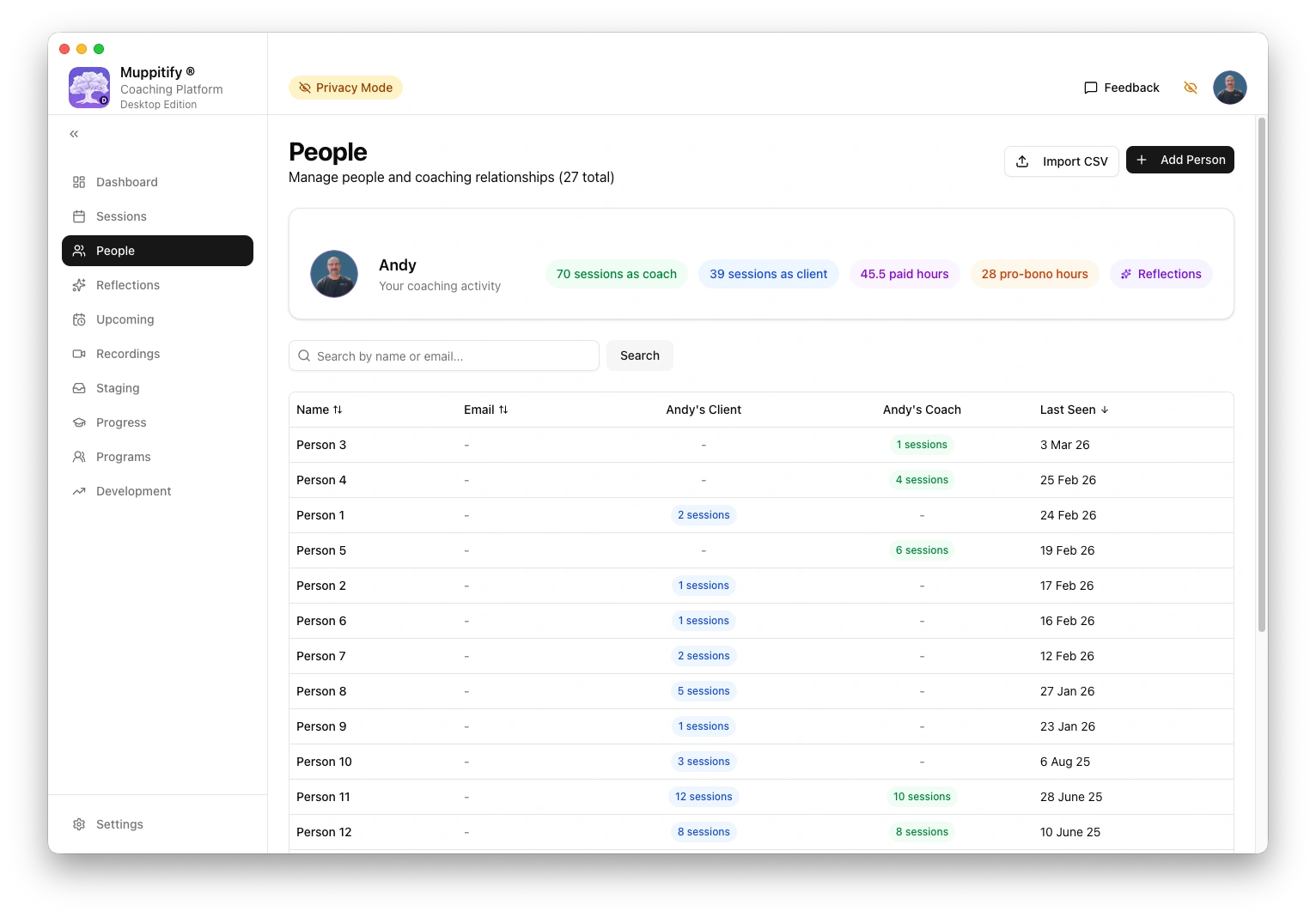
Toggle Privacy Mode with one click to mask all client identities. Present your coaching platform at conferences, share your screen during supervision, or take screenshots for your portfolio without exposing any client data. No data is modified and toggling off restores everything instantly.

What gets masked
| Data | Privacy Mode |
|---|---|
| Client names | Replaced with "Person 1", "Person 2" (consistent per person) |
| Names in transcripts | Spoken names in session transcripts are replaced with masked labels |
| Names in AI summaries | Client and coach assessments, outcome summaries, and development reflections |
| Client emails | Hidden |
| Your own email | Hidden across all pages (settings, header, calendar, Zoom) |
| Zoom email mappings | Hidden |
| Session titles | Names replaced with generic labels |
| Calendar event titles | Shown as "Busy" |
| Calendar details | Location and meeting URLs hidden |
| Google Calendar email | Hidden |
| Zoom recording topics | Shown as "Zoom Meeting" |
| Form dropdowns | Names and emails in session forms, ICF program selectors |
| Development dashboard | Person names masked |
| Admin views | User-person linker and AI regeneration settings masked |
What stays visible
Everything that is not personally identifiable remains unchanged:
- Dates and times
- Session durations
- ICF certification hours and progress
- AI competency scores and transcript evidence (names within are masked)
- Development areas and action plans (names within are masked)
- Progress charts and trends
- Competency tags
- Your own name (the logged-in coach)
Use cases
- Conference presentations. Show how the platform works without revealing who you coach
- Supervision screen sharing. Walk through session reviews with your supervisor without exposing client names
- Portfolio screenshots. Capture examples of AI assessments and ICF tracking for your professional portfolio
- Sales demos. Demonstrate the platform to potential clients or colleagues without leaking existing client data
How it works
- Click the eye icon in the top bar to activate Privacy Mode
- An amber banner appears confirming Privacy Mode is active
- All client names are replaced with consistent generic labels ("Person 1", "Person 2") that remain stable as you navigate between pages
- Names inside transcripts and AI-generated text are also masked using word-boundary matching
- Your own name (the logged-in coach) is always shown, but your email is hidden
- Click the eye icon again to restore all real names instantly
Privacy Mode is temporary
Privacy Mode is session-only. It resets when you close the browser tab, so there is no risk of accidentally leaving it on. No data is written to the database and no settings are changed.