Downloads
Download and install the coaching platform before or after purchase. All editions display the licence page on first launch, confirming the platform is operational and ready to be activated with your licence key.
Desktop Edition
macOS and Windows. Runs as a native app with all data stored locally.
Stable releases
| Platform | Download | Size | Date released |
|---|---|---|---|
| macOS (Apple Silicon) | Stable release | — | — |
| Windows (10 / 11) | Stable release | — | — |
macOS: Download the DMG, drag to Applications, and launch.
Windows: Download and run the installer.
Both installers are signed and verified (Apple notarisation on macOS, Extended Validation certificate on Windows). On first launch, enter your licence key, name, and email to activate.
After installation, see the Desktop Edition setup guide for a full walkthrough.
Beta releases
Beta releases include upcoming features and fixes before they reach the stable release. Use these if you want early access to new functionality.
| Platform | Download | Size | Date released |
|---|---|---|---|
| macOS (Apple Silicon) | Beta release | — | — |
| Windows (10 / 11) | Beta release | — | — |
Beta releases update independently from the stable channel. Switch between channels in Settings > Updates.
Common install prompts on Windows
The Windows installer is signed with an Extended Validation code-signing certificate, which tells Windows who published the file. Microsoft Defender SmartScreen runs a separate check called application reputation: it grades each binary by how many clean installs it has already seen. Fresh installers from small publishers effectively always fail that check, so every new release shows at least one prompt the first time someone downloads or runs it. Clicking through is safe. The signature is still validated.
Each prompt is a one-time event per machine and release.
Windows: SmartScreen prompts when downloading and running the installer
What you see depends on which browser you use. Microsoft Edge checks file reputation at download time and at run time. Chrome, Firefox, and other non-Edge browsers only mark the file with Mark-of-the-Web, so the prompt appears at run time only.
Microsoft Edge (Windows 10 or Windows 11)
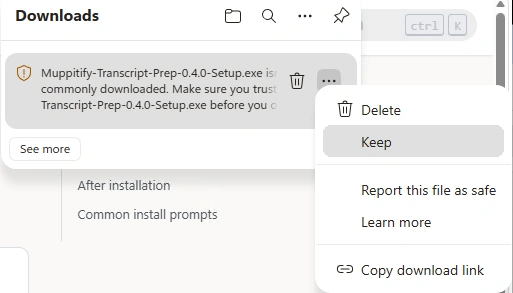
Two prompts in sequence. First on the download itself:

Click the three dots next to the download and choose Keep.
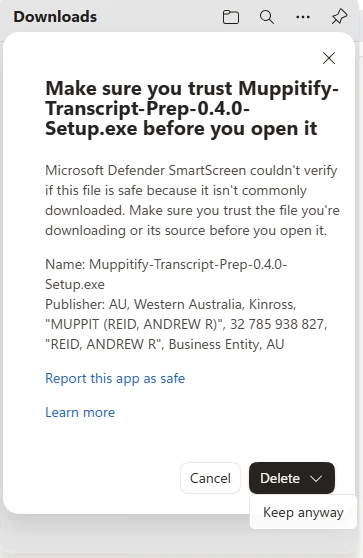
Then on first launch of the installer:
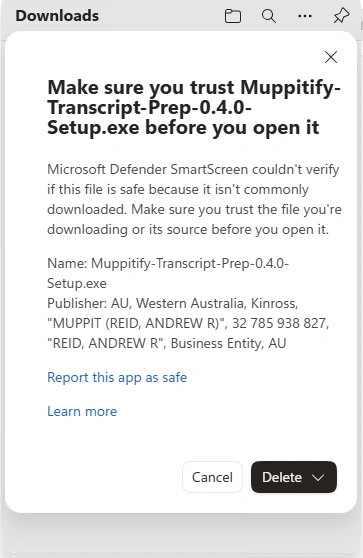
Click More info, then Run anyway.
Chrome, Firefox, or another non-Edge browser (Windows 10 or Windows 11)
The browser downloads the file without a prompt. The SmartScreen block appears when you launch the installer:
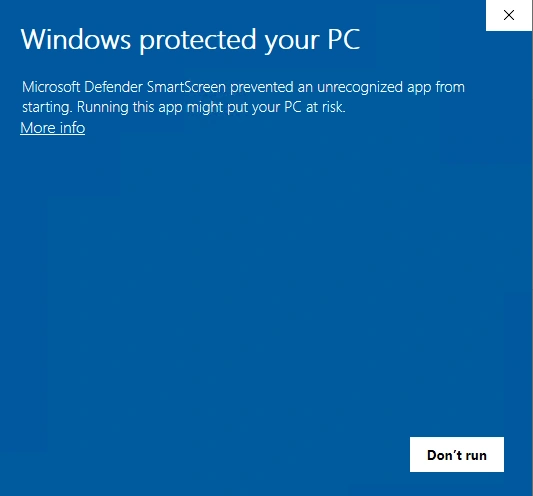
Click More info, then Run anyway.
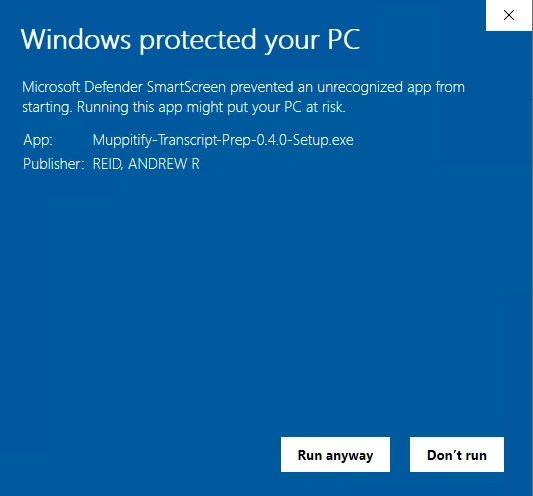
Users who upgrade through the app's built-in updater never see either prompt. The auto-updater downloads inside a trusted process and does not trigger SmartScreen's file-reputation check.
Windows: firewall prompt on first launch
Windows Firewall asks whether to allow Muppitify Coach on private and public networks the first time you launch the app. The app needs network access for two things: validating your licence and checking for updates. Tick both boxes and click Allow access. The prompt does not recur on subsequent launches or upgrades.
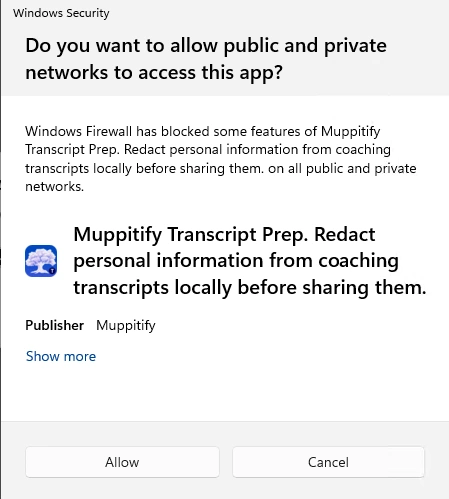
Windows 11 and Windows 10 both show this prompt with slightly different layouts. The buttons and the decision are the same on either version. The exact app name in the heading reads Muppitify Coach instead of Muppitify Transcript Prep shown in the example image.
Other editions
Your licence key also works with the Vault and Server editions. Install on up to two devices, any combination.
Vault Edition
macOS only. Same app shell as Desktop Edition with all data stored as markdown files in your Obsidian vault.
| Platform | Download |
|---|---|
| macOS (Apple Silicon + Intel) | Stable release |
Download the DMG, drag to Applications, and launch. Enter your licence key, name, and email to activate. Connect your Obsidian vault from Settings.
After installation, see the Vault Edition setup guide for a full walkthrough including Obsidian configuration.
Server Edition
Runs as a Docker container on Windows or Linux. Access from any browser on your local network, including phone and tablet.
docker pull muppit/muppitify-coach-server:latest
Quick start:
docker run -d --restart unless-stopped -p 3000:3000 -v coach-data:/data --name coach muppit/muppitify-coach-server:latest
Open https://localhost:3000 in your browser. The setup wizard guides you through licence activation, admin password, and optional Zoom and Cloudflare Tunnel configuration.
For the recommended docker-compose setup with automatic updates via Watchtower, see the Server Edition setup guide.
Also runs on QNAP NAS with an Intel or AMD processor via Container Station. See the QNAP NAS setup guide.
The Server Edition Docker image requires an Intel or AMD processor (64-bit). ARM-based machines are not supported.
System requirements
| Edition | Platform | Requirements |
|---|---|---|
| Desktop | macOS | macOS 12 (Monterey) or later, Apple Silicon (M-series) |
| Desktop | Windows | Windows 10 (build 19045+) or Windows 11 |
| Vault | macOS | macOS 12 (Monterey) or later, Apple Silicon or Intel, Obsidian installed |
| Server | Docker | Windows 10/11 or Linux, Intel or AMD (64-bit), 512 MB RAM minimum |
After installation
All core features work immediately after licence activation with no further setup required. To get the most out of the platform:
- Import your ICF coaching log spreadsheet to start with your session history intact
- Configure AI for transcript analysis with local or cloud providers
- Connect Zoom to import cloud recordings
- Connect Google Calendar to sync upcoming sessions
Purchase
All editions are activated with the same licence key. One-time purchase, two devices, any combination of editions.
Purchase the coaching platform for $99 AUD.
This application is not affiliated with, endorsed by, or sponsored by the International Coaching Federation (ICF). ICF is a registered trademark of the International Coaching Federation.