HealthSync iOS app
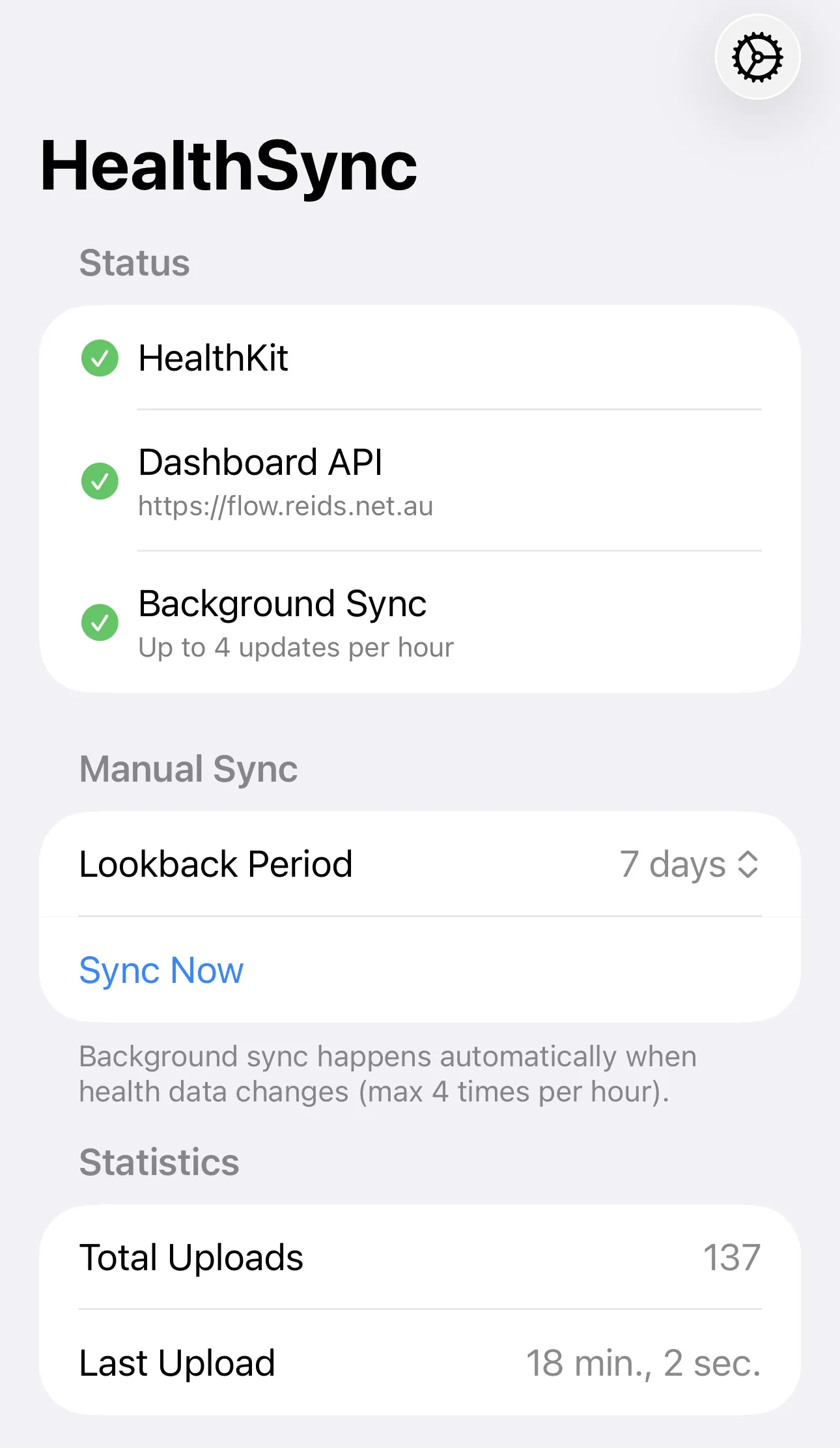
This page covers the HealthSync iOS app that sends health data directly from your iPhone to the stats dashboard API, and the Apple Watch companion app that displays Flow Control data on your wrist.
Flow Control series
- Flow Control
- Architecture
- Cursor sync daemon
- Music sync daemon
- Health sync daemon (disabled)
- HealthSync iOS app - You are here
- Deployment
Why a native iOS app?
The original health data pipeline required multiple components:
This pipeline had 2-3 days latency and multiple failure points. The new approach is direct:
| Old Pipeline | New Pipeline |
|---|---|
| 6+ components | 2 components |
| 2-3 day latency | Real-time |
| Multiple failure points | Single sync path |
| Mac required | iPhone only |
| Google Sheets dependency | Direct API |
Prerequisites
Before starting, ensure you have:
| Requirement | Version | Notes |
|---|---|---|
| Mac with Xcode | 15.0+ | Download from App Store |
| Apple Developer account | Free or paid | For device testing |
| iPhone | iOS 17.0+ | With Apple Watch paired |
| Apple Watch | watchOS 11.0+ | Source of health data AND Flow Control display |
| stats-dashboard | Deployed | With /api/import/health-app endpoint |
Part 1: Xcode project setup
1.1 Create new project
- Open Xcode
- Select File > New > Project
- Choose iOS > App
- Configure the project:
| Setting | Value |
|---|---|
| Product Name | HealthSync |
| Team | Your Apple Developer team |
| Organization Identifier | com.yourname |
| Bundle Identifier | Auto-generated (e.g., com.yourname.HealthSync) |
| Interface | SwiftUI |
| Language | Swift |
| Storage | None |
| Testing System | None |
- Choose a location (e.g.,
~/Projects/tools/health-sync-ios) - Create Git repository: Check this box
1.2 Add HealthKit capability
- Select your project in the navigator
- Select the HealthSync target
- Go to Signing & Capabilities tab
- Click + Capability
- Search for and add HealthKit
1.3 Add Background Modes capability
- Click + Capability again
- Search for and add Background Modes
- Check Background fetch
1.4 Configure Info.plist
In the Info tab of your target settings, add these keys:
| Key | Type | Value |
|---|---|---|
| Privacy - Health Share Usage Description | String | Sync health data to your personal dashboard for tracking sleep, activity, and workouts. |
| Privacy - Health Update Usage Description | String | Record sync timestamps to avoid duplicate imports. |
| Permitted background task scheduler identifiers | Array | (see below) |
For the background task identifier array, add one item:
| Item | Value |
|---|---|
| Item 0 | com.yourname.HealthSync.refresh |
Replace com.yourname with your actual bundle identifier prefix.
Part 2: iPhone setup
2.1 Enable Developer Mode
On your iPhone (iOS 16+):
- Open Settings
- Go to Privacy & Security
- Scroll down and tap Developer Mode
- Toggle Developer Mode on
- Tap Restart when prompted
- After restart, tap Turn On to confirm
2.2 Trust your Mac
- Connect iPhone to Mac via USB cable
- On iPhone, tap Trust when prompted
- Enter your passcode
2.3 Verify wireless debugging (optional)
For cable-free development:
- In Xcode, go to Window > Devices and Simulators
- Select your iPhone
- Check Connect via network
- Ensure your Mac and iPhone are on the same Wi-Fi network
Part 2.5: Sleep preferences
After initial setup, configure sleep preferences in the app's Settings screen:
| Setting | Default | Description |
|---|---|---|
| Sleep Tracker | Oura | Authoritative sleep data source. Options: Oura, Apple Watch, iPhone, AutoSleep. Prevents multi-source data corruption by filtering HealthKit queries to a single source. |
| Sleep Debt Threshold | 7.5h | Target sleep hours per night for sleep debt calculation |
The app deliberately excludes an "All Sources" option. Combining sleep data from multiple devices (e.g., Oura ring + Apple Watch) leads to duplicate and inflated sleep durations. Always select the single device you sleep with.
The selected tracker filters HealthKit sleep queries using HKSourceQuery to discover matching sources by bundle ID pattern, then constructs a compound predicate with predicateForObjects(from:).
Part 3: Swift code files
Create these files in your Xcode project. Right-click on the HealthSync folder in the navigator and select New File > Swift File.
| Group | File | Purpose |
|---|---|---|
| Models | HealthModels.swift | Data models for API payloads (SleepRecord, DailyMetrics, WorkoutRecord, HealthPayload), SleepTracker enum (Oura/AppleWatch/iPhone/AutoSleep with bundleIdPattern), SleepPreferences struct |
| Managers | HealthKitManager.swift | HealthKit auth, queries, sleep processing with session-based grouping and source filtering via discoverSleepSources() |
| Managers | APIClient.swift | Dashboard API communication with Bearer auth |
| Managers | NetworkMonitor.swift | WiFi detection for background sync gating (prevents cellular timeout penalties) |
| Views | SettingsView.swift | API configuration UI with connection test, Sleep Preferences section (Tracker picker, Threshold stepper) |
| (root) | ContentView.swift | Main sync status and controls |
| (root) | HealthSyncApp.swift | App entry point with background task setup, observer debounce, WiFi gating |
All background setup (observer queries, background delivery, BGTask scheduling) must happen in HealthSyncApp.init(), NOT in ContentView.onAppear. Observer queries set up in a view's onAppear are lost when the app is suspended. The singleton HealthKitManager.shared ensures queries persist across foreground/background transitions.
The ContentView uses HealthKitManager.shared (the singleton) -- do NOT create a new @State instance. Background setup is handled by HealthSyncApp.init(), not the view.
View complete source code -- all 7 Swift files and the dashboard API endpoint.
Part 4: Dashboard API endpoint
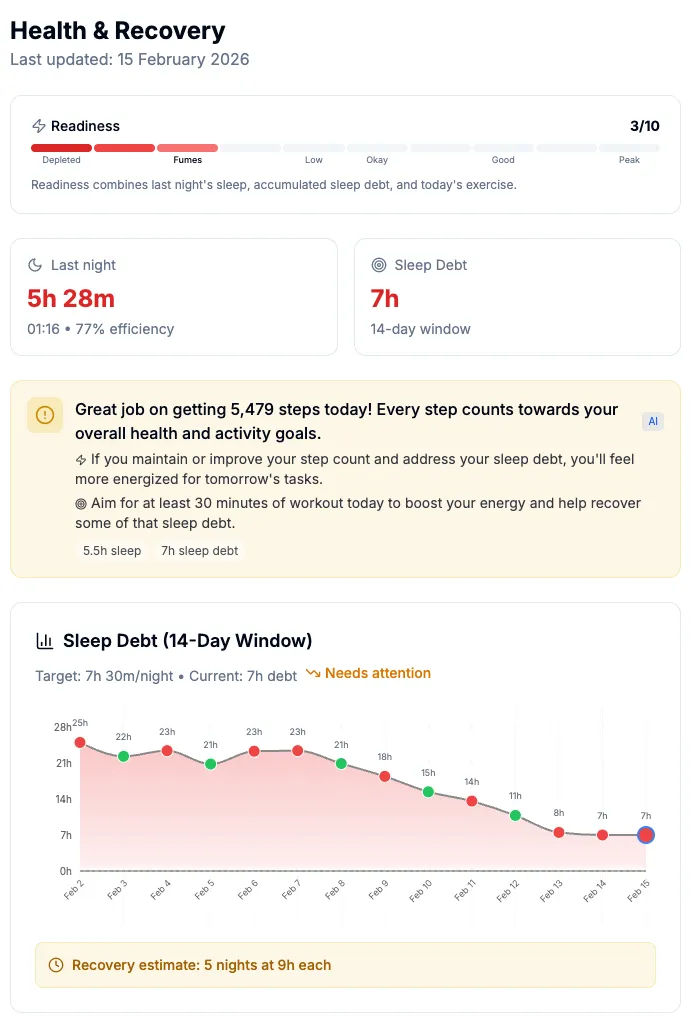
The iOS app sends data to /api/import/health-app. The endpoint accepts a JSON payload with sleep, metrics, and workouts arrays, validates with Zod schemas, and inserts into PostgreSQL via Prisma. Duplicate records are rejected by unique constraints rather than overwritten, so the first complete import for a given date wins.
Key details:
- Authentication via
Bearertoken (matchesDAEMON_API_KEYKubernetes secret) - Rate limited to 30 requests per minute
- Sleep records use date-based unique constraint (one record per night)
- Workouts use composite key (
date+startTime) for deduplication; optionaldistanceKmfromHKWorkout.totalDistancestored for running, cycling, walking - Invalidates AI insight cache when new sleep data arrives
View complete source code -- full TypeScript endpoint implementation.
Part 5: Configuration
5.1 iOS app settings
In the app, tap the gear icon and configure:
| Setting | Value |
|---|---|
| Dashboard URL | https://stats.example.com |
| API Key | Your DAEMON_API_KEY value |
5.2 Get API key from Kubernetes
kubectl get secret stats-daemon-secret -n stats \
  -o jsonpath='{.data.daemon-api-key}' | base64 -d
Part 6: Testing
6.1 Build and run
- In Xcode, select your iPhone from the device dropdown
- Press Cmd+R to build and run
- Wait for the app to install on your iPhone
6.2 Grant permissions
- Tap Request Health Access
- Grant access to all requested health data types
- Verify the HealthKit status shows green
6.3 Configure API
- Tap the gear icon
- Enter your dashboard URL
- Enter your API key
- Tap Test Connection - verify green checkmark
6.4 Manual sync
- Select lookback period (e.g., 7 days)
- Tap Sync Now
- Verify "Last sync successful" message
6.5 Verify in database
kubectl exec -n stats pod/stats-db-xxx -- \
  psql -U stats -d stats -c \
  "SELECT source, COUNT(*) FROM import_logs WHERE source = 'health-app-ios' GROUP BY source;"
Part 7: Apple Watch companion app
The HealthSync project includes an Apple Watch companion app that displays Flow Control data directly on your wrist. The watch app is a separate target within the same Xcode project, deployed alongside the iPhone app.
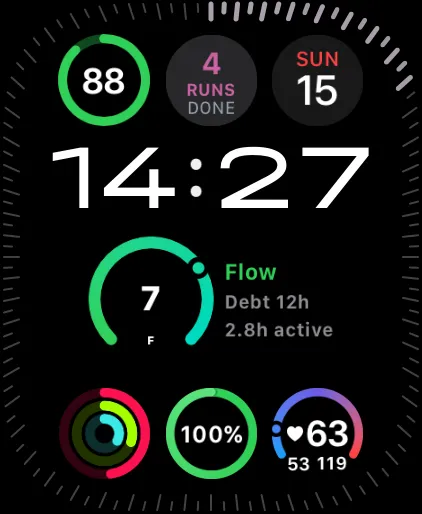
The watch app presents 6 horizontally-paged screens and a watch face complication.
Flow dashboard
Circular gauge (0-10) with score-based ring gradient. Below the gauge, a quadrant label shows your current creative state: Flow (green), Stuck (red), Autopilot (orange), or Resting (grey) -- derived from the 2D input/output grid (same as the dashboard's flow badge). Readable at a glance.

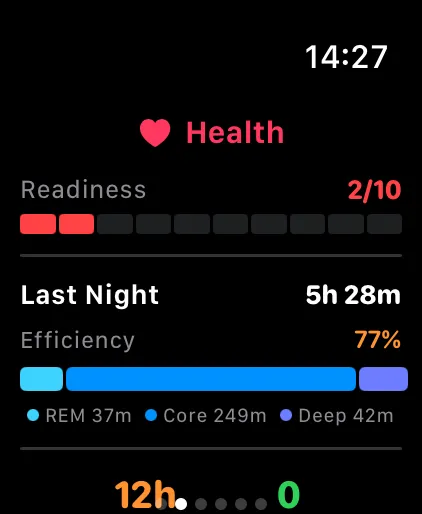
Health card
Readiness score displayed as a 10-segment bar, last night's sleep duration and efficiency, plus a breakdown of REM, deep, and core sleep stages.
Today pulse
Active hours shown prominently, with current session duration, pipeline count, and Cursor request count below.

Decision nudge
Continue, pause, or stop recommendation with contextual stats: hours worked, flow score, and sleep debt. Helps decide whether to keep going or wrap up.

Budget
Cursor on-demand usage shown as a large percentage ring with remaining dollars and forecast message.

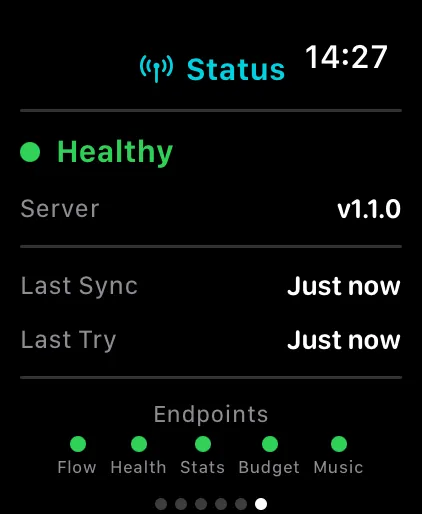
Status
Server health indicator, version number, last successful sync and last attempt times, plus 5 per-endpoint connectivity indicators (Health, Flow, Sources, Insights, Music). Shows a "Using cached data" badge when offline.
Watch face complication
A WidgetKit complication shows flow score, quadrant state (Flow/Stuck/Autopilot/Resting), sleep debt, and active hours directly on the watch face. Supports circular, corner, rectangular, and inline complication families.
How config reaches the watch
The iPhone app pushes the dashboard URL to the watch via WatchConnectivity.updateApplicationContext. The watch stores it in a shared App Group (group.com.muppit.HealthSync) so both the watch app and widget extension can access it.
No manual configuration is needed on the watch -- just configure the iPhone app and the URL propagates automatically.
Offline behaviour
The dashboard server is only reachable on the local WiFi network. When the watch leaves WiFi range:
- Watch app screens show the last successfully fetched data (cached in App Group UserDefaults)
- Watch face complication falls back to cached values instead of showing zeros
- Status screen shows "Using cached data" with the last sync timestamp so you know the data freshness
Adding the watch target
The watch app is built as a separate target in the existing Xcode project:
- In Xcode, select File > New > Target
- Choose watchOS > App
- Set the bundle identifier to
com.yourname.HealthSync.watchkitapp - For the widget extension, add another target: watchOS > Widget Extension
- Add an App Groups capability to all three targets (iOS app, watch app, widget extension) with the same group identifier
Troubleshooting
HealthKit shows red X after authorization
HealthKit does not reveal read permission status for privacy. If authorization completed without error but shows red, the app may need updating. The @Observable state must use stored properties, not computed properties from UserDefaults.
Sync Now is greyed out
Both conditions must be met:
- HealthKit authorized (green checkmark)
- Dashboard API configured (URL and key entered)
Background sync not working
- Verify
BGTaskSchedulerPermittedIdentifiersin Info.plist containscom.yourname.HealthSync.refresh - Check that Background Modes capability is enabled with "Background fetch" checked
- Critical: Background setup must happen in
HealthSyncApp.init(), NOT inContentView.onAppear. Observer queries set up in a view'sonAppearare lost when the app is suspended. The singletonHealthKitManager.sharedensures queries persist. - Open the app at least once after install/update to trigger
init()and register everything - iOS limits background refreshes to approximately 4 per hour
- If your dashboard is only reachable on local WiFi, ensure
NetworkMonitoris gating background syncs. Cellular attempts will always timeout and iOS may penalise the app
API returns 401 Unauthorized
- Verify API key matches
DAEMON_API_KEYin Kubernetes secret - Check for trailing whitespace when copying the key
- Ensure
Bearerprefix is included (the app handles this)
No data in dashboard
- Check import_logs table for errors
- Verify data sources in HealthKit (Apple Watch must be synced)
- Ensure lookback period covers dates with data
Sleep duration seems too high
Both Apple Watch and iPhone's Clock app (Sleep schedule) write overlapping sleep stage samples to HealthKit for the same night. The processSleepSamples function uses an interval merge algorithm to handle this. If you see inflated sleep times, check the Xcode console for Sleep merged log lines which show raw sample count vs merged minutes per stage. Compare with Athlytic or Apple Health's sleep summary to validate.
If you use an Oura ring, also check that asleepUnspecified samples are not being double-counted alongside stage-specific samples (REM, Core, Deep). The sleep tracker picker should be set to Oura so that only Oura-sourced samples are queried.
Responses appear stale on iOS
If the iOS app or Watch app shows data that does not update after a sync, the API response may be cached by iOS networking. The dashboard API sets Cache-Control: no-store on import and health endpoints to prevent this. If you are running a custom build, verify the response headers include this directive.
App Store submission
HealthSync has been approved and is live on the App Store (February 2026). The watch app is included in the same App Store listing -- no separate submission is required.
If you want to publish your own version, the following resources are available.
HealthKit apps are frequently rejected for not "clearly identifying HealthKit functionality" (Guideline 2.5.1). Follow this guide carefully to avoid common pitfalls.
Required pages
| Page | URL | Purpose |
|---|---|---|
| Privacy policy | For App Store + HealthKit compliance | |
| Support | Support URL for App Store listing | |
| Terms of service | Legal terms for users |
App Store Connect URLs
Use these URLs when submitting to App Store Connect:
| Field | URL |
|---|---|
| Privacy Policy URL | https://sphere.muppit.au/applications/flow/health-sync-ios/privacy |
| Support URL | https://sphere.muppit.au/applications/flow/health-sync-ios/support |
Recommended App Store description
Use this description (or similar) that explicitly mentions the Health app:
HealthSync reads your sleep, activity, and workout data from the Health app
and syncs it to your personal dashboard API.

HEALTH APP INTEGRATION
• Reads sleep analysis data including sleep stages (REM, Core, Deep)
• Reads daily steps and active energy burned
• Reads resting heart rate and heart rate variability (HRV)
• Reads workout sessions with duration, distance (km), and calories

APPLE WATCH COMPANION
• Flow score dashboard with real-time gauge
• Health readiness indicator and today's activity pulse
• Cursor AI usage and budget tracking
• Server status monitor with version info
• Watch face complication for at-a-glance flow score
• Offline caching. Data persists when away from your network

SLEEP PREFERENCES
• Select your sleep tracker (Oura, Apple Watch, iPhone, AutoSleep)
• Configurable sleep debt target (default 7.5 hours)
• Single-source filtering prevents duplicate sleep data

FEATURES
• Connects directly to the Health app on your iPhone
• Syncs data to your self-hosted API endpoint
• Background sync keeps your dashboard up-to-date
• Apple Watch app syncs automatically from your iPhone
• Privacy-focused: your health data goes only to your own server
• No accounts required - configure your API URL and sync

REQUIREMENTS
• Requires a compatible dashboard API endpoint
• You must host your own server to receive health data
• Apple Watch requires paired iPhone with HealthSync installed
• See documentation for API setup instructions

Your health data is never sent to the app developer or any third parties.
Data flows directly from the Health app to your configured server.
Recommended keywords
health,sync,sleep,fitness,activity,workout,dashboard,apple health,heart rate,hrv,apple watch,watchos
Submission checklist
In Xcode:
- Set app to iPhone-only - General tab > Supported Destinations > remove iPad/Mac/Vision
- Add app icon - Assets > AppIcon > drag single 1024x1024 PNG into "Any Appearance" slot
- Increment Build number - General tab > Build (must be unique for each upload)
- Archive - Product > Archive
- Upload - Distribute App > App Store Connect > Upload
In App Store Connect: 6. Complete encryption compliance - Select "Standard encryption algorithms" (for HTTPS) 7. Set up Content Rights - "Does not contain third-party content" 8. Complete Age Rating - All "NONE/NO" for utility apps (results in 4+ rating) 9. Configure App Privacy - Select "No, we do not collect data" (you don't receive user data) 10. Set Pricing and Availability - Free, uncheck Apple Silicon Mac and Vision Pro 11. Add screenshots - iPhone screenshots (Side button + Volume Up, use 6.9" Display tab) and Apple Watch screenshots (from Xcode simulator or physical watch) 12. Add description and keywords - Use templates above 13. Add URLs - Privacy policy and support URLs 14. Add reviewer notes - Critical for HealthKit apps (see below) 15. Select build and submit - Click "Add for Review" then "Submit to App Review"
Timeline: Usually 24-48 hours for review
iPhone-only configuration
HealthKit and the Health app are iPhone only - iPads don't have the Health app. Setting your app to iPhone-only eliminates the iPad screenshot requirement in App Store Connect.
In Xcode:
- Select your project in the navigator
- Select the HealthSync target
- Go to General tab > Supported Destinations
- Click the "-" button to remove:
- iPad
- Mac (Designed for iPad)
- Apple Vision (Designed for iPad)
- Keep only iPhone
App Store Connect configuration
Content Rights:
- In App Store Connect, go to your app > App Information
- Scroll to "Content Rights"
- Select: "This app does not contain, show, or access third-party content"
Age Rating:
- Go to App Information > Age Rating
- For a simple utility app, select "NONE" or "NO" for all categories
- This results in a 4+ age rating
App Privacy:
- Go to App Privacy section
- Select "No, we do not collect data from this app"
- Why: Although the app reads Health data, it sends it to the USER's own server (their configured API endpoint). The app developer never receives or stores any user data.
Pricing and Availability:
- Set price to "Free" (or your preferred price)
- Under availability, uncheck:
- Apple Silicon Mac (HealthKit not available)
- Apple Vision Pro (HealthKit not available)
Encryption Compliance:
- After uploading a build, you'll be asked about encryption
- Select: "Your app uses standard encryption algorithms" (for HTTPS)
- No documentation upload is required
Build Versioning:
- Version number should reflect meaningful changes (e.g., 1.0 for initial, 1.1 for sleep fix, 2.0 for watch app)
- Build number must be unique and increment for each upload (e.g., 1, 2, 3...)
- Update both in Xcode: General tab > Version and Build
Notes for Apple review
Detailed reviewer notes are essential for HealthKit apps. Reviewers need to know exactly WHERE health data appears in your app.
When submitting, include this detailed note for the reviewer:
HEALTHKIT INTEGRATION OVERVIEW
This app integrates with the Health app to sync health data to a user-configured
API endpoint. It is designed for developers who want to consolidate health data
on their personal dashboards.

WHERE HEALTHKIT DATA IS VISIBLE IN THE APP:

1. MAIN SCREEN (ContentView):
   - "HealthKit" status row shows connection status with green/red indicator
   - After granting permissions, shows "Connected" with green checkmark
   - "Last Sync" shows timestamp of most recent health data sync

2. SETTINGS SCREEN:
   - "Upload Statistics" section shows count of health records synced
   - "Last Upload" shows date of most recent successful sync
   - "Sleep Preferences" section with Sleep Tracker picker and Sleep Debt Threshold

3. DURING SYNC:
   - Progress indicator shows health data being read from Health app
   - Success message confirms health records were transmitted

HOW TO TEST:
1. Open the app
2. Tap "Request Health Access" - grant access to all requested health data types
3. Go to Settings (gear icon) and enter any HTTPS URL (e.g., https://httpbin.org/post)
4. Return to main screen and tap "Sync Now"
5. The app will read health data from the Health app and attempt to POST it

NOTE: The app requires users to provide their own API server. Without a valid
endpoint, sync will fail, but you can still observe the Health app integration
by granting permissions and seeing the connected status.

The app reads: Sleep analysis, Steps, Active energy, Resting heart rate, HRV, Workouts
Common rejection reasons
Based on developer reports, these are the most common reasons HealthKit apps get rejected:
| Rejection reason | How to avoid |
|---|---|
| Guideline 2.5.1: "Does not clearly identify HealthKit functionality" | Ensure your description explicitly mentions "Health app". Show health data status prominently in UI. |
| App description too vague | Use the description template above. Say "reads from the Health app" not just "syncs health data". |
| Reviewer can't find HealthKit features | Provide detailed reviewer notes (above) explaining exactly where health data appears. |
| Privacy policy inadequate | Use the provided privacy policy which addresses all HealthKit requirements. |
| No clear value proposition | Explain this is for developers/technical users who self-host dashboards. |
HealthKit compliance checklist
Before submitting, verify:
- App description explicitly mentions "Health app" (not just "HealthKit")
- Main screen shows Health app connection status (green/red indicator)
- Settings screen shows health data sync statistics
- Privacy policy includes HealthKit-specific disclosures
- Privacy policy states data is not used for advertising/marketing
- Reviewer notes explain WHERE health data is visible
- Reviewer notes include step-by-step testing instructions
- Sleep tracker selection configured (Oura, Apple Watch, etc.)
- Screenshots show the Health app permission dialog or connection status
Development vs production
You can continue using developer mode (installed via Xcode) while your App Store submission is under review. Both versions can coexist on your device.
| Distribution method | Validity | Best for |
|---|---|---|
| Developer (Xcode) | 1 year (paid account) | Personal use, development |
| TestFlight | 90 days per build | Beta testing |
| App Store | Permanent | Public distribution |
Source code
The complete iOS app source code is available in the private GitLab repository. Contact for access.
Next: Deployment covers Kubernetes deployment and GitOps configuration.