Desktop Edition setup
The Desktop Edition runs as a native app on macOS and Windows. All coaching data is stored locally on your machine.
Prerequisites
- macOS: macOS 12 (Monterey) or later, Apple Silicon (M-series)
- Windows: Windows 10 (build 19045 or later) or Windows 11
- A coaching platform licence key (from your purchase email)
Install
macOS
- Download the latest DMG
- Open the DMG and drag Muppitify Coaching Platform to your Applications folder
- Launch Muppitify Coaching Platform from Applications
macOS may show a security warning the first time you open the app. Click Open to proceed. The app is notarised by Apple.
Windows
- Download the latest EXE installer
- Run the installer and follow the prompts
The Windows installer is code-signed by MUPPIT (REID, ANDREW R). You should see the verified publisher name in the UAC prompt during installation.
All editions are also available on the Downloads page, including beta releases.
First launch
Enter your licence key
The registration window appears on first launch. Paste your licence key and click Activate. The same key works for Desktop, Server, and Vault editions, and any combination of two devices is supported.
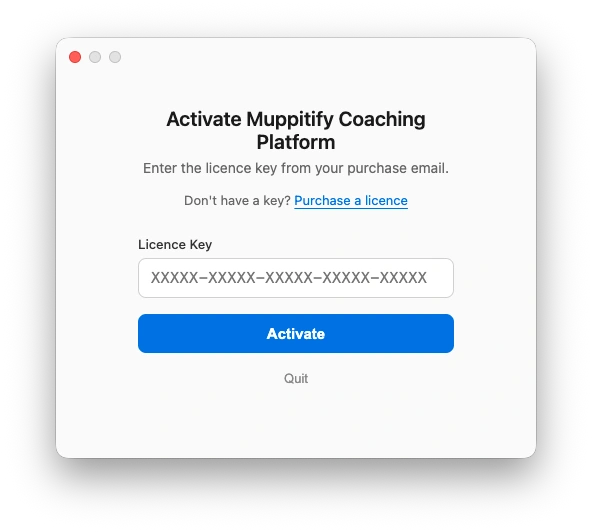
After activation, all core features work immediately with no internet connection required.
Import from a spreadsheet
If you are migrating from a spreadsheet, use the ICF coaching log import. Go to Settings > Data > Import and select your CSV file. The import uses fuzzy matching for people, sessions, programmes, and peer pairs. See Features for details on the coaching log format.
Next steps
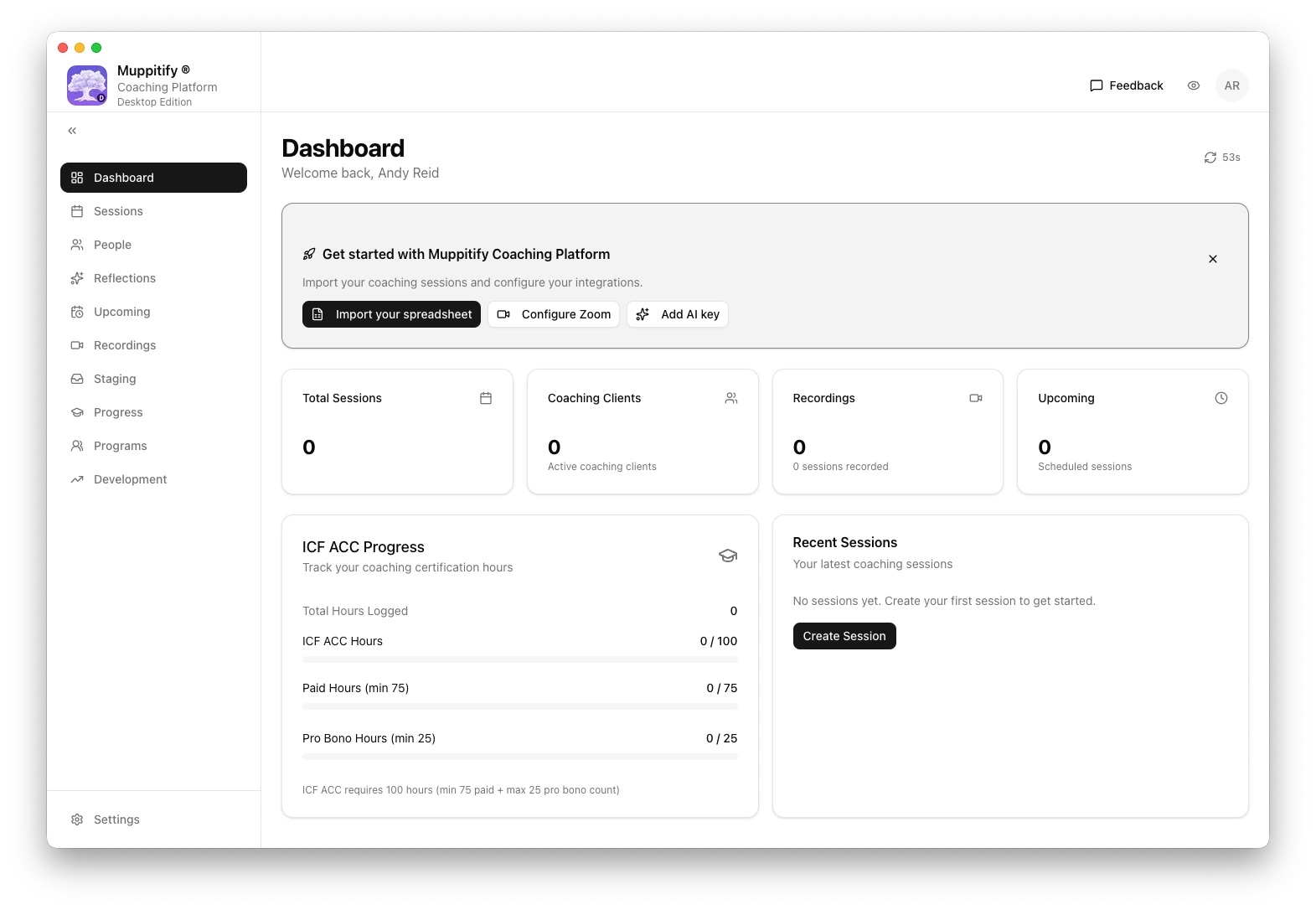
All core features work without any further setup. When you are ready, these optional guides walk you through connecting external services:
- AI. Configure AI for transcript analysis
- Zoom integration. Connect your Zoom account for cloud recordings
- Google Calendar. Sync your calendar for session scheduling
Updates
The Desktop Edition checks for updates automatically. When a new version is available, a notification appears in Settings.
Uninstall
macOS
- Move Muppitify Coaching Platform from Applications to Trash
- Delete
~/Library/Application Support/MuppitifyCoach/(app config and database) - Recordings stored outside the app folder are not removed
Windows
- Open Settings > Apps and uninstall Muppitify Coaching Platform
- Delete
%APPDATA%\MuppitifyCoach\(app config and database) - Recordings stored outside the app folder are not removed