Vault Edition setup
The Vault Edition stores all coaching data as markdown files in an Obsidian vault. Coaching sessions, people, recordings, programs, and assessments are all .md files with YAML frontmatter that you can view and edit in both the coaching platform and Obsidian.
Prerequisites
- macOS 12 (Monterey) or later
- Apple Silicon (M-series) or Intel Mac
- A coaching platform licence key (from your purchase email)
- Obsidian installed (free for personal use)
Install
- Download the latest Muppitify Coaching Platform Vault DMG
- Open the DMG and drag Muppitify Coaching Platform Vault to your Applications folder
- Launch Muppitify Coaching Platform Vault from Applications
macOS may show a security warning the first time you open the app. Click Open to proceed. The app is notarised by Apple.
First launch
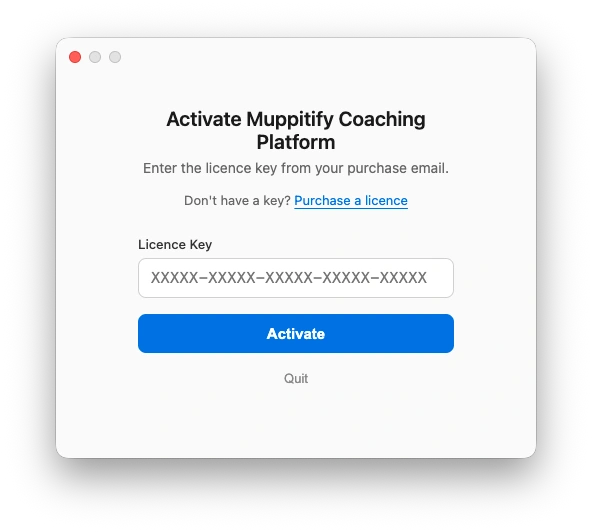
Vault Edition licence activation
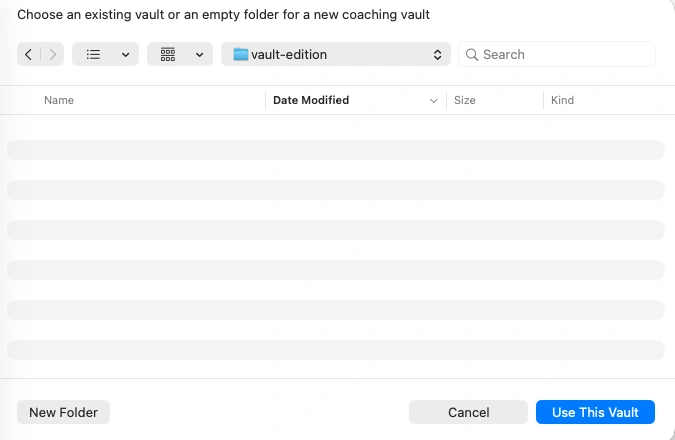
Choose vault location
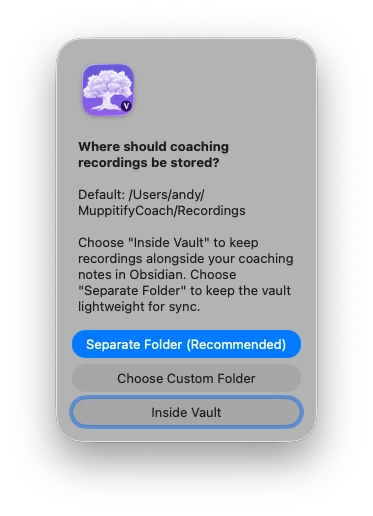
Choose folder for recordings
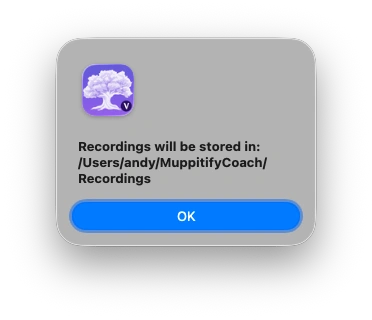
Recordings confirmation
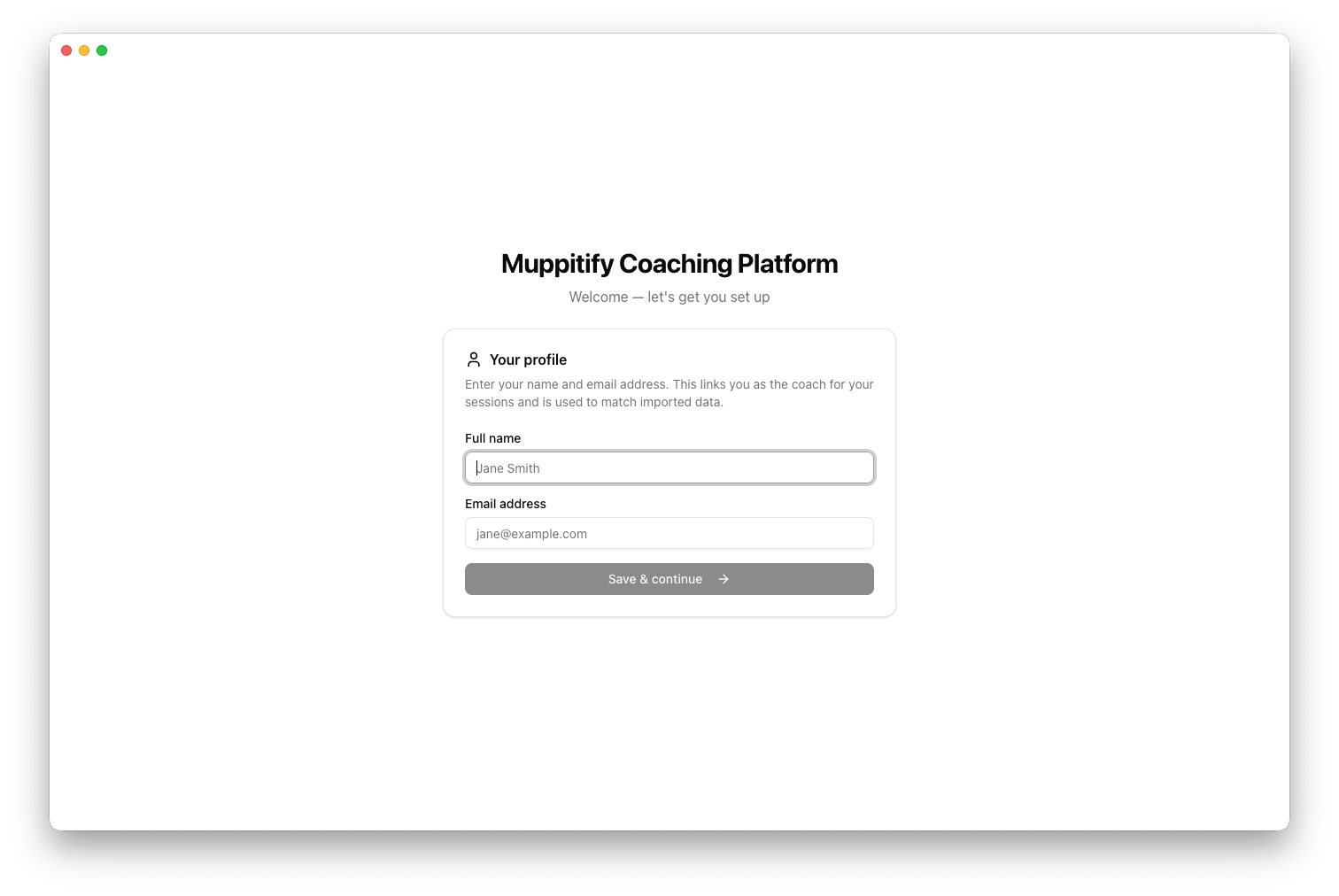
Setup profile
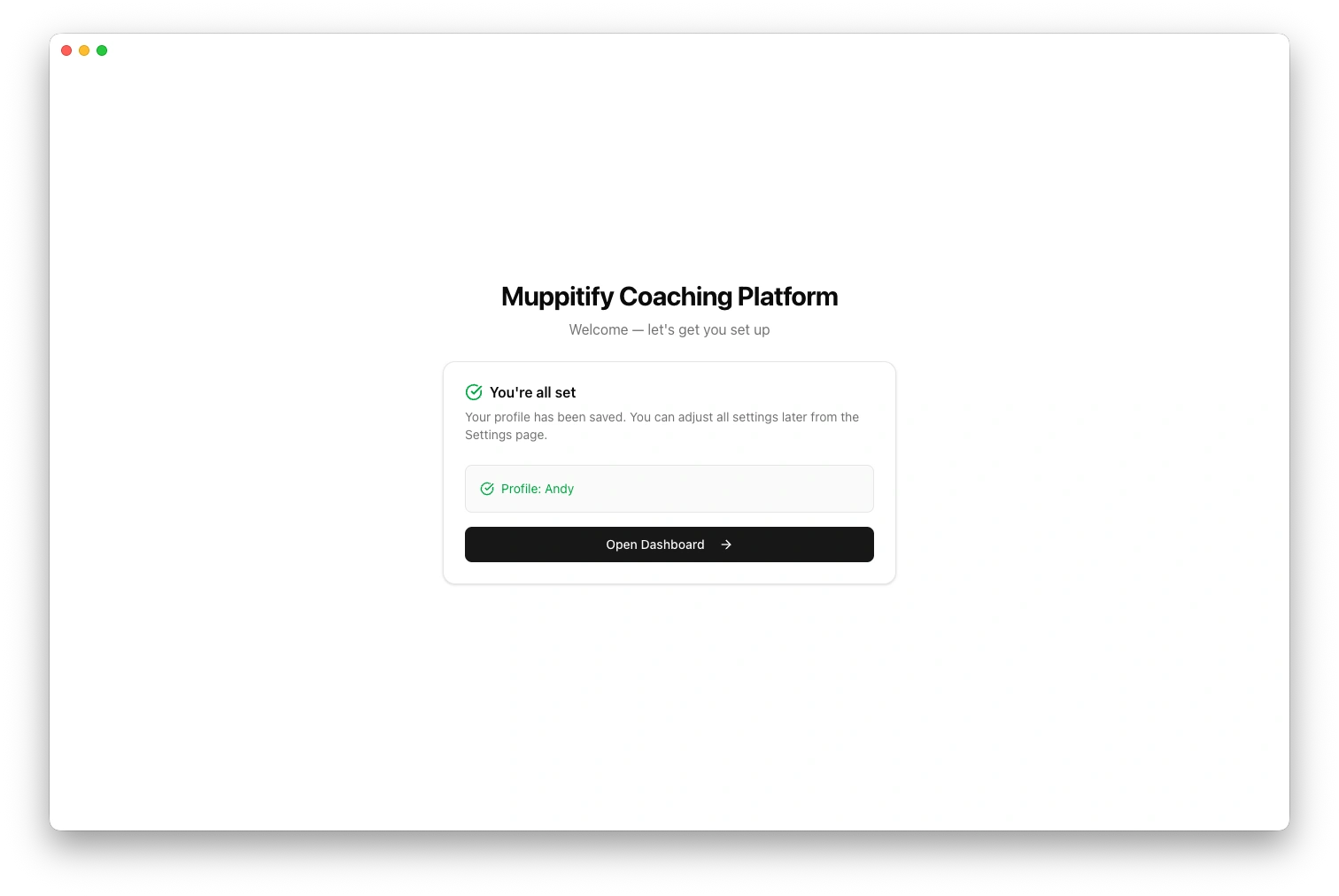
Profile confirmation
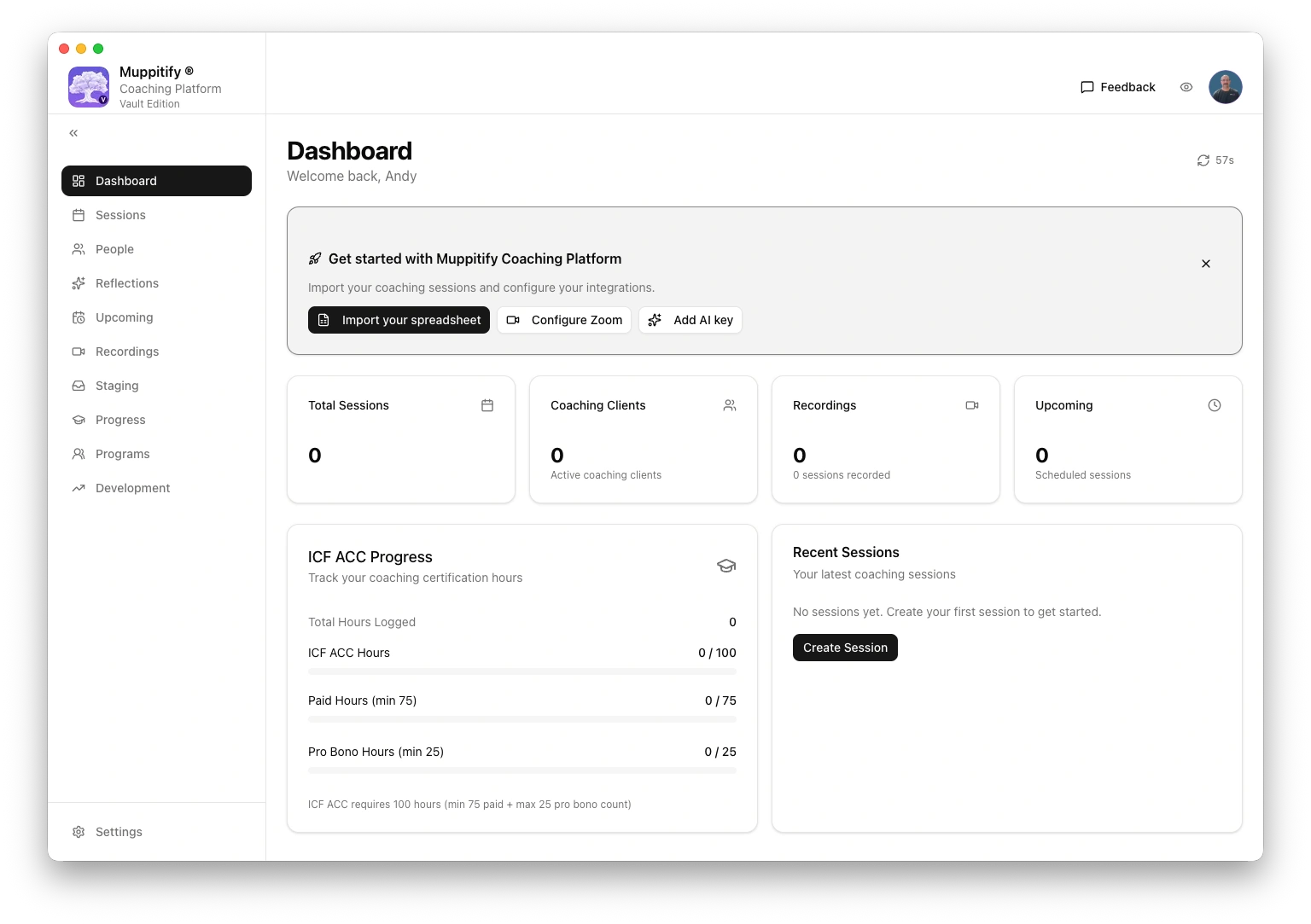
Vault Edition initial dashboard
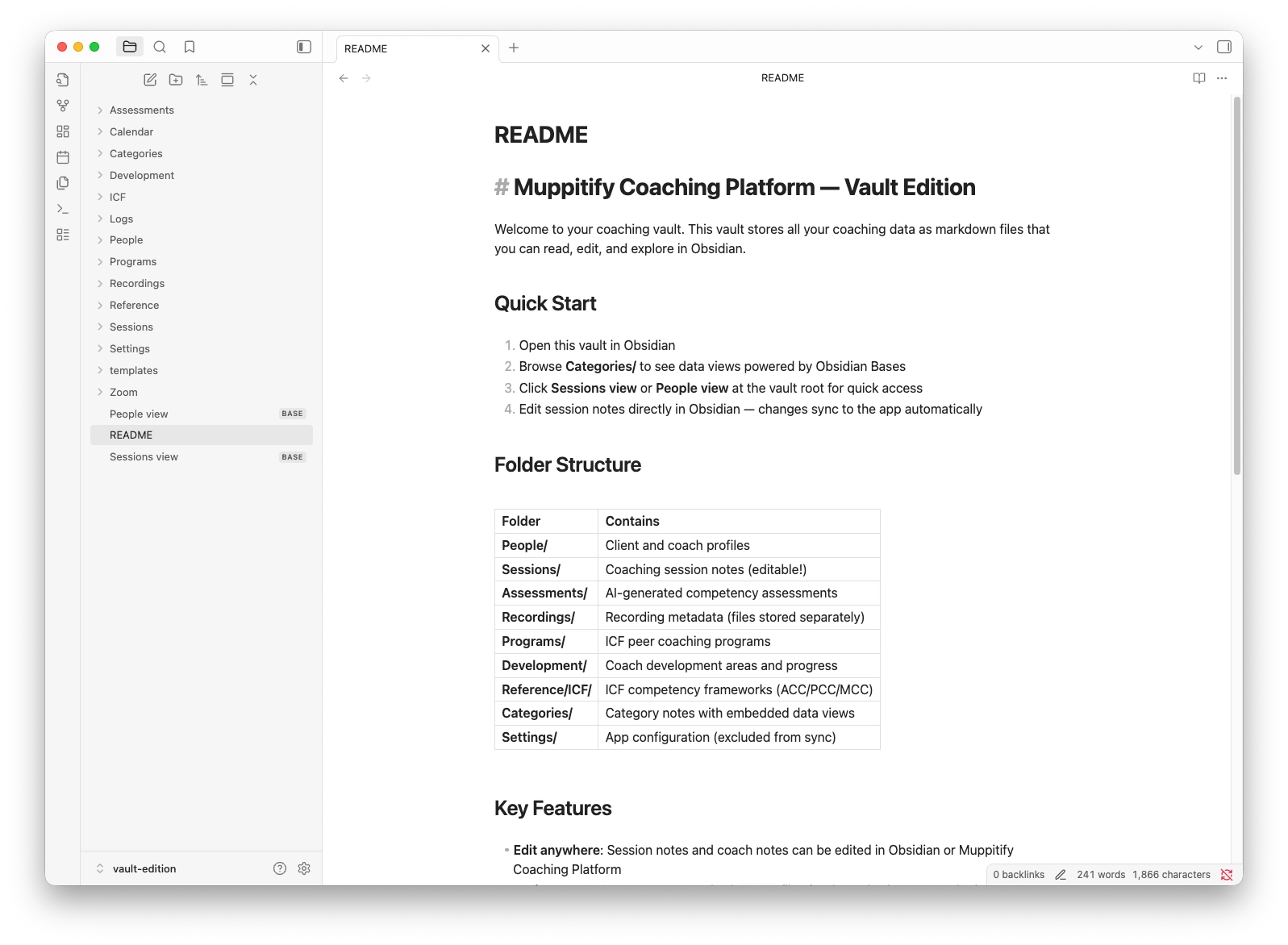
Obsidian vault
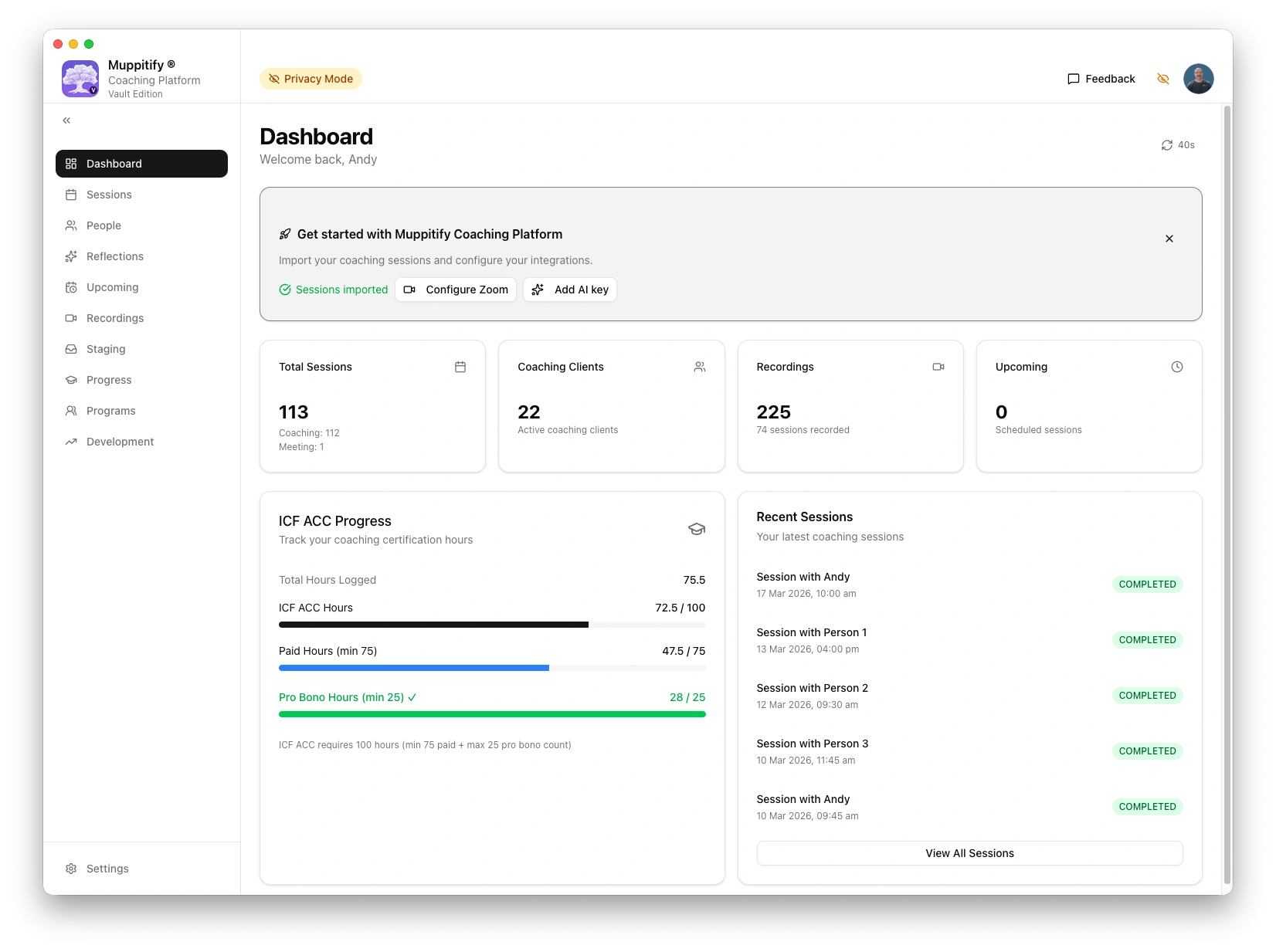
Vault Edition sessions imported
1. Enter your licence key
The registration window appears on first launch. Paste your licence key and click Activate. This is the same key used for Desktop and Server editions, and any combination of two devices is supported.
2. Choose your vault folder
A dialog asks where to store your coaching data. You have two options:
| Option | Best for | Example path |
|---|---|---|
| Subfolder in an existing vault | Coaches already using Obsidian who want coaching data alongside their notes | ~/Documents/MyVault/Coaching/ |
| New dedicated vault | Coaches who want a clean vault just for coaching | ~/Documents/CoachingVault/ |
Select a folder and click Open.
3. Choose recordings storage
Recording files (audio and video) can be large. You are asked where to store them:
| Option | Recommended? | Notes |
|---|---|---|
| Separate folder (default) | Yes | Keeps the vault small for fast Obsidian Sync |
| Inside the vault | Only if not syncing | All files in one place, but vault size grows with recordings |
4. Vault template
The coaching platform copies template files into your vault:
- Category notes.
Coaching Sessions,Coaching People, etc. for graph view navigation - Base views. Pre-built tables and card views for each entity type
- Templates. Session and person templates for creating new notes in Obsidian
Existing files are never overwritten. If you already have files with the same names, they are preserved.
5. Open in Obsidian
Open Obsidian and select your vault folder (if not already open). You should see the new category notes and Base views in the file explorer.
Using with Obsidian
The Vault Edition works standalone, but is designed to integrate with Obsidian for Base views, graph view, templates, and direct editing. See the Obsidian setup guide for installation, configuration, and why your data is stored as markdown.
Next steps
All core features work without any further setup. When you are ready, these optional guides walk you through connecting external services:
- AI. Configure AI for transcript analysis
- Zoom integration. Connect your Zoom account for cloud recordings
- Google Calendar. Sync your calendar for session scheduling
Updates
The Vault Edition checks for updates automatically. When a new version is available, a notification appears in Settings > Updates.
Uninstall
- Move Muppitify Coaching Platform Vault from Applications to Trash
- Delete
~/Library/Application Support/MuppitifyCoachVault/(app config only, not your vault) - Your vault folder and all coaching data remain untouched