Google Calendar integration
Sync your Google Calendar with the coaching platform Server Edition to view upcoming meetings and quickly create coaching sessions from calendar events.
Prerequisites
- A Google account with Google Calendar
- Server Edition (default install running as localhost)
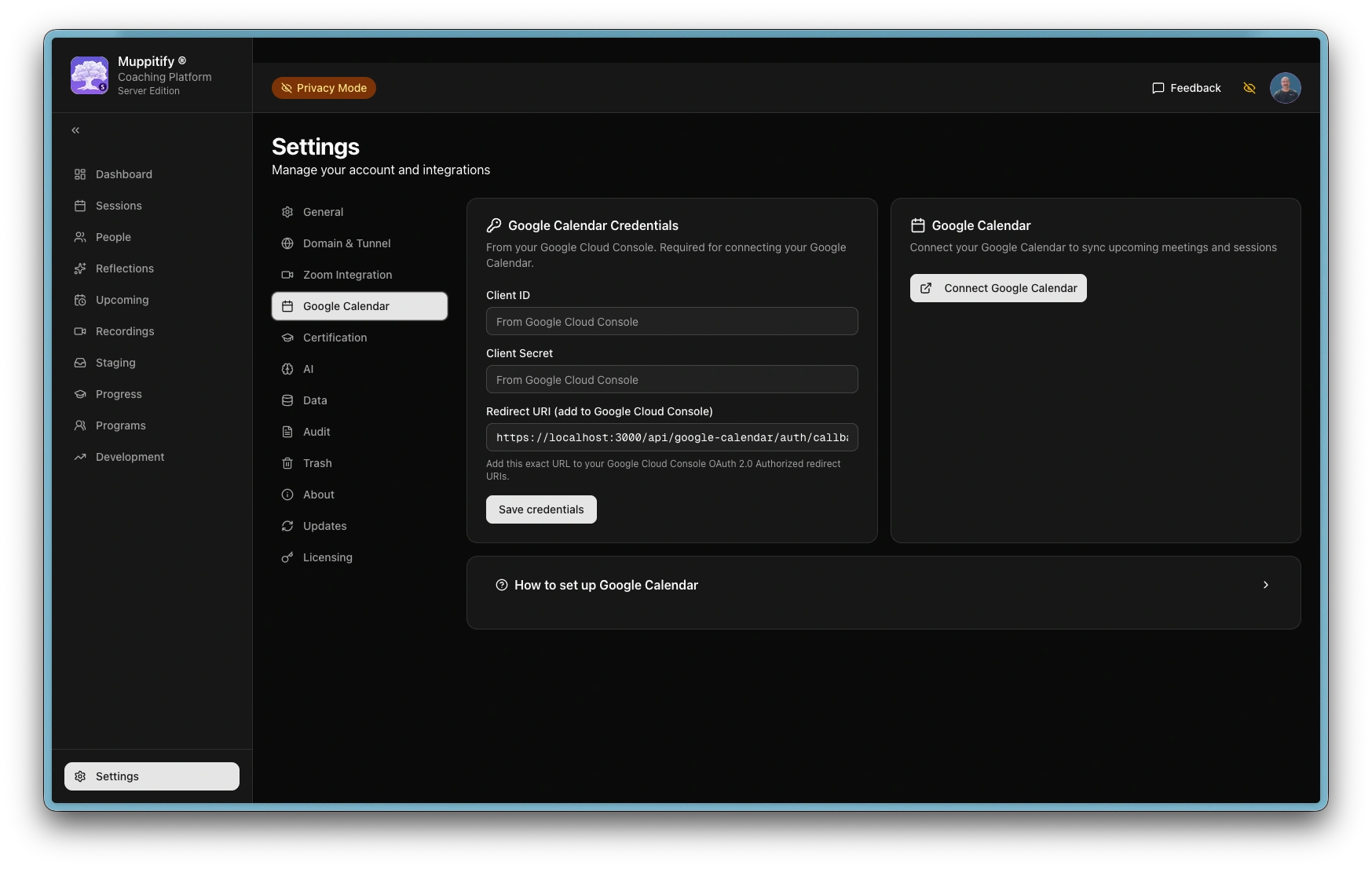
Google calendar default settings
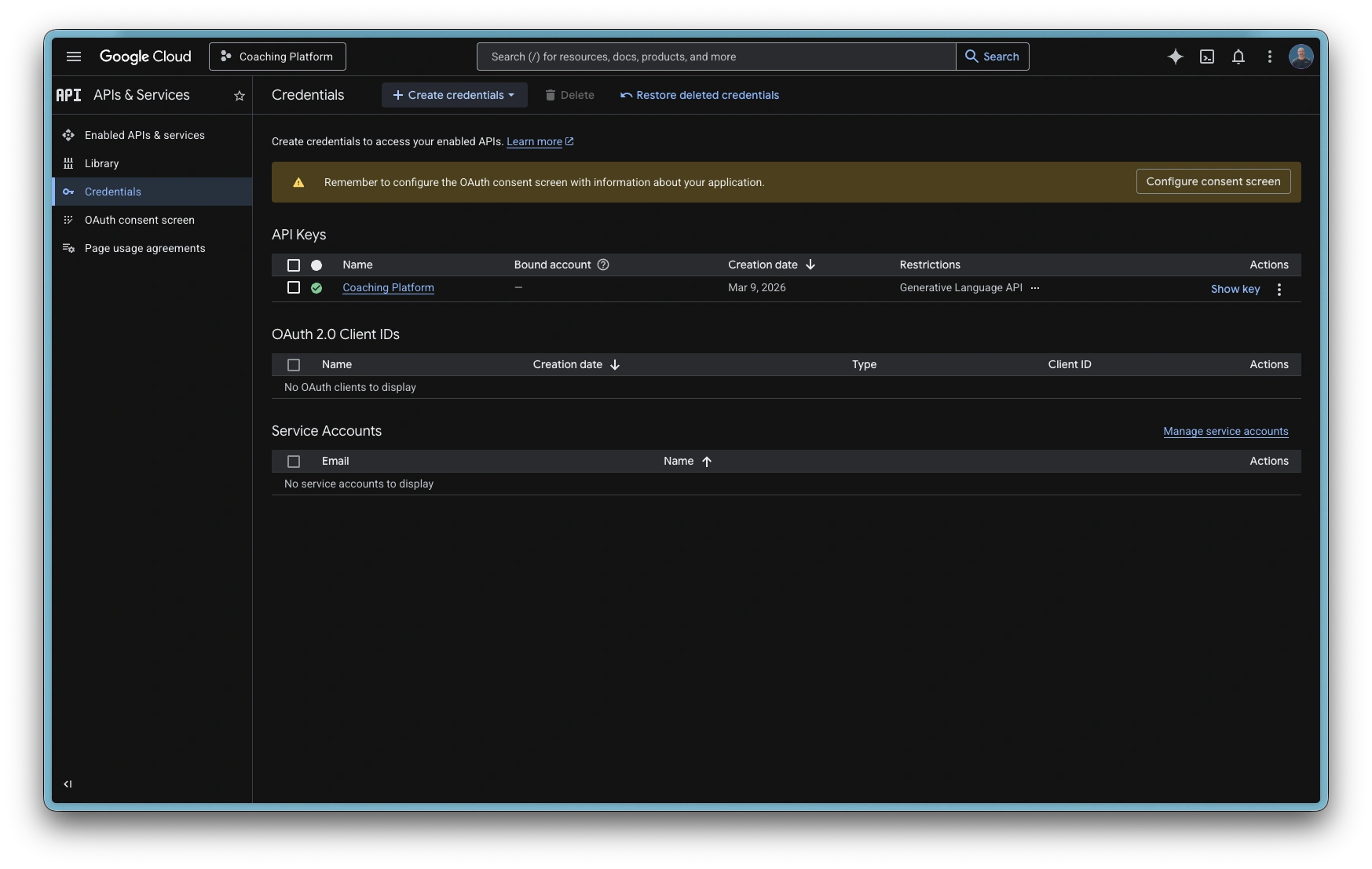
Google Cloud API Credentials
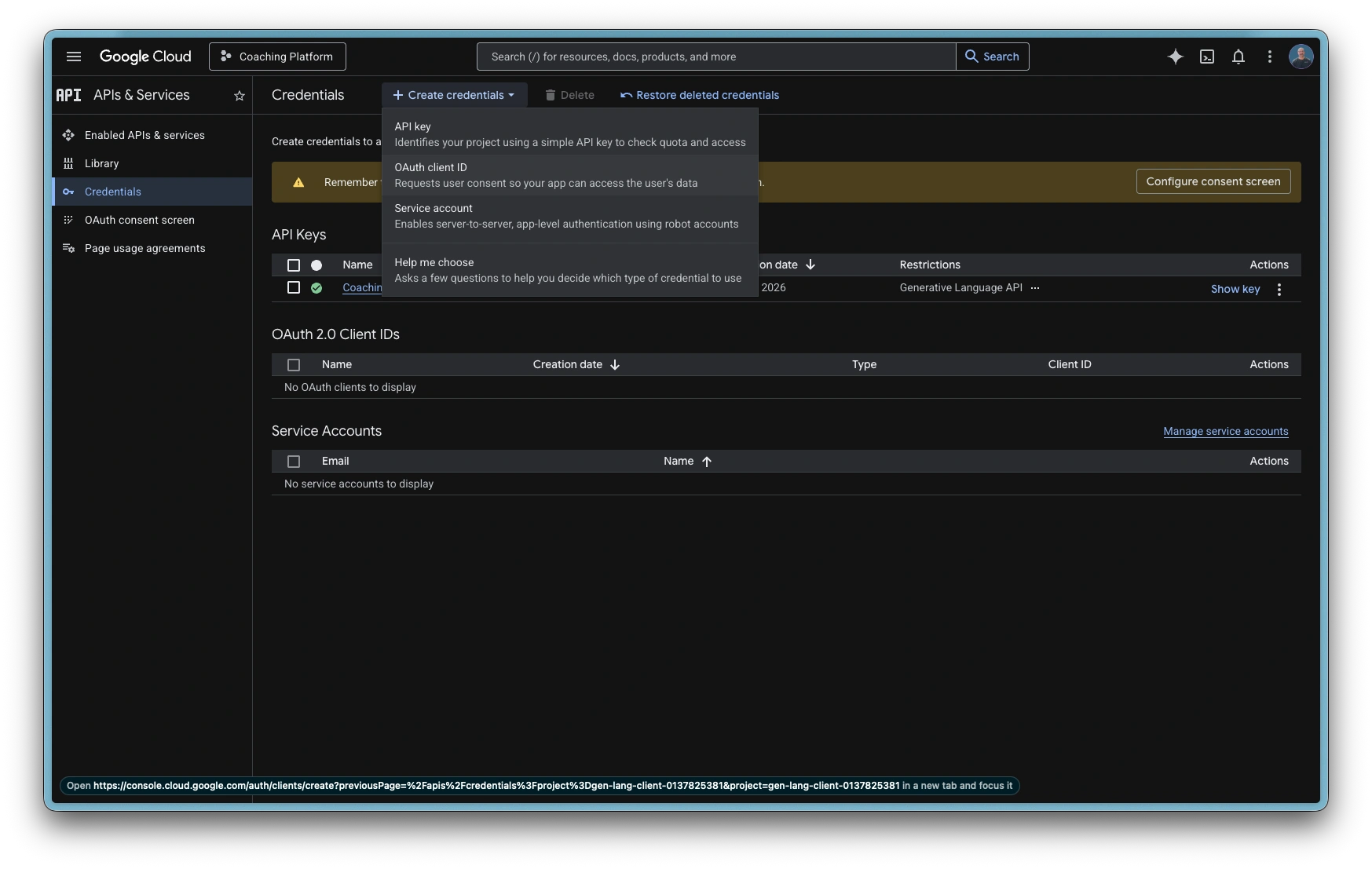
Create OAuth client ID
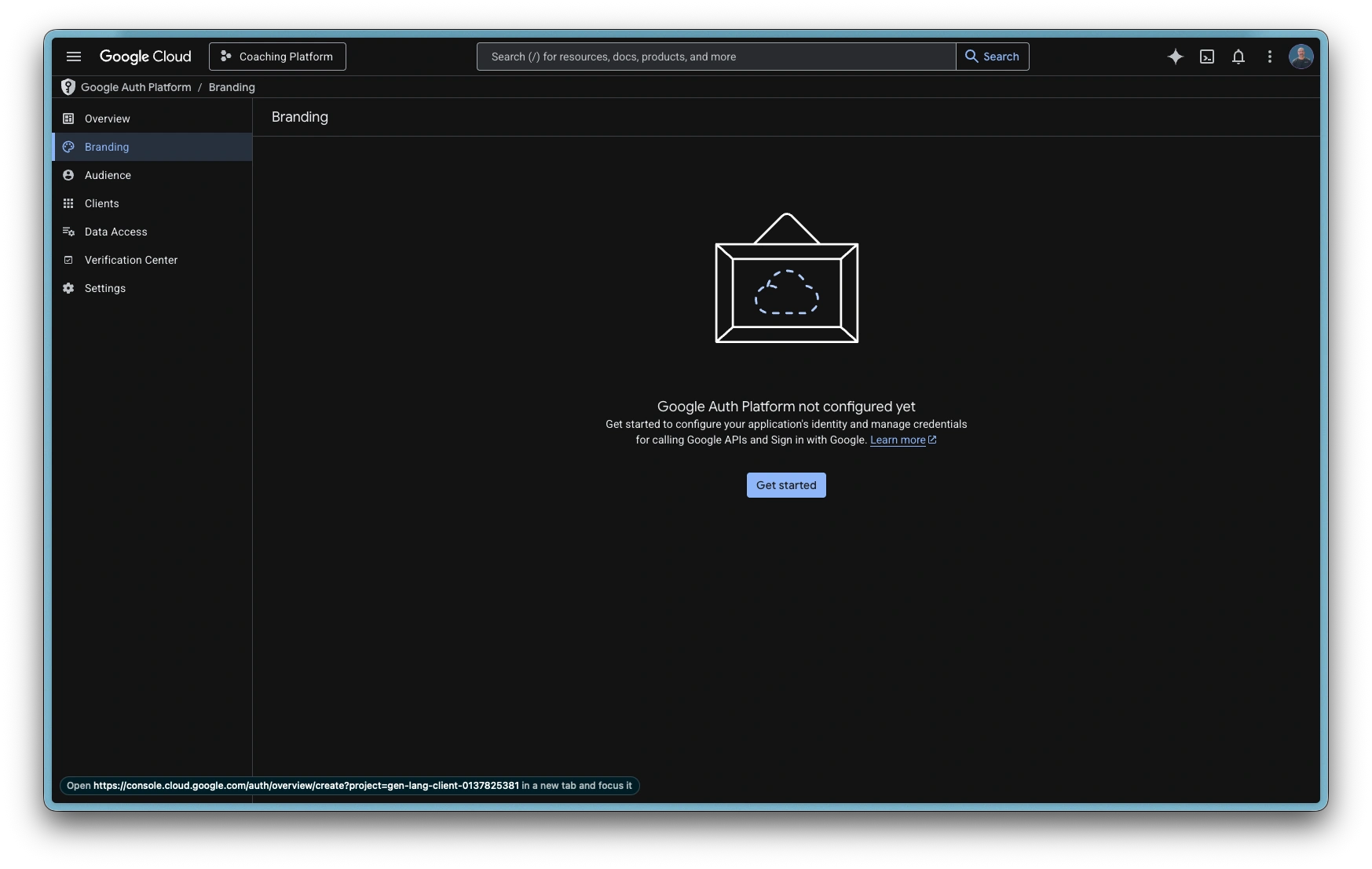
Create Branding overview
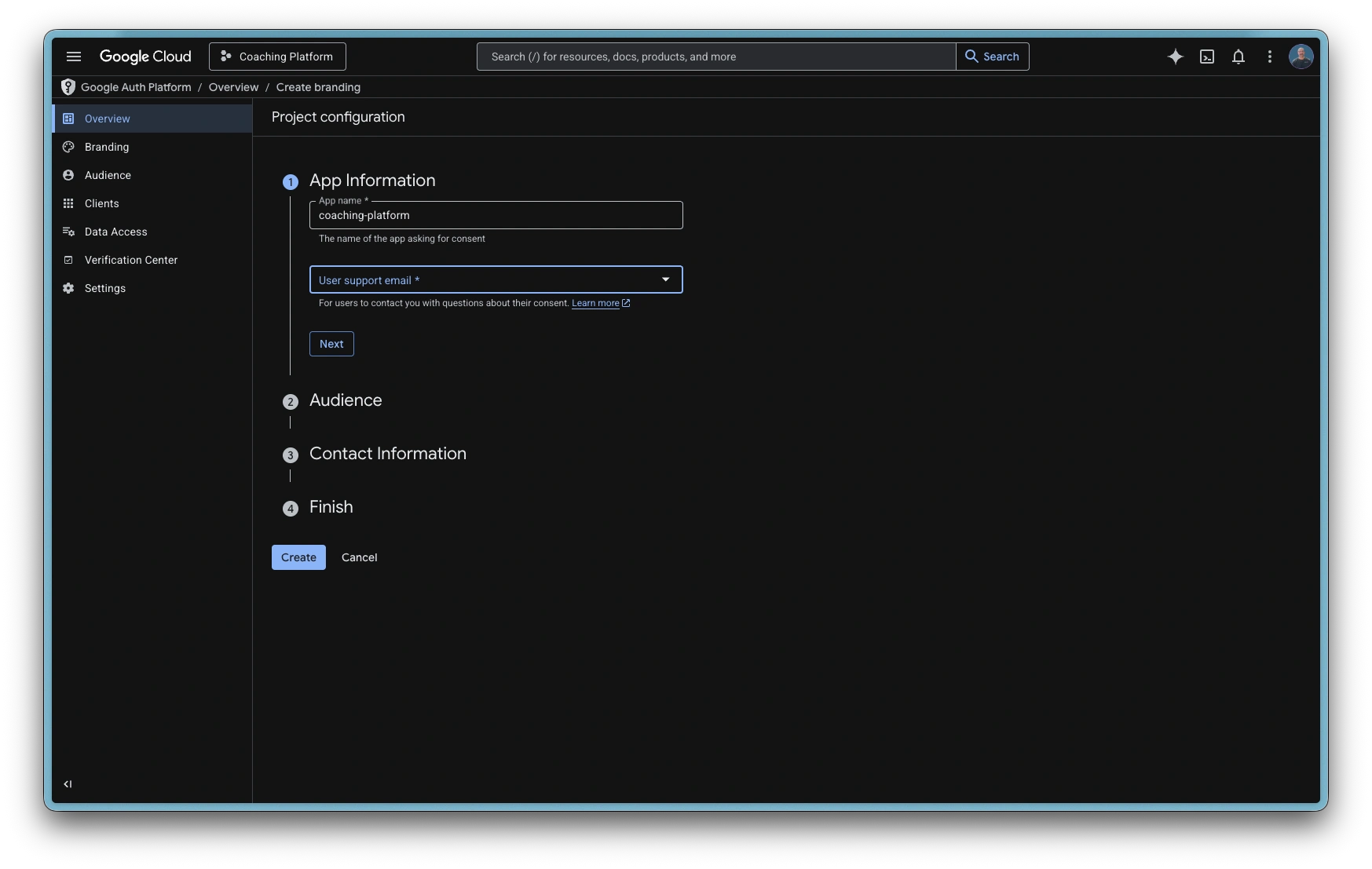
App information: App name
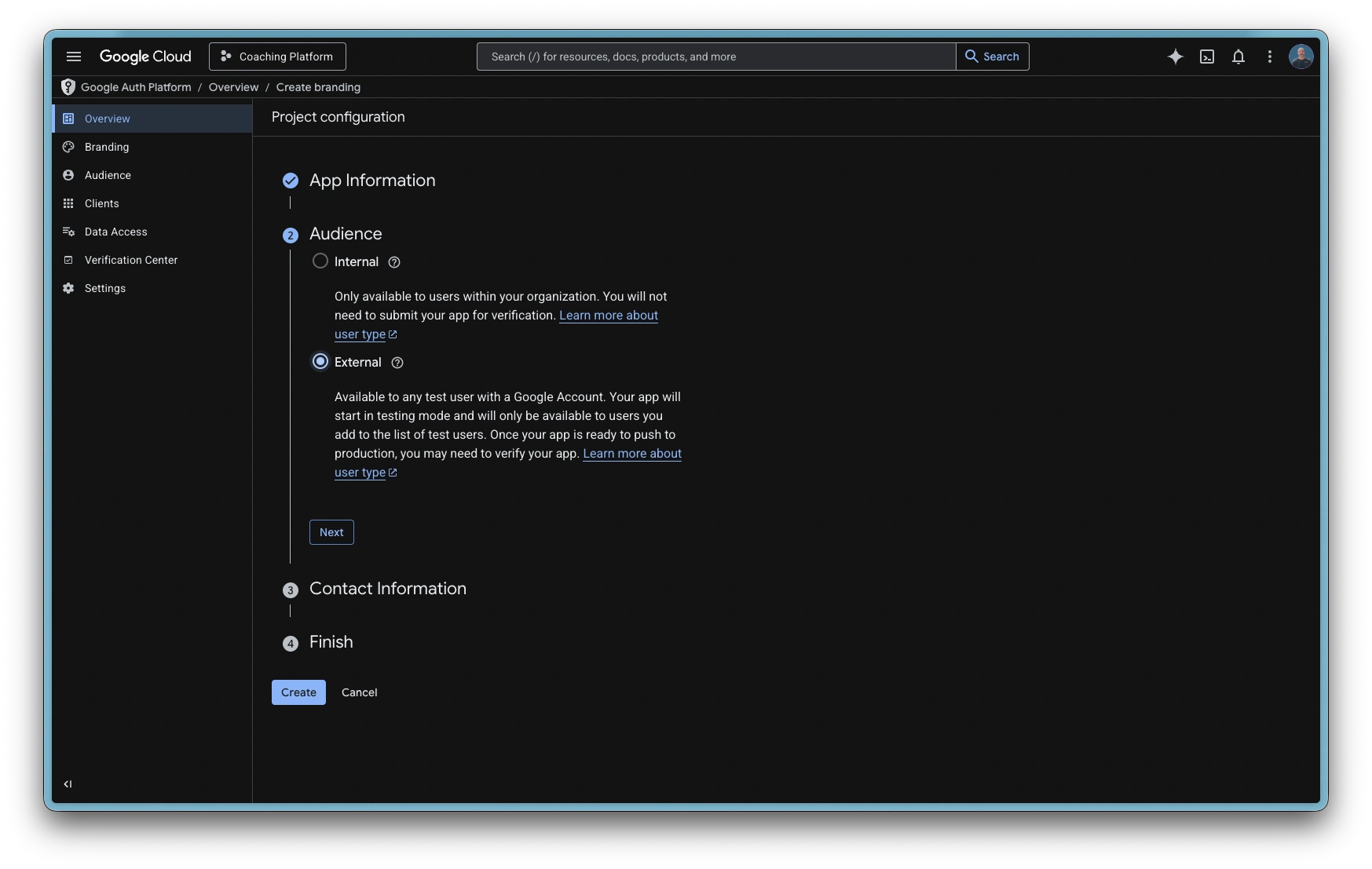
Audience: External
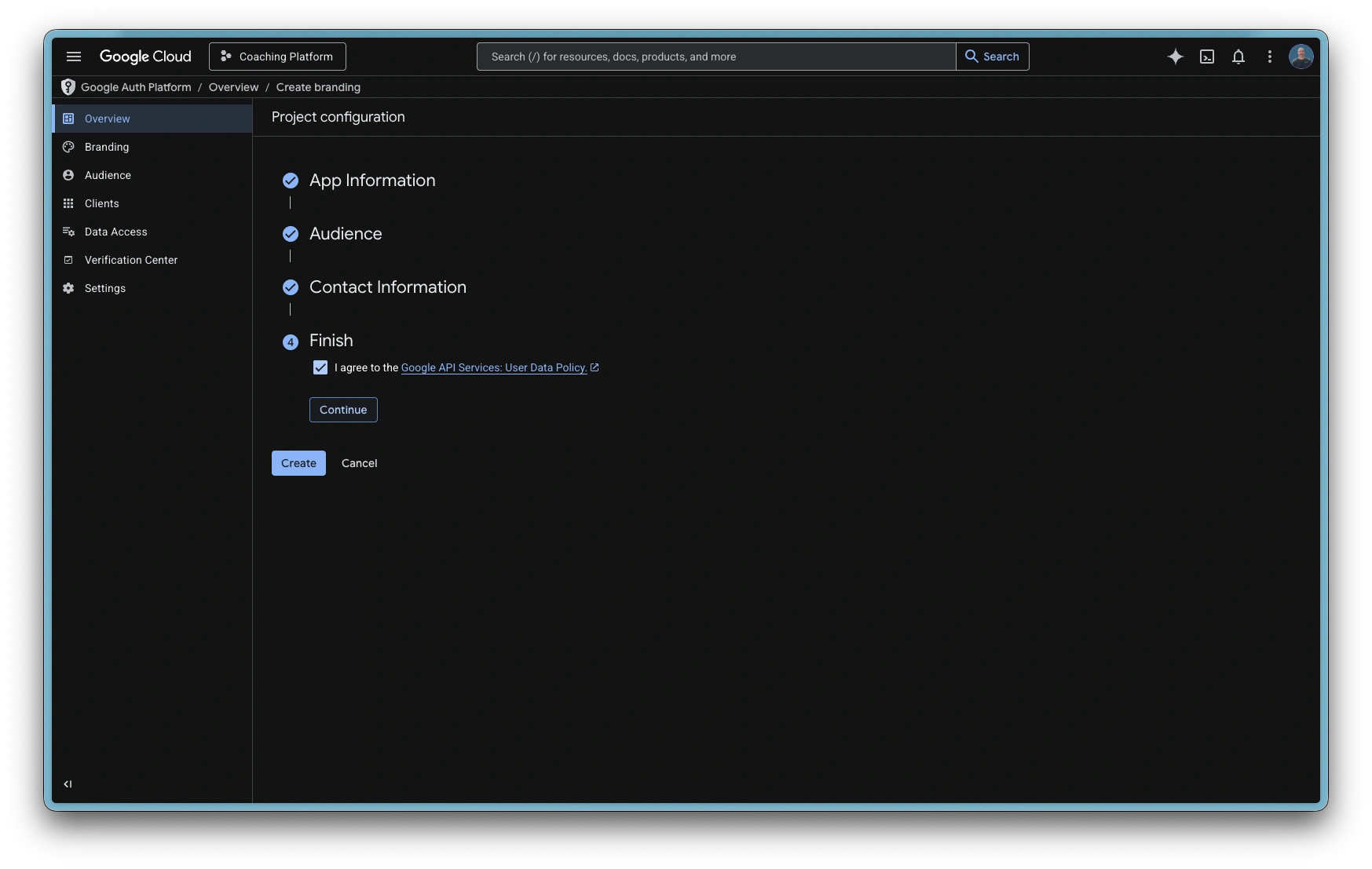
Create Project configuration
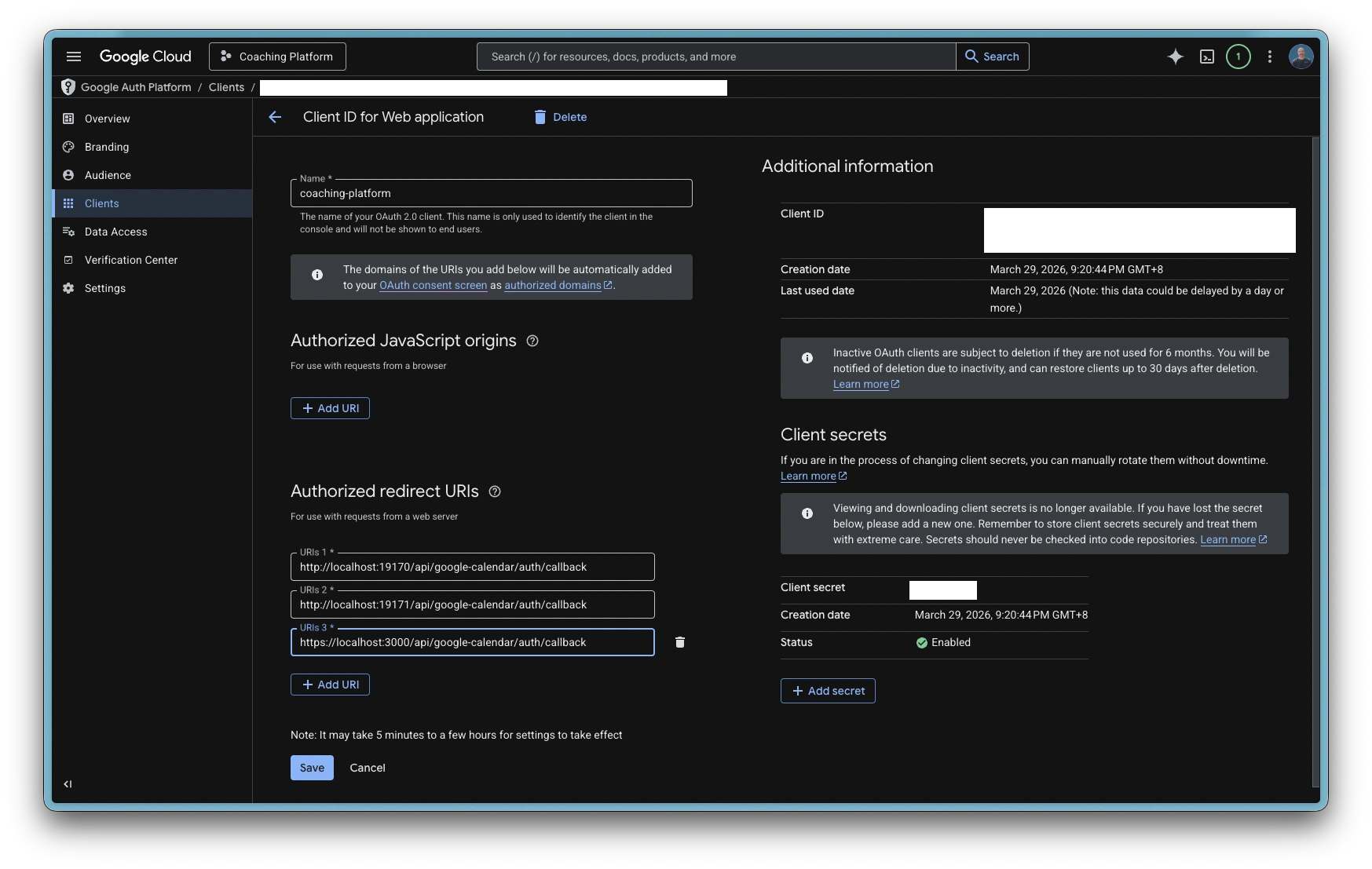
Create OAuth client ID
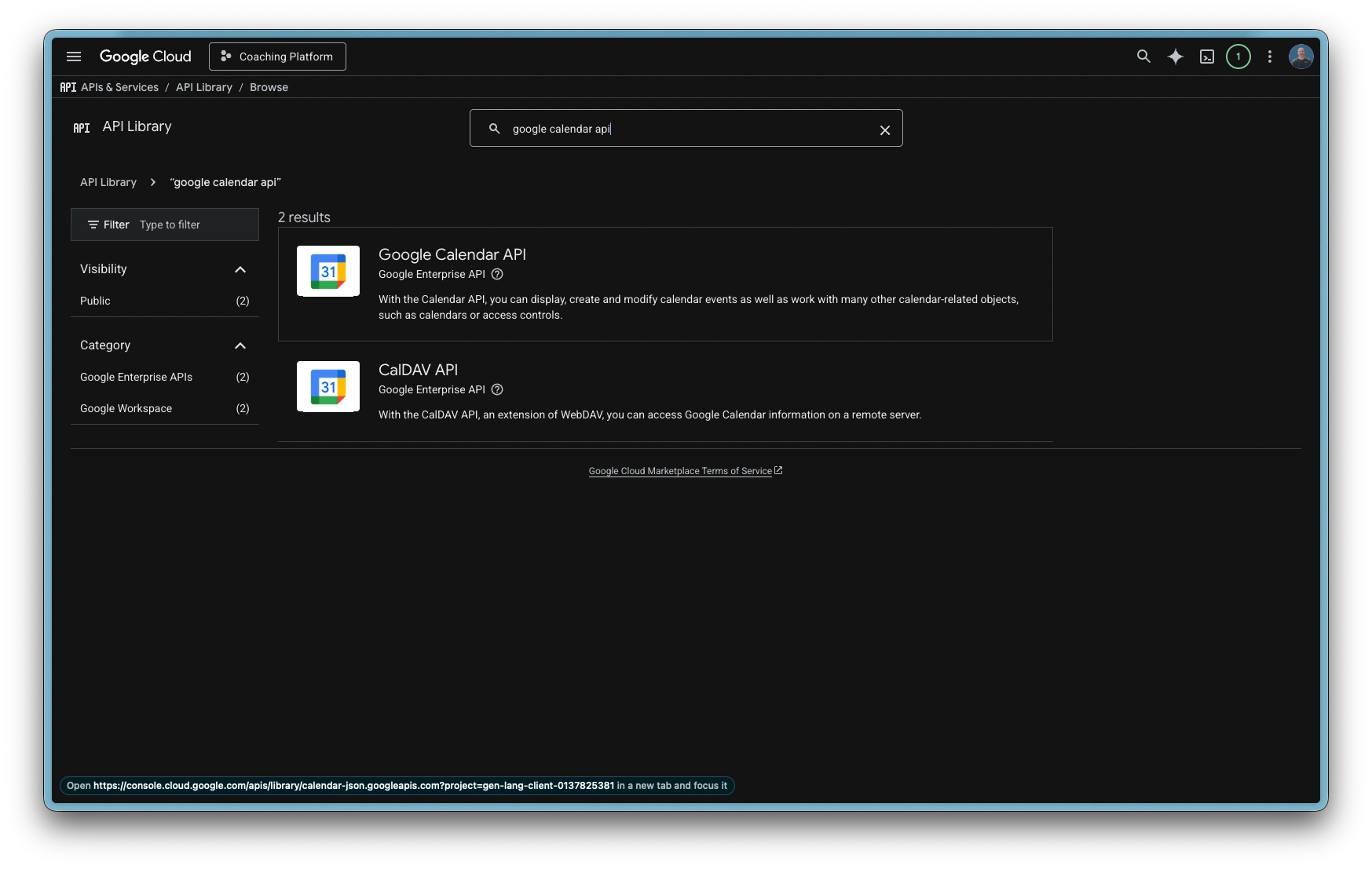
API Library: Google Calendar API
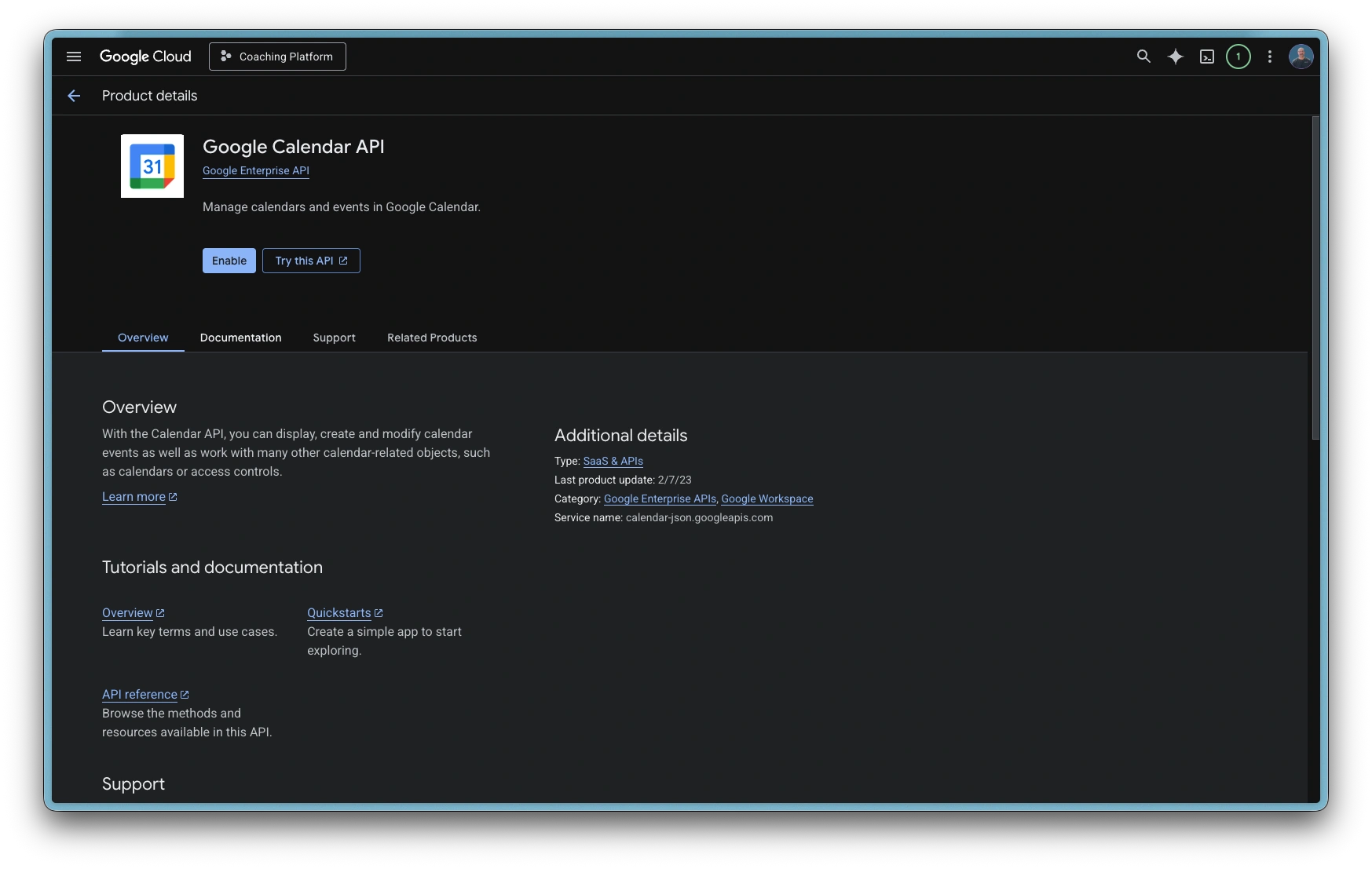
Enable Google Calendar API
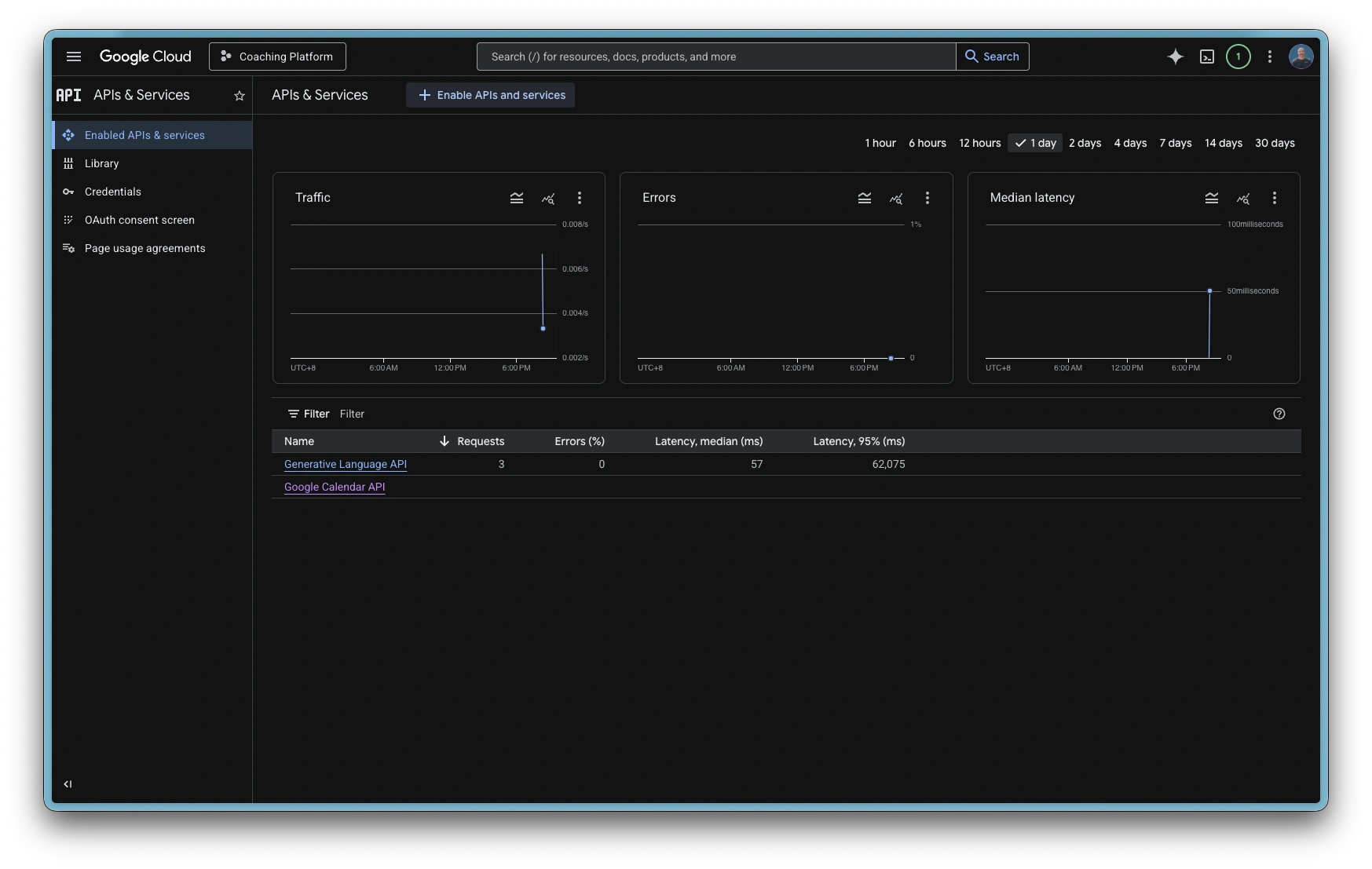
Enabled APIs
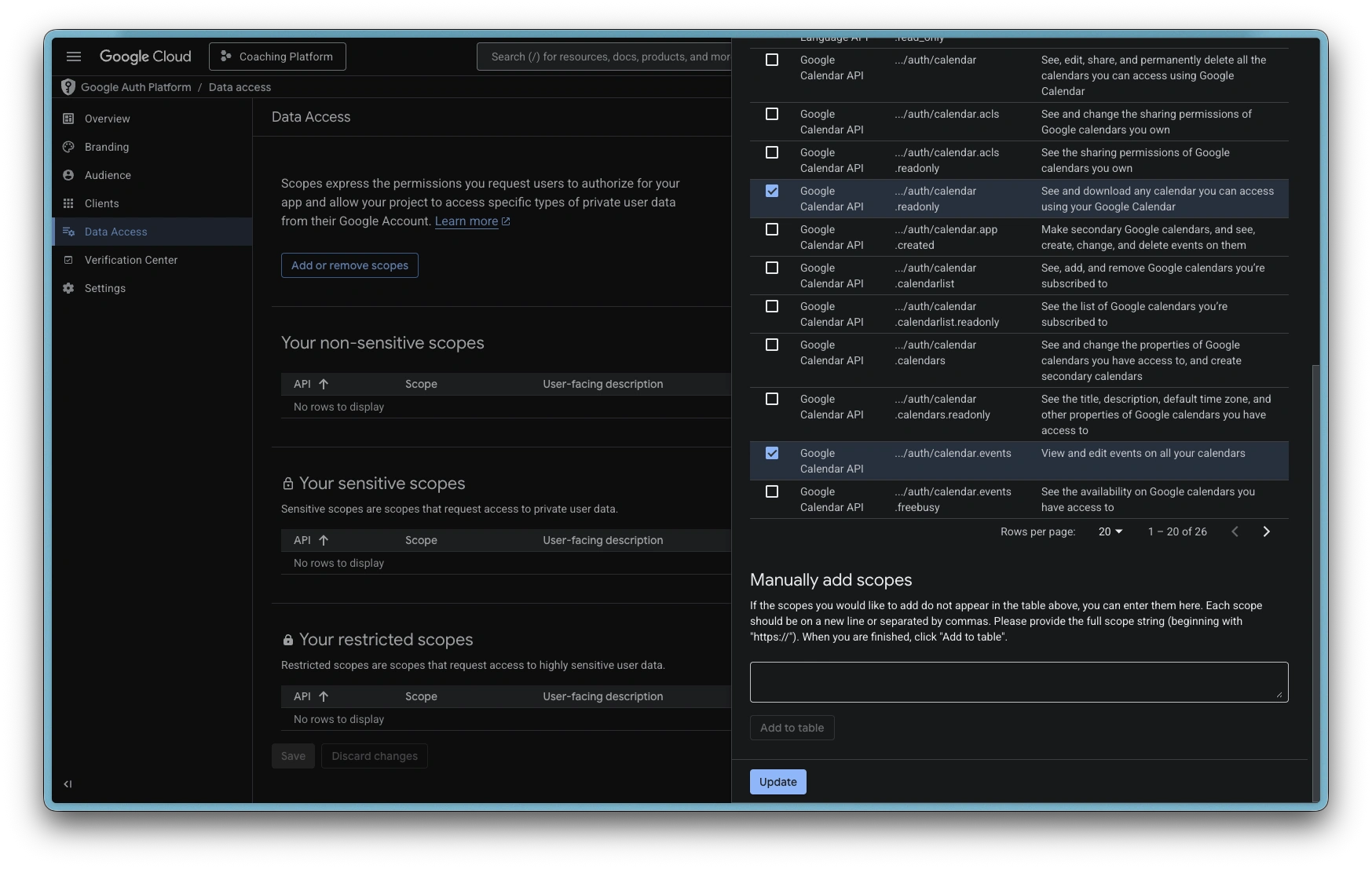
Data Access: Add scopes
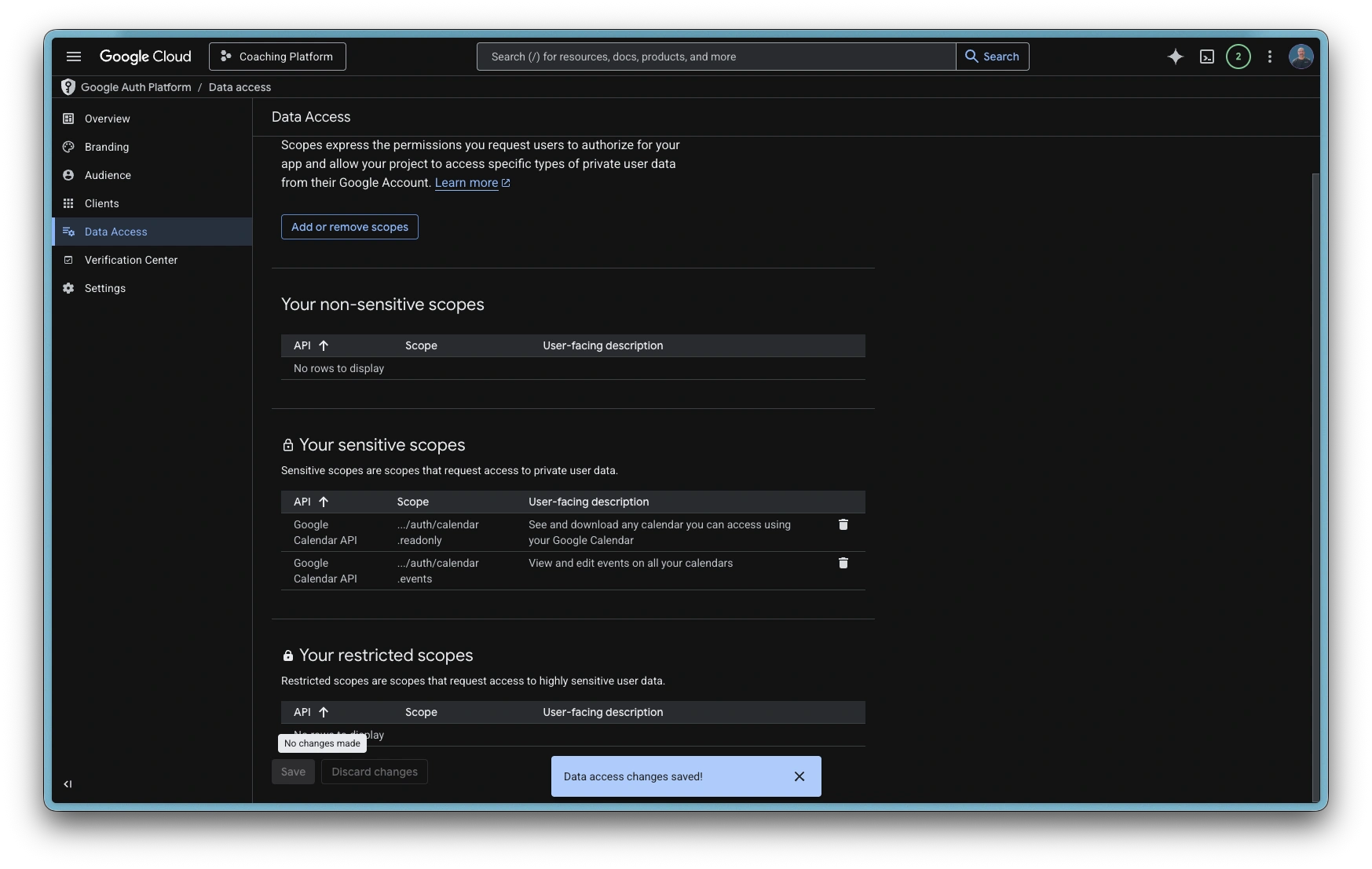
Save changes

Enter credentials into Platform
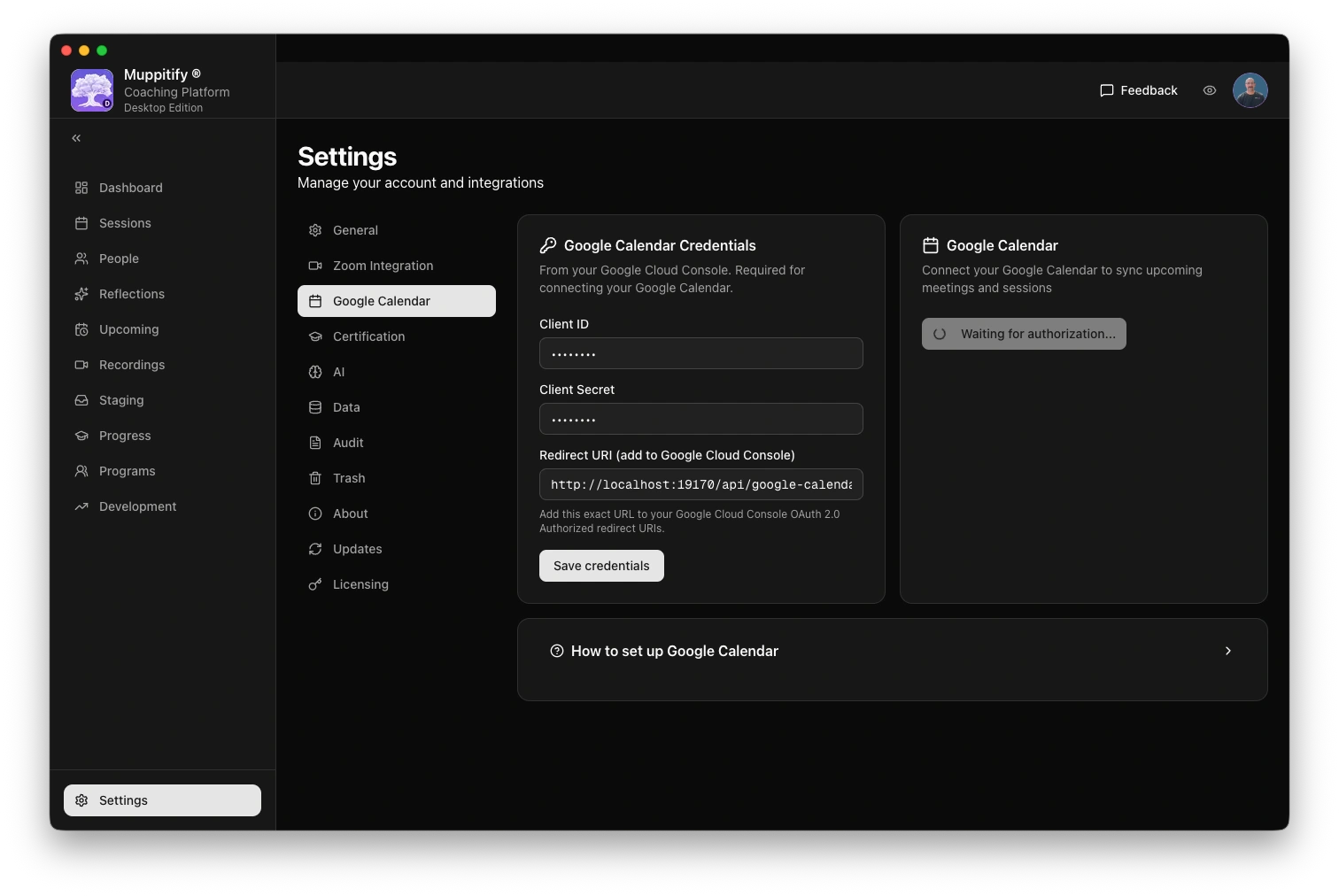
Restart app then connect calendar
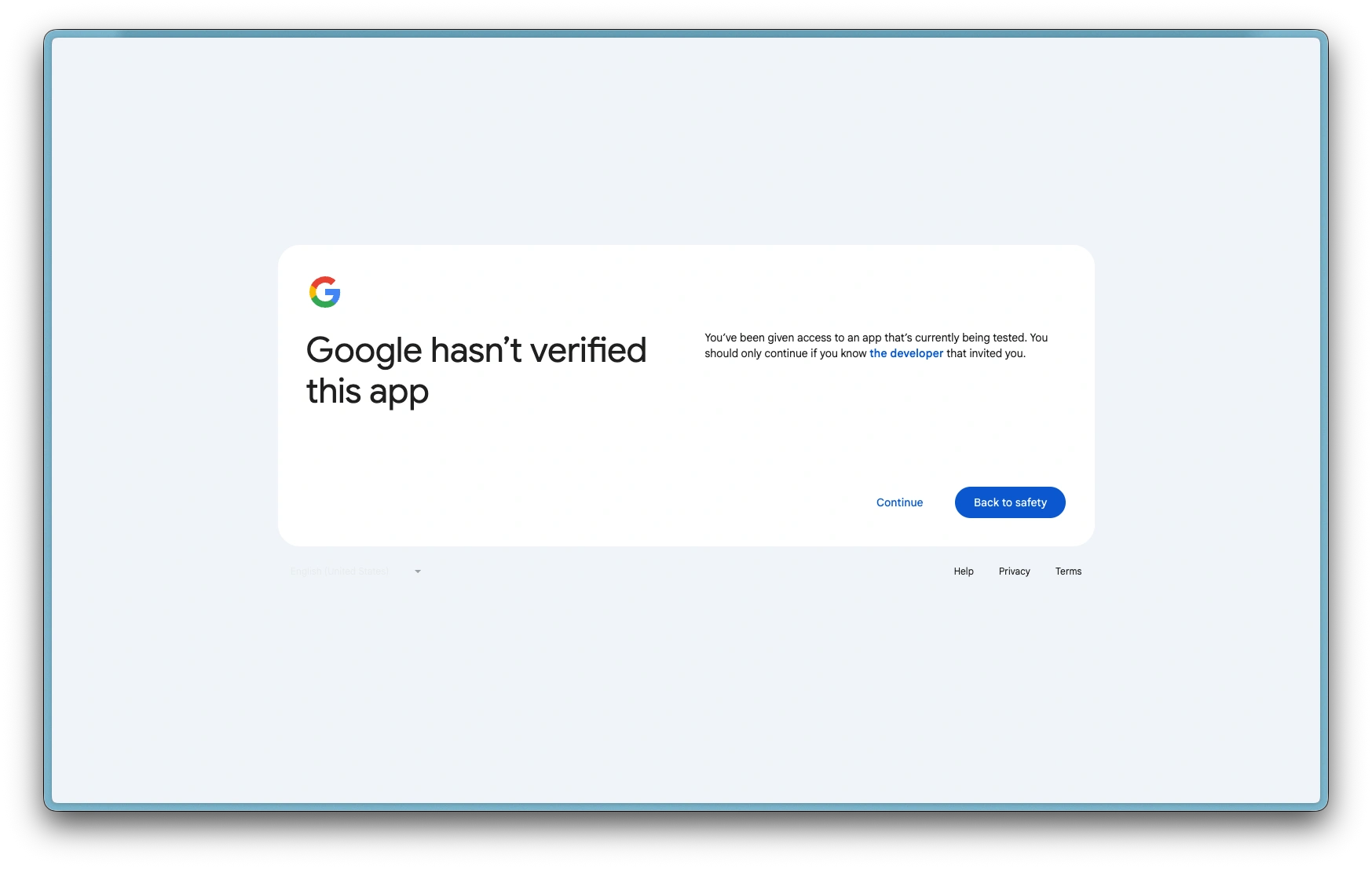
Continue: Google has not verified this app
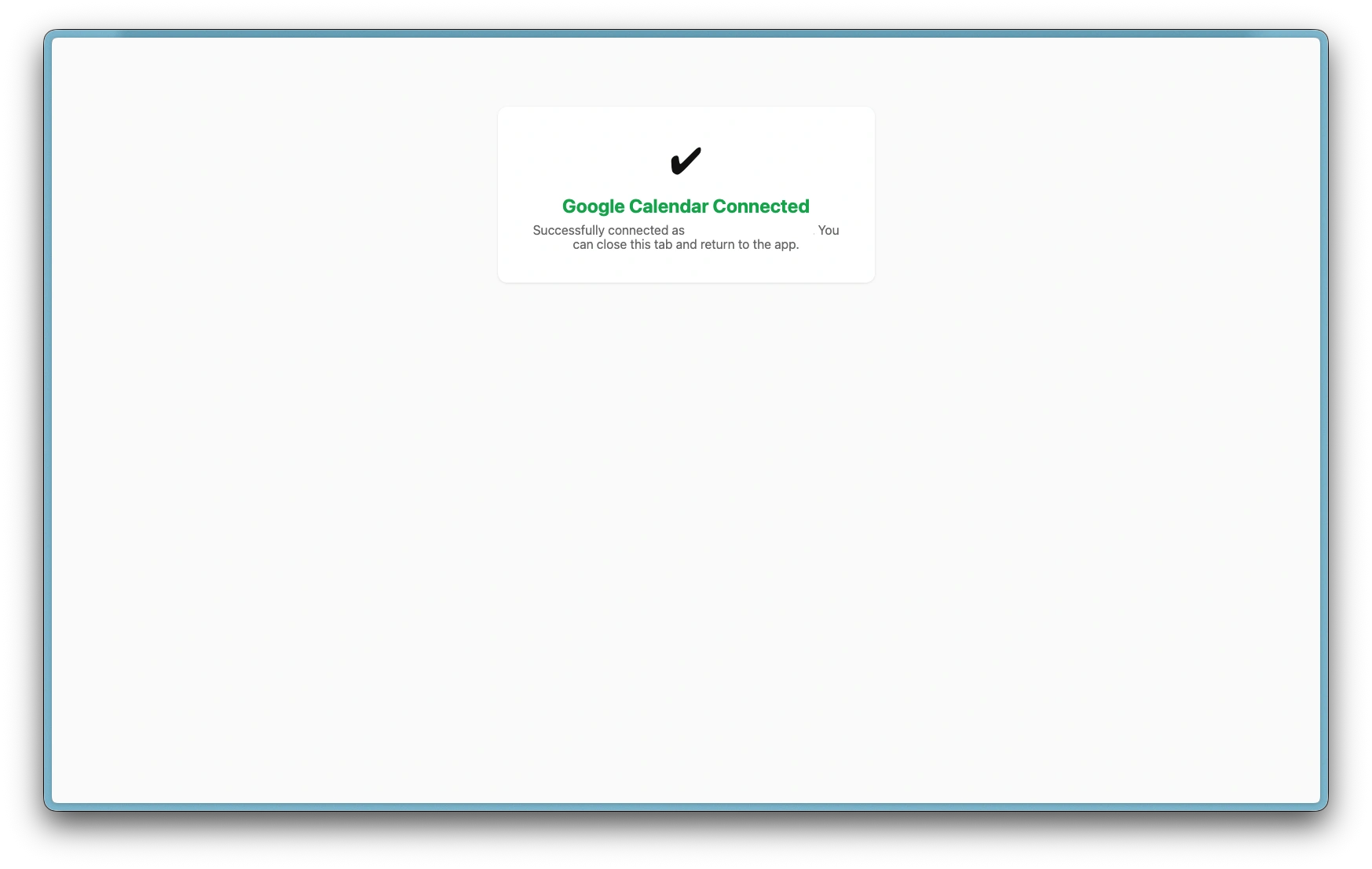
Google calendar connected from Google
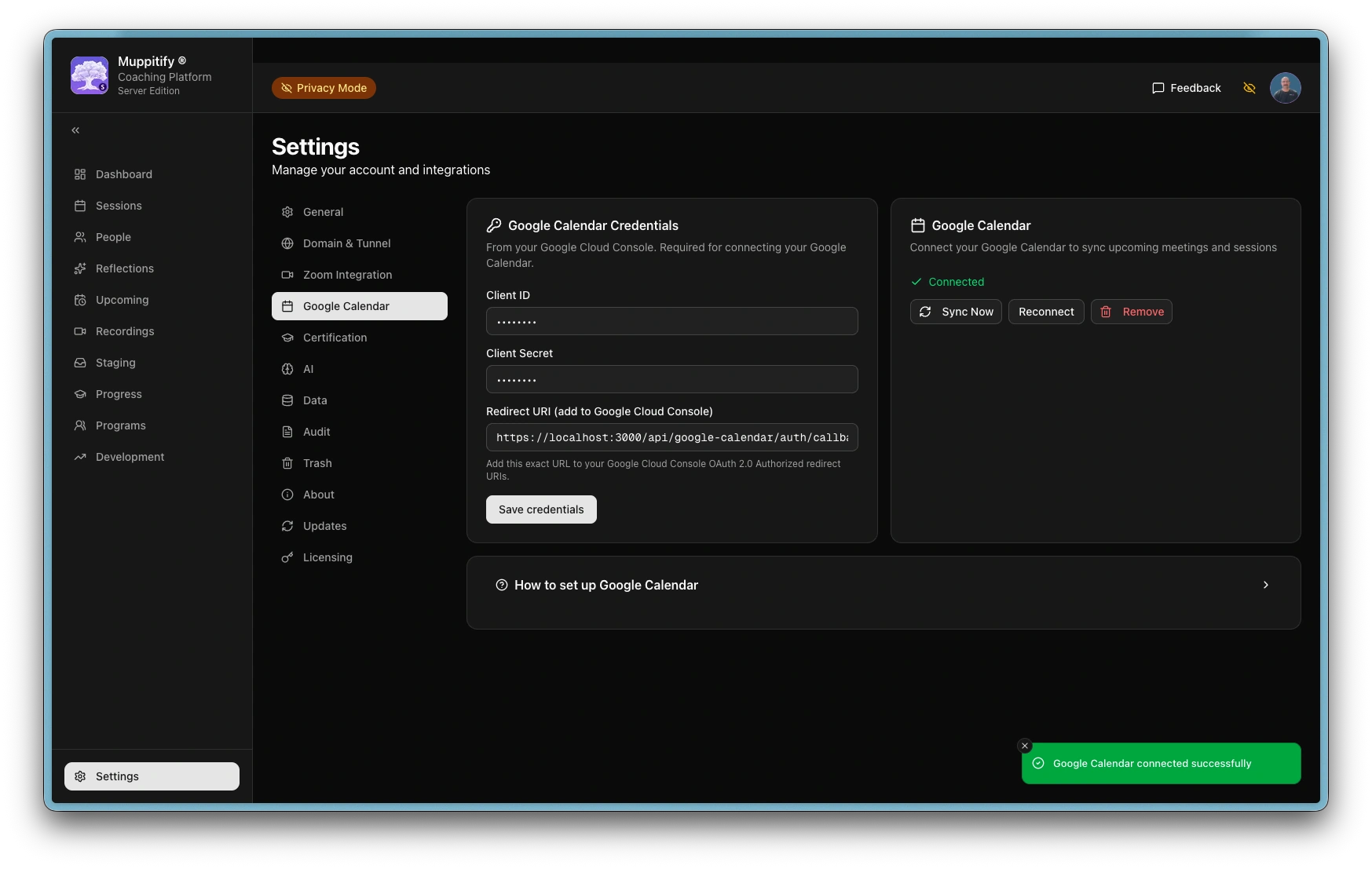
Google calendar connected from Platform
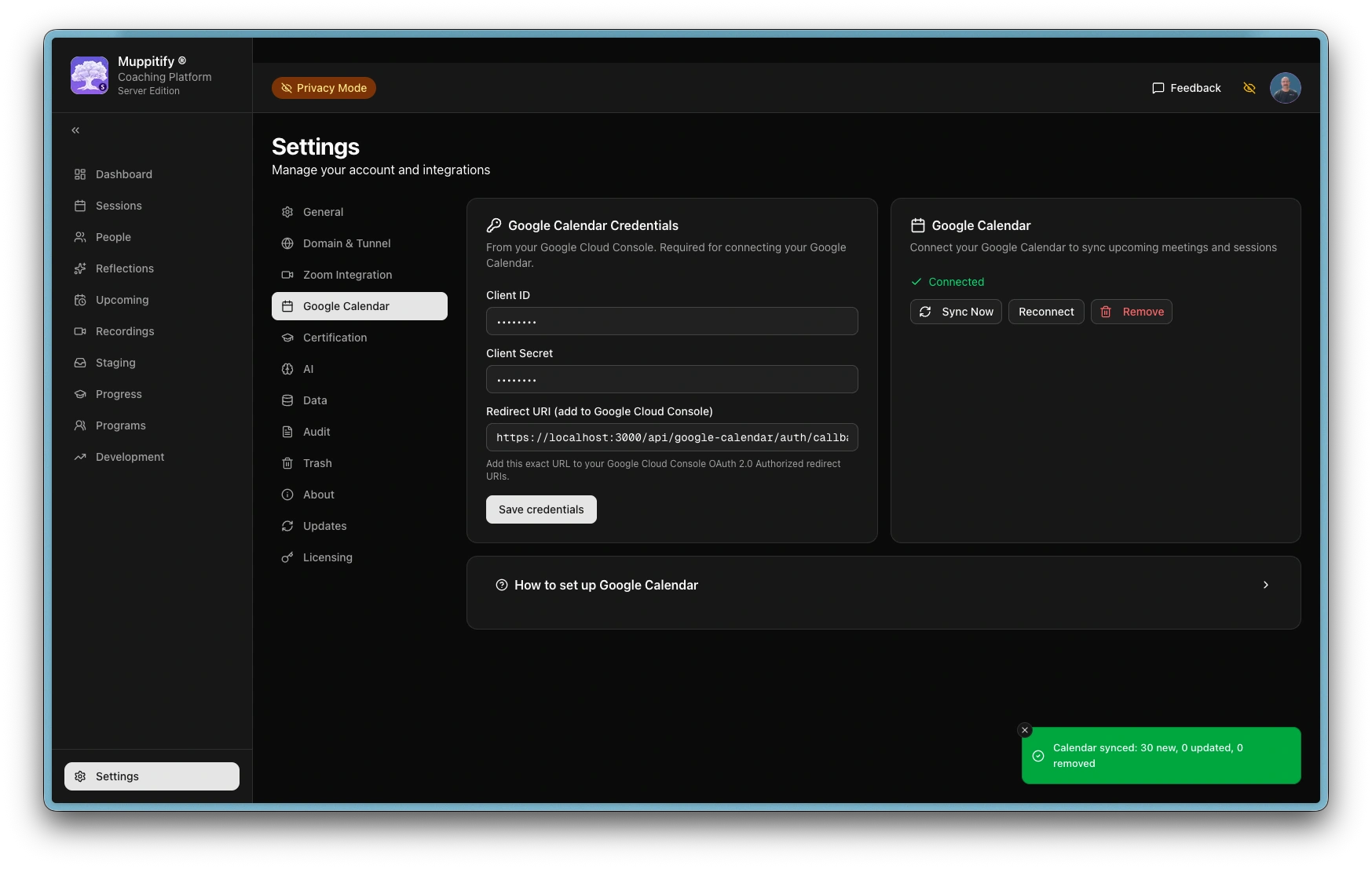
Manually sync calendar
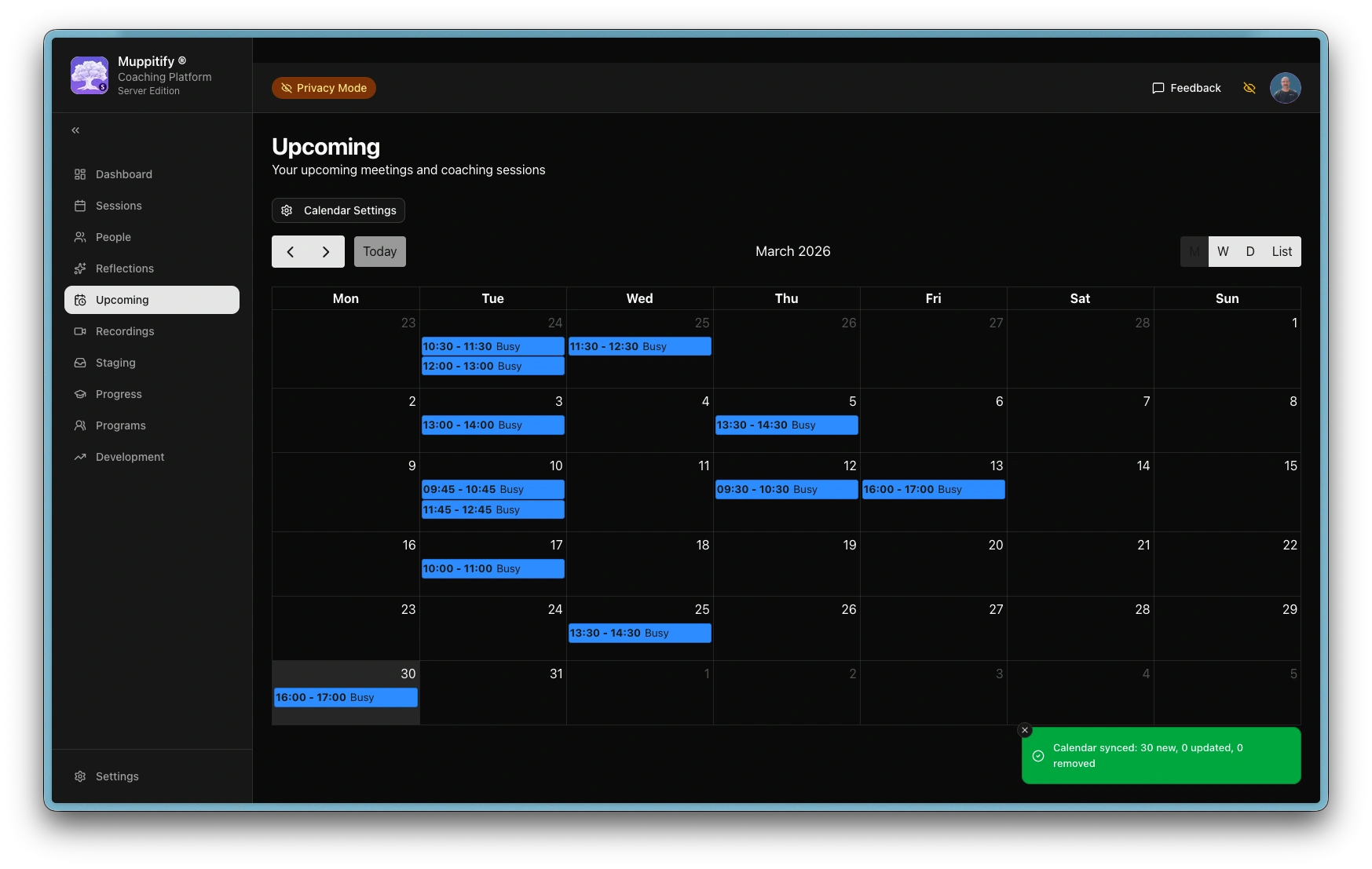
Confirm upcoming meetings
Step 1: Create Google OAuth credentials
- Go to the Google Cloud Console
- Create a new project (or select an existing one)
- Navigate to APIs & Services > Credentials
- Click Create Credentials > OAuth client ID
- Set the application type to Web application
- Add an Authorised redirect URI:
- Server Edition (localhost):
https://localhost:3000/api/google-calendar/auth/callback(or your chosen port)
- Server Edition (localhost):
- Click Create and note the Client ID and Client Secret
You also need to enable the Google Calendar API:
- In the Google Cloud Console, go to APIs & Services > Library
- Search for Google Calendar API and click Enable
Step 2: Configure and connect
- Open the coaching platform and go to Settings > Google Calendar
- Enter the Client ID and Client Secret
- Click Save credentials
- Click Connect Google Calendar. Your browser will open to Google's authorisation page
- Select your Google account and grant calendar read access
- After authorising, return to the app. You should see "Connected" status
Using calendar sync
Once connected:
- Go to Upcoming in the sidebar to see your upcoming meetings
- Click any meeting to create a coaching session from it
- Server Edition automatically syncs calendar events every 60 minutes in the background
- Manual sync can be performed from the Upcoming page and the Google Calendar settings page
Troubleshooting
Connection fails
Ensure you granted calendar read permissions. You can revoke and reconnect via Google Account Permissions.
You can be connected to Google Calendar in the Platform but have an error when trying to sync due to missing scopes.
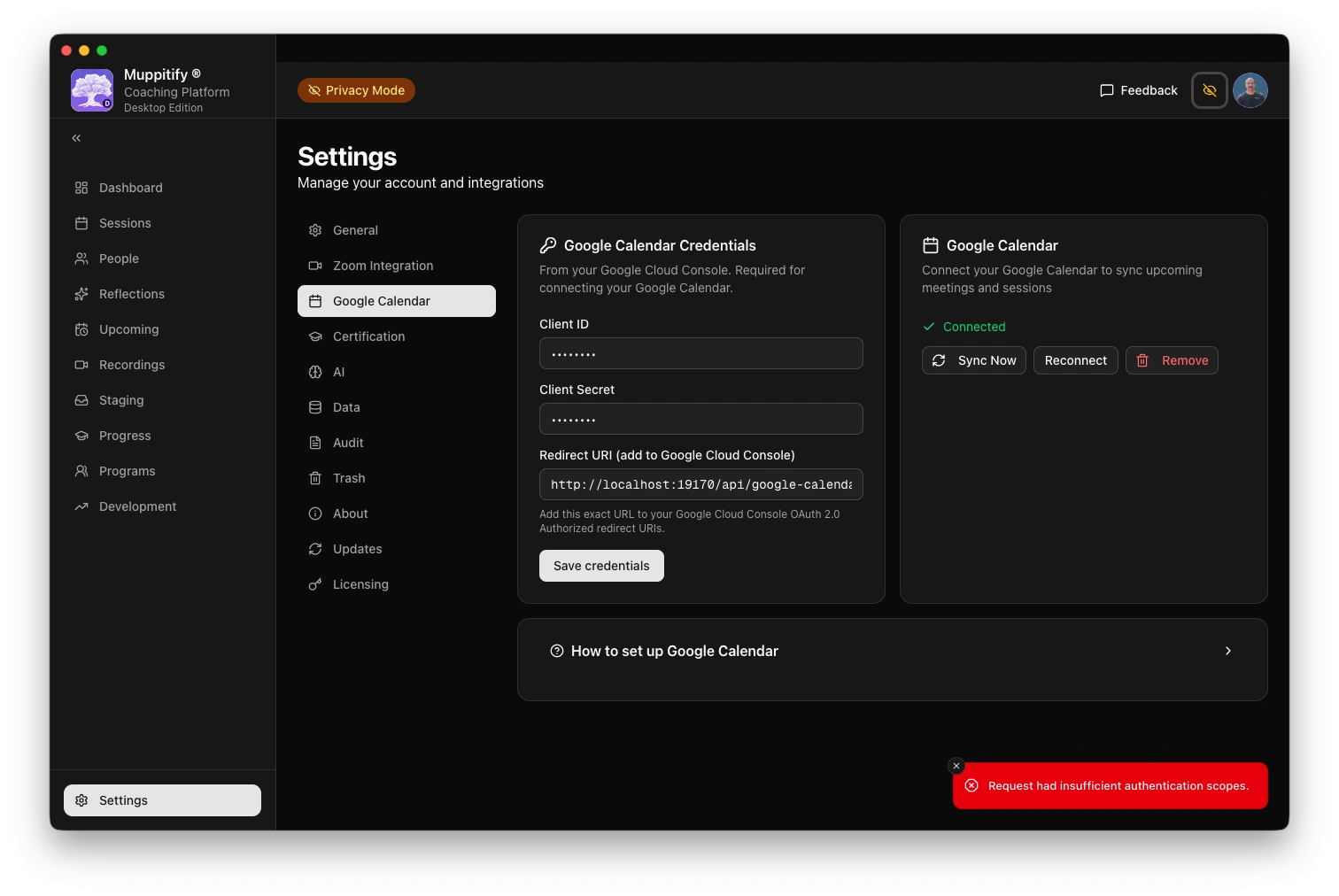
"Redirect URI mismatch" error
The redirect URI in the Google Cloud Console must exactly match the one shown in the coaching platform settings > Google Calendar. Check that the protocol (http vs https), hostname, and port all match.
Events not appearing
Calendar sync runs periodically. Click the refresh button on the Upcoming page to trigger a manual sync.