llama-server setup
I added llama-server as a provider because, after extensive testing, Ollama and LM Studio cannot control how long a model spends thinking. The result is 30-minute waits that always fall back to standard mode. llama-server is the only local inference tool with deterministic reasoning budget control via --reasoning-budget, enforced at the sampling pipeline level.
This is for users comfortable with the command line. If you prefer a graphical interface, use Ollama or LM Studio. They work well in standard analysis mode.
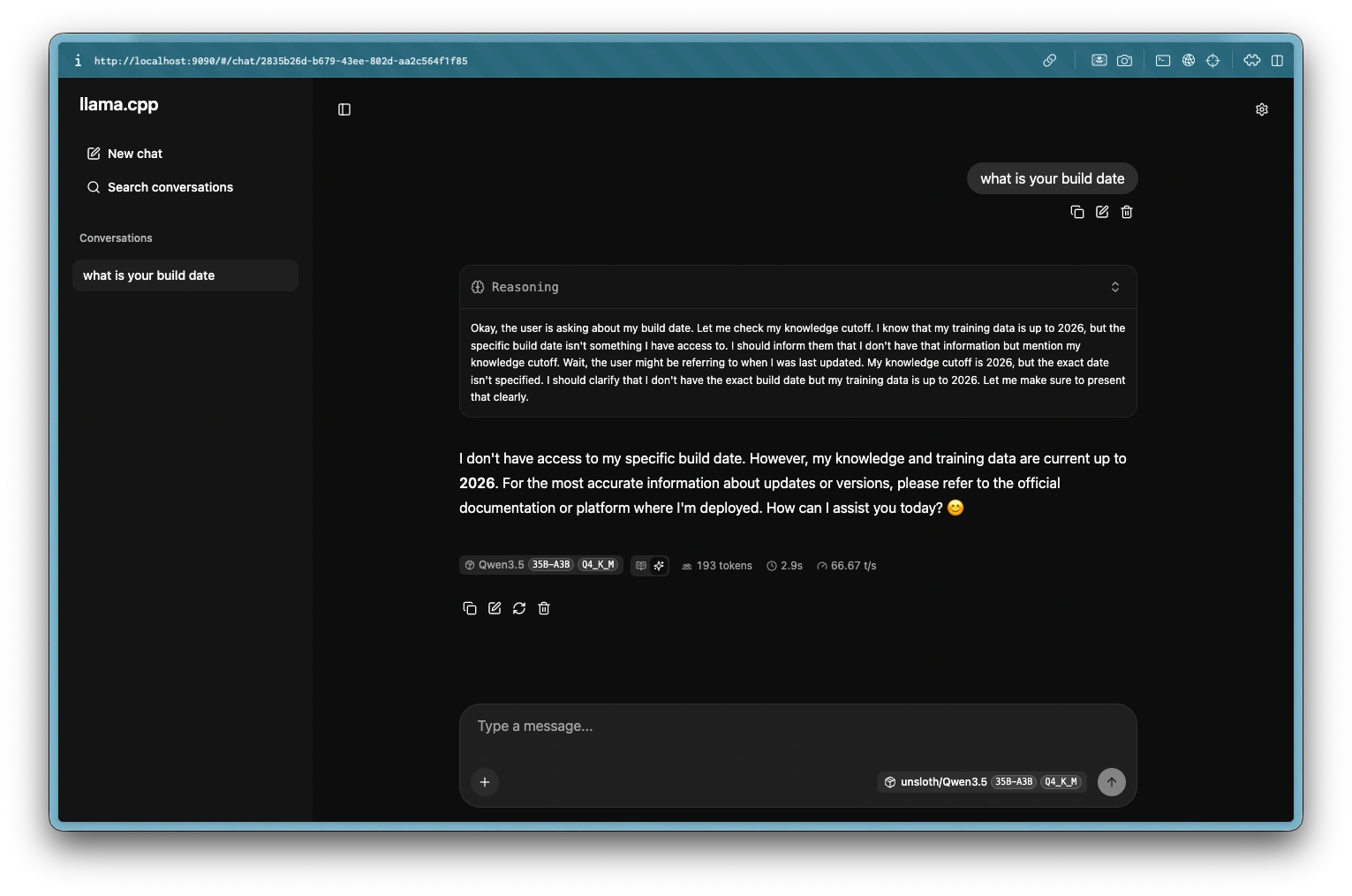
llama-server Web GUI
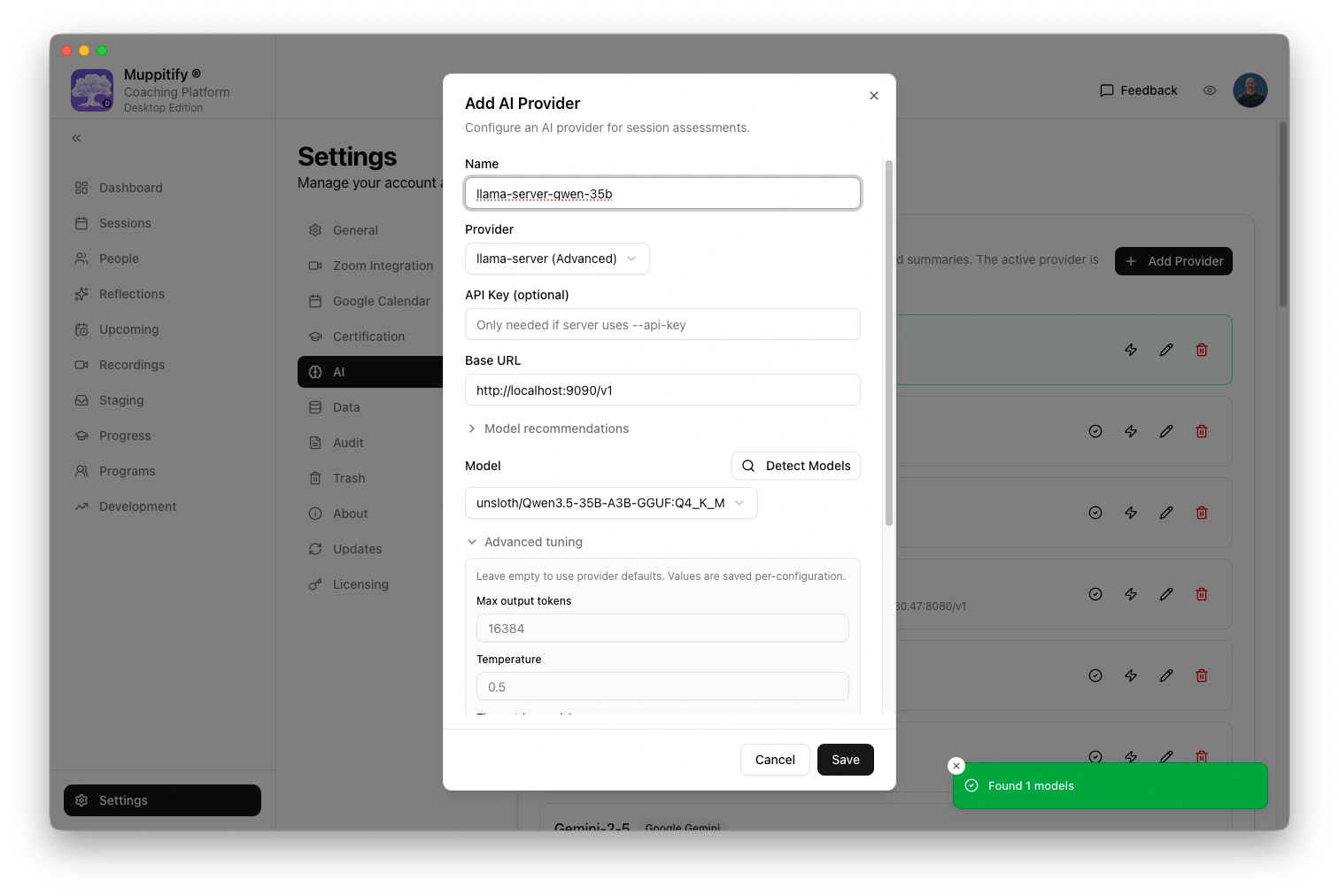
Add AI provider
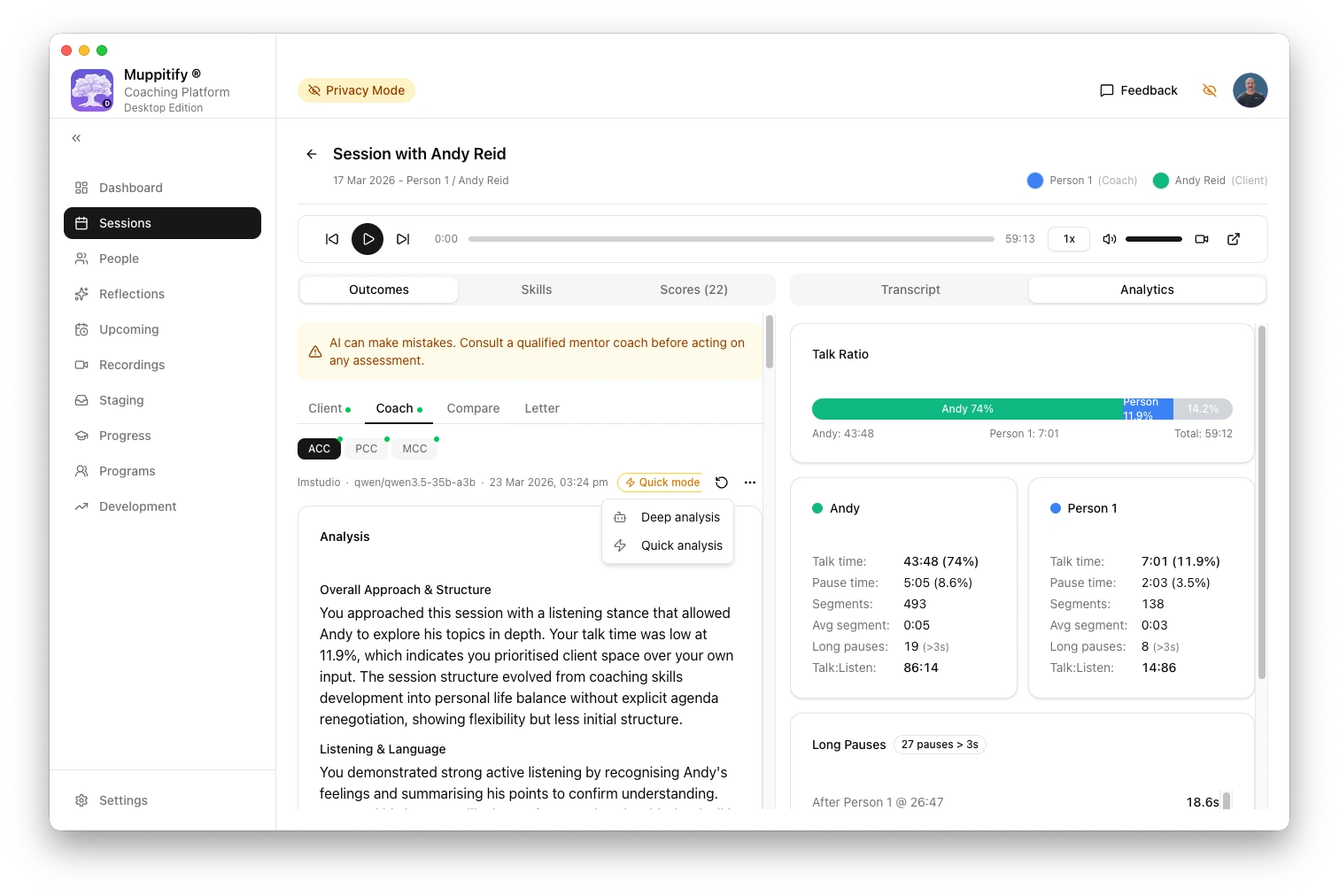
Start deep AI analysis
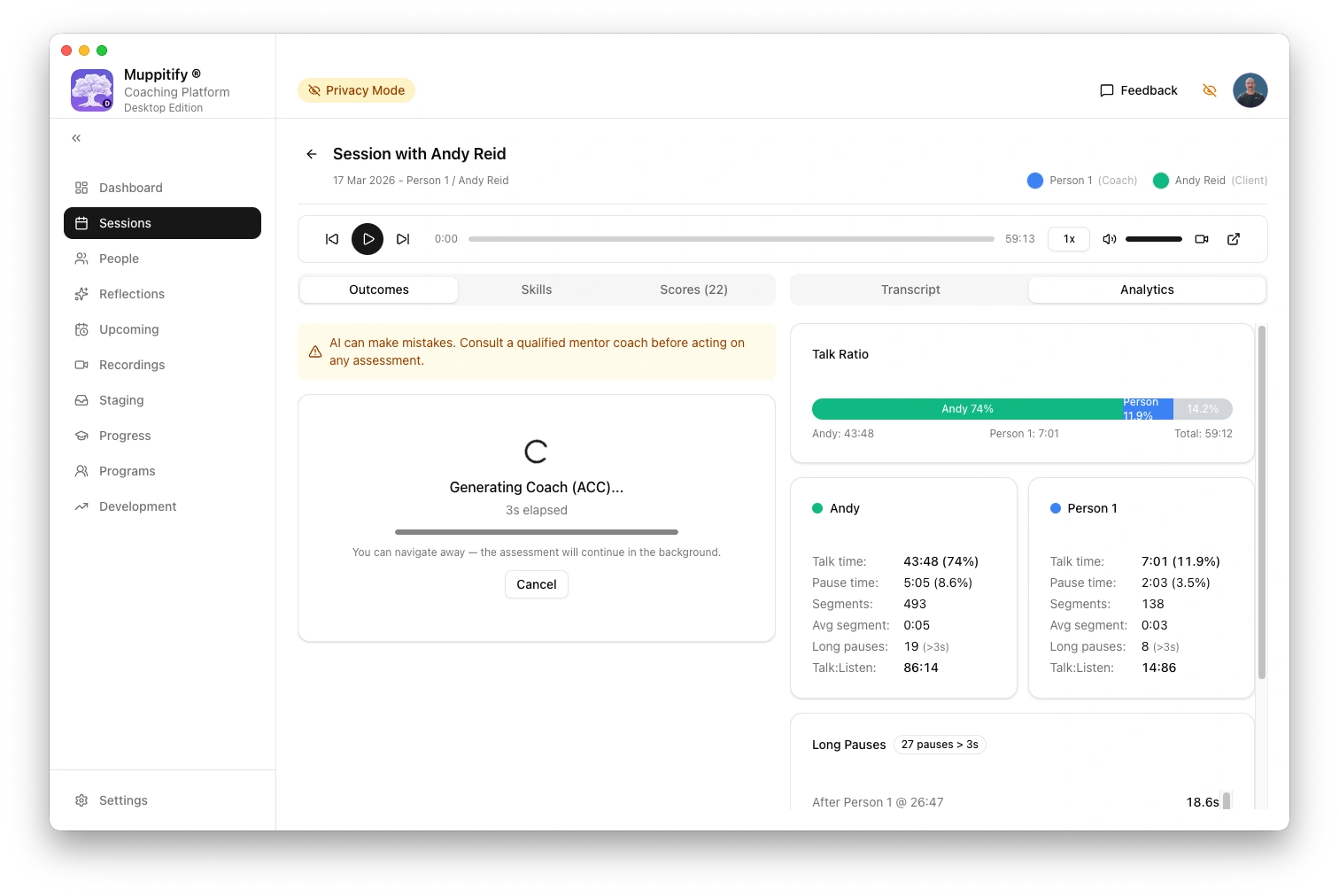
Generating coach ACC analysis
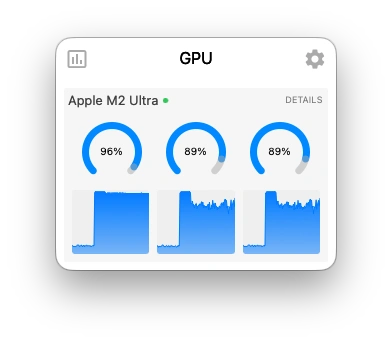
GPU usage during analysis
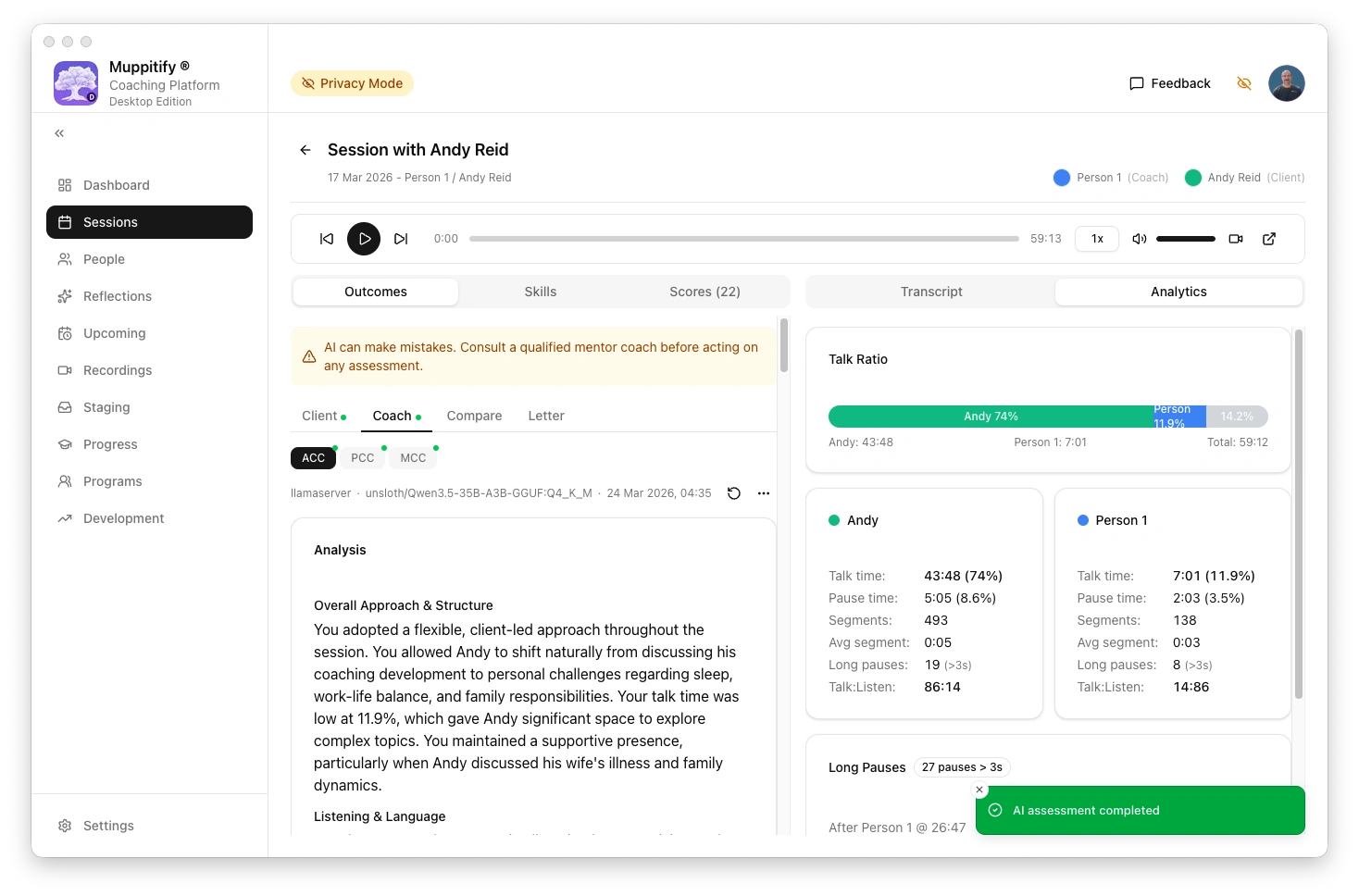
AI assessment completed using llama-server
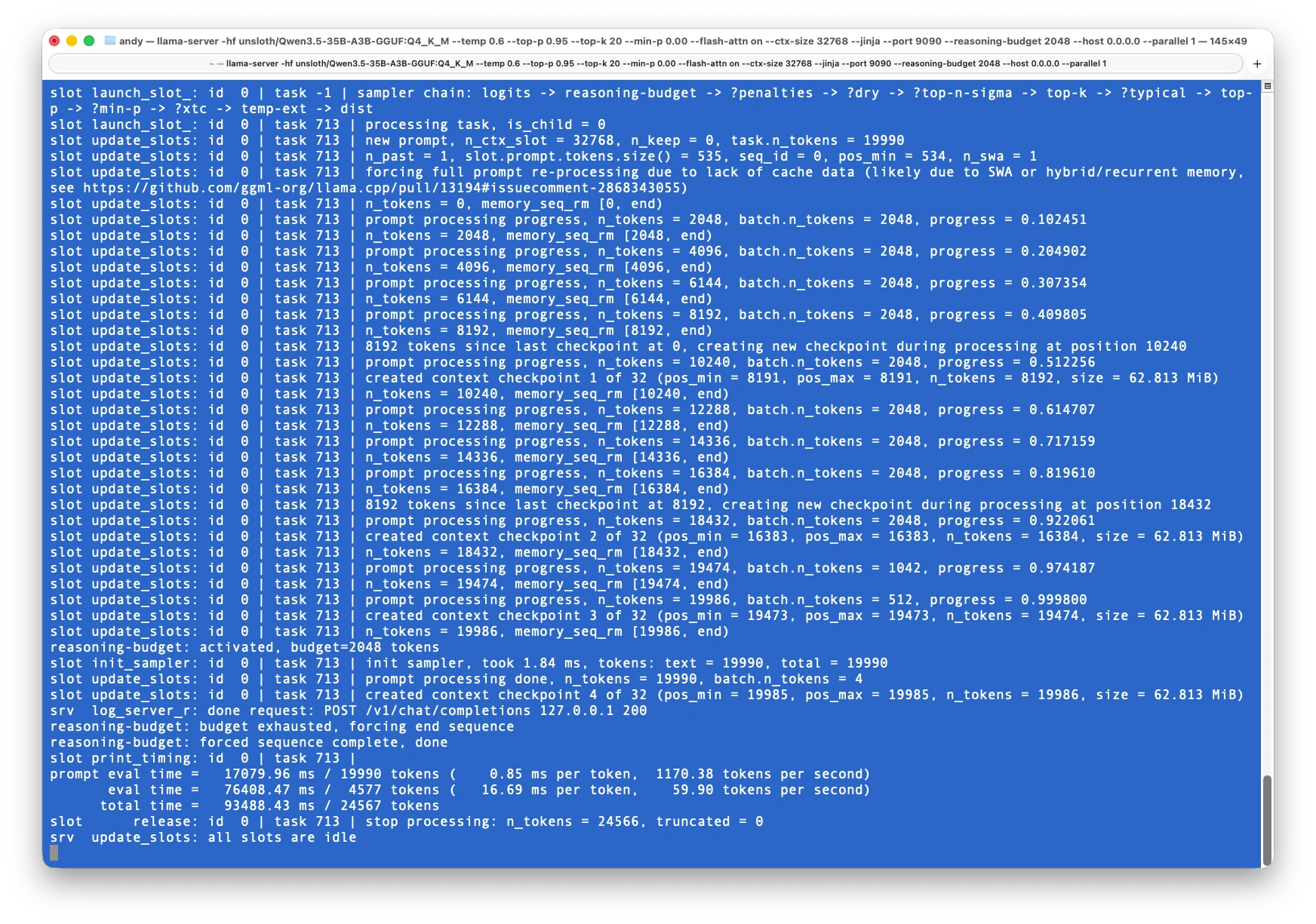
llama-server idle after processing
Step 1: Install llama-server
Mac (Apple Silicon)
brew install llama.cpp
Metal GPU acceleration is automatic on Apple Silicon. No extra drivers needed. Update later with brew upgrade llama.cpp.
To build from source instead (for custom builds or bleeding-edge features):
git clone https://github.com/ggml-org/llama.cpp.git
cd llama.cpp
cmake -B build
cmake --build build --config Release
Windows
winget install llama.cpp
The winget package uses Vulkan, which works with both NVIDIA and AMD GPUs. Run llama-server directly from the command prompt after install.
For NVIDIA GPUs, CUDA is typically faster than Vulkan. Build from source with -DGGML_CUDA=ON for CUDA support, or use the automated PowerShell installer (Danmoreng/llama.cpp-installer) which can detect your GPU and build with the correct CUDA version.
Step 2: Launch the server
Command prompt:
llama-server \
  -hf unsloth/Qwen3.5-35B-A3B-GGUF:Q4_K_M \
  --temp 0.6 \
  --top-p 0.95 \
  --top-k 20 \
  --min-p 0.00 \
  --flash-attn on \
  --ctx-size 32768 \
  --jinja \
  --port 9090 \
  --reasoning-budget 2048 \
  --host 0.0.0.0 \
  --parallel 1
Confirm that model has been loaded and all slots are idle.
Partial output:
ggml_metal_device_init: tensor API disabled for pre-M5 and pre-A19 devices
ggml_metal_library_init: using embedded metal library
ggml_metal_library_init: loaded in 0.019 sec
ggml_metal_rsets_init: creating a residency set collection (keep_alive = 180 s)
ggml_metal_device_init: GPU name:   MTL0
ggml_metal_device_init: GPU family: MTLGPUFamilyApple8  (1008)
...
llama_model_loader: - kv  48:                      quantize.imatrix.file str              = Qwen3.5-35B-A3B-GGUF/imatrix_unsloth....
llama_model_loader: - kv  49:                   quantize.imatrix.dataset str              = unsloth_calibration_Qwen3.5-35B-A3B.txt
llama_model_loader: - kv  50:             quantize.imatrix.entries_count u32              = 510
llama_model_loader: - kv  51:              quantize.imatrix.chunks_count u32              = 76
...
srv          init: init: chat template, thinking = 1
main: model loaded
main: server is listening on http://0.0.0.0:9090
main: starting the main loop...
srv  update_slots: all slots are idle
Step 3: Verify llama-server is running
Open http://localhost:9090 in your browser. Type a message and you should see a response with a collapsible "Reasoning" section above it showing the model's thinking trace.
To verify via curl:
curl http://localhost:9090/v1/chat/completions \
  -H "Content-Type: application/json" \
  -d '{
    "model": "qwen3.5",
    "messages": [
      {"role": "user", "content": "What is 25 times 47?"}
    ]
  }'
Outputs:
{"choices":[{"finish_reason":"stop","index":0,"message":{"role":"assistant","content":"25 times 47 is **1,175**.\n\nHere is the breakdown:\n$$25 \\times 40 = 1,000$$\n$$25 \\times 7 = 175$$\n$$1,000 + 175 = 1,175$$","reasoning_content":"Thinking Process:\n\n1. **Analyze the Request:** The user is asking for the product of 25 and 47 (25 times 47).\n\n2. **Perform the Calculation:**\n * Method 1: Standard multiplication.\n $$47 \\times 25$$\n $$47 \\times 20 = 940$$\n $$47 \\times 5 = 235$$\n $$940 + 235 = 1175$$\n * Method 2: Using the property of 25.\n $$25 \\times 47 = 25 \\times (4 \\times 12 - 1)$$? No, simpler:\n $$25 \\times 47 = 25 \\times (48 - 1)$$? No.\n $$25 \\times 47 = (100 / 4) \\times 47 = 100 \\times 47 / 4 = 4700 / 4$$\n $$4700 / 2 = 2350$$\n $$2350 / 2 = 1175$$\n * Method 3: Vertical multiplication.\n 47\n x 25\n ----\n 235 (5 * 47)\n 940 (20 * 47)\n ----\n 1175\n\n3. **Verify the Result:**\n * $$25 \\times 40 = 1000$$\n * $$25 \\times 7 = 175$$\n * $$1000 + 175 = 1175$$\n * Result is consistent.\n\n4. **Formulate the Output:** State the answer clearly.\n\n5. **Final Output:** 1175.cw\n"}}],"created":1774340570,"model":"unsloth/Qwen3.5-35B-A3B-GGUF:Q4_K_M","system_fingerprint":"b8390-b6c83aad5","object":"chat.completion","usage":{"completion_tokens":516,"prompt_tokens":20,"total_tokens":536},"id":"chatcmpl-D1FZCYbFocAGXxQLIUscJQWgrxonnDNz","timings":{"cache_n":0,"prompt_n":20,"prompt_ms":296.017,"prompt_per_token_ms":14.80085,"prompt_per_second":67.56368722066638,"predicted_n":516,"predicted_ms":7545.334,"predicted_per_token_ms":14.62274031007752,"predicted_per_second":68.3866347069593}}
Try a reasoning-heavy prompt (maths, logic puzzle) to confirm the thinking trace appears and caps at 2048 tokens rather than running indefinitely.
Step 4: Configure the coaching platform
- Open the coaching platform and go to Settings > AI
- Select llama-server (Advanced) as your provider
- Enter the base URL from the table below
- Detect models and select the same model that the server was started with
- If you set an API key on the server, enter it in the API key field. If you did not use
--api-key, leave it blank - Set as active provider
- Click Save
Thinking is enabled by default for this provider. The server enforces the reasoning budget.
| Edition | llama-server URL | Notes |
|---|---|---|
| Desktop (same Mac) | http://localhost:9090/v1 | llama-server and the coaching platform run on the same machine |
| Server (Docker on same Mac) | http://host.docker.internal:9090/v1 | Docker's special address for reaching the host machine |
| Server or K8s (different machine) | http://MACHINE-IP:9090/v1 | Replace with the IP of the machine running llama-server. Requires --host 0.0.0.0 |
To test the connection, open any session with a recording and transcript, then click Generate AI Assessment.
Additional information
Command flags
-hfhandles the download automatically on first launch. Two files are downloaded: the main model (~21 GB for Q4_K_M) and the vision projector (~857 MB). You will see a progress bar for each. This only happens once. Subsequent launches start immediately from the cache at~/Library/Caches/llama.cpp/on macOS or%LOCALAPPDATA%\llama.cpp\on Windows--jinjais required. It enables the chat template that makes reasoning mode work. Without it, the model will not produce a thinking trace--reasoning-budget 2048caps thinking at 2048 tokens. This is a good default for ACC and PCC assessments. For MCC assessments (39 markers), increase to 4096 for more thorough reasoning.0disables thinking,-1is unlimited (not recommended)--temp 0.6— Controls how creative or random the AI's responses are. Lower values (closer to 0) make it more focused and predictable. 0.6 is a good balance between consistency and natural-sounding language--top-p 0.95— Works alongside temperature. It tells the AI to only consider words that make up the top 95% of likely choices, cutting out very unlikely ones. This helps keep responses coherent--top-k 20— Another creativity control. At each step, the AI only considers its top 20 word choices. This prevents it from picking something completely off-track--min-p 0.00— A cutoff for how unlikely a word can be before it's excluded. Set to 0.00, meaning no extra filtering. The other settings above are doing the work here--flash-attn on— A speed optimisation. It makes the AI process text faster and use less memory, with no change to the quality of responses--ctx-size 32768— The AI's "working memory" — how much text it can read and write in one go (about 25,000 words). This needs to be large enough to fit the coaching transcript plus the assessment output--port 9090— The port the server listens on (default is 8080)--host 0.0.0.0— Makes the server available to other devices on your network, not just your own computer. Remove this flag and the server will only listen on localhost--parallel 1After download, the server loads the model onto GPU with one request slot, and starts serving
The sampling parameters (--temp, --top-p, --top-k, --min-p) are server defaults. The coaching platform sends its own values in each request, so these mainly affect the built-in web UI. The two parameters that matter most for the coaching platform are --reasoning-budget and --ctx-size.
Model downloads
GGUF model files are hosted on Hugging Face. No account is needed (Apache 2.0 licence, no gating). You can either download manually or let llama-server pull the model automatically on first launch (see Step 3).
For coaching assessments, Qwen3.5 35B A3B is the recommended model. It is a mixture-of-experts architecture that keeps active parameters low while maintaining quality.
| Quant | File size | Good for |
|---|---|---|
| Q4_K_M | ~22 GB | Best balance of quality and size for most systems |
| Q5_K_M | ~26 GB | Slightly better quality if you have room |
| Q3_K_M | ~16 GB | Tight on memory |
| UD-Q4_K_XL | ~22 GB | Unsloth's dynamic quant, tested well in benchmarks |
To download manually via the Hugging Face CLI:
huggingface-cli download unsloth/Qwen3.5-35B-A3B-GGUF \
  --include "Qwen3.5-35B-A3B-Q4_K_M.gguf" \
  --local-dir ./models
Or download directly from your browser at huggingface.co/unsloth/Qwen3.5-35B-A3B-GGUF.
Choosing a reasoning budget
| Budget | Use case | Typical time |
|---|---|---|
| 0 | No thinking (standard mode) | ~2-3 min |
| 1024 | Quick reasoning for routine sessions | ~5-8 min |
| 2048 | Balanced, good default for ACC and PCC assessments | ~8-15 min |
| 4096 | Thorough reasoning, recommended for MCC (39 markers) | ~15-25 min |
| -1 | Unlimited (not recommended) | Unpredictable |
--reasoning-budget is server-level and applies to all requests. For different budgets per task, run multiple instances on different ports.
llama-server automatically allocates parallel request slots based on available memory (typically 4 on systems with 64 GB+). This means multiple assessments can run at the same time. On the K8s edition with multiple coaches, assessments triggered by different users are handled concurrently without queuing. Each slot has its own context window, so one assessment does not affect another.
Current limitations
- Server-level budget only (no per-request control yet, being discussed upstream)
- Some models may ignore the budget flag (Qwen3.5 works correctly)
- Per-request thinking can be toggled on/off via the API but per-request budget amounts are not yet supported
Version notes
--flash-attnnow requires an explicit value:on,off, orauto. Older tutorials may show it as a bare flag without a value, which no longer works.--reasoning-budgetwith positive values (e.g. 2048) requires build 8300+ (March 2026). Homebrew and winget packages include this as of mid-March 2026. Runllama-server --versionto check your build number.- Confirmed working on build 8390 with Qwen3.5-35B-A3B on Apple M2 Ultra (173 GB unified memory).
Troubleshooting
"Connection refused" error
- Check that llama-server is running (you should see output in the terminal where you launched it)
- Verify the URL matches your setup (see table above)
- Check that the model finished loading (wait for the "all slots are idle" message in the server log)
Assessment takes a long time
- Reduce
--reasoning-budgetto 1024 or 0 for faster results - Check that no other memory-intensive applications are competing for GPU
Model not found
- If using
-hf, check your internet connection (the model downloads on first launch) - If using a local GGUF file, verify the file path is correct