Google Gemini setup
Google Gemini is a cloud-based AI model accessible through Google AI Studio. The coaching platform can connect to Gemini using an API key.
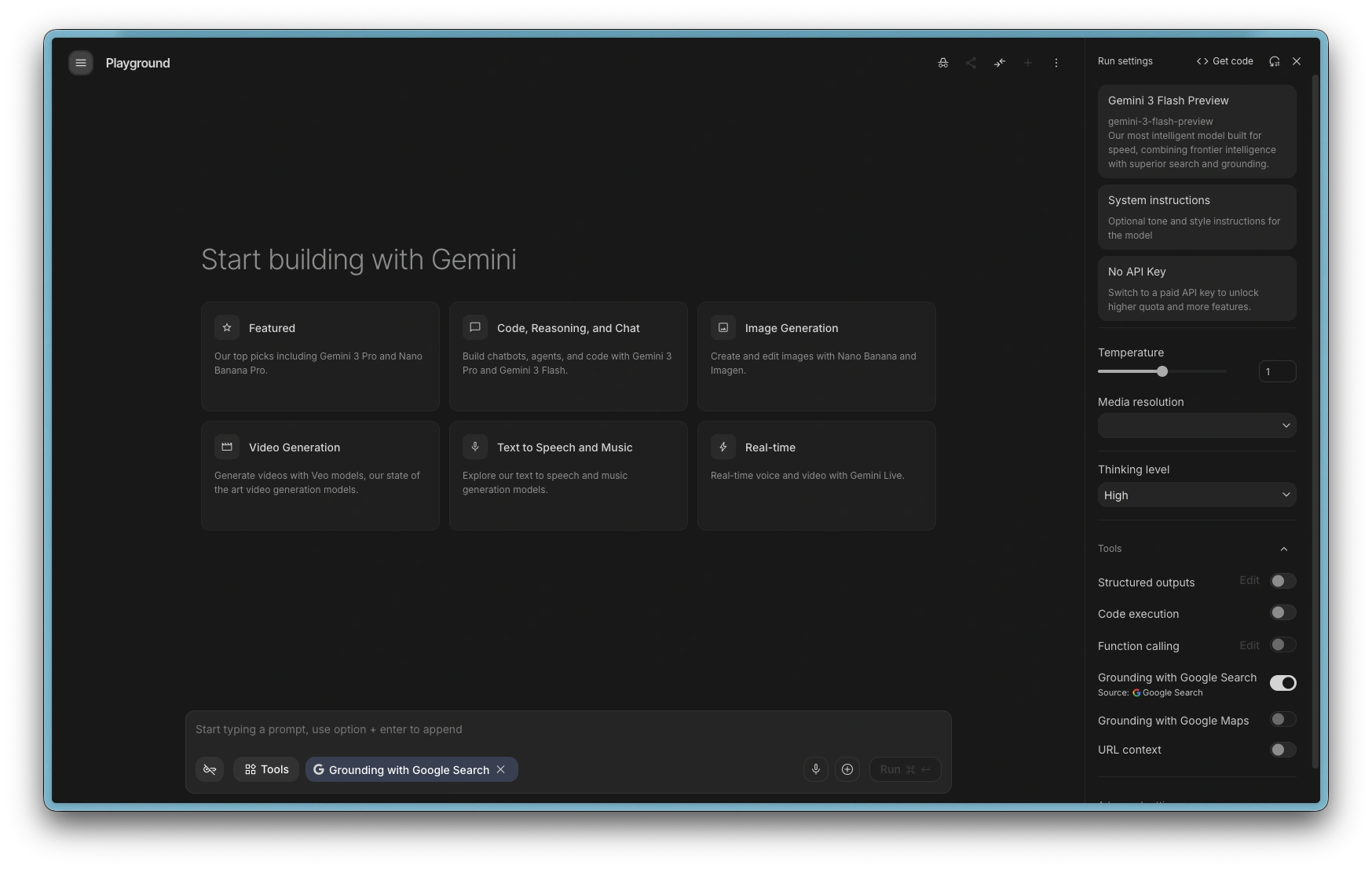
Gemini Dashboard
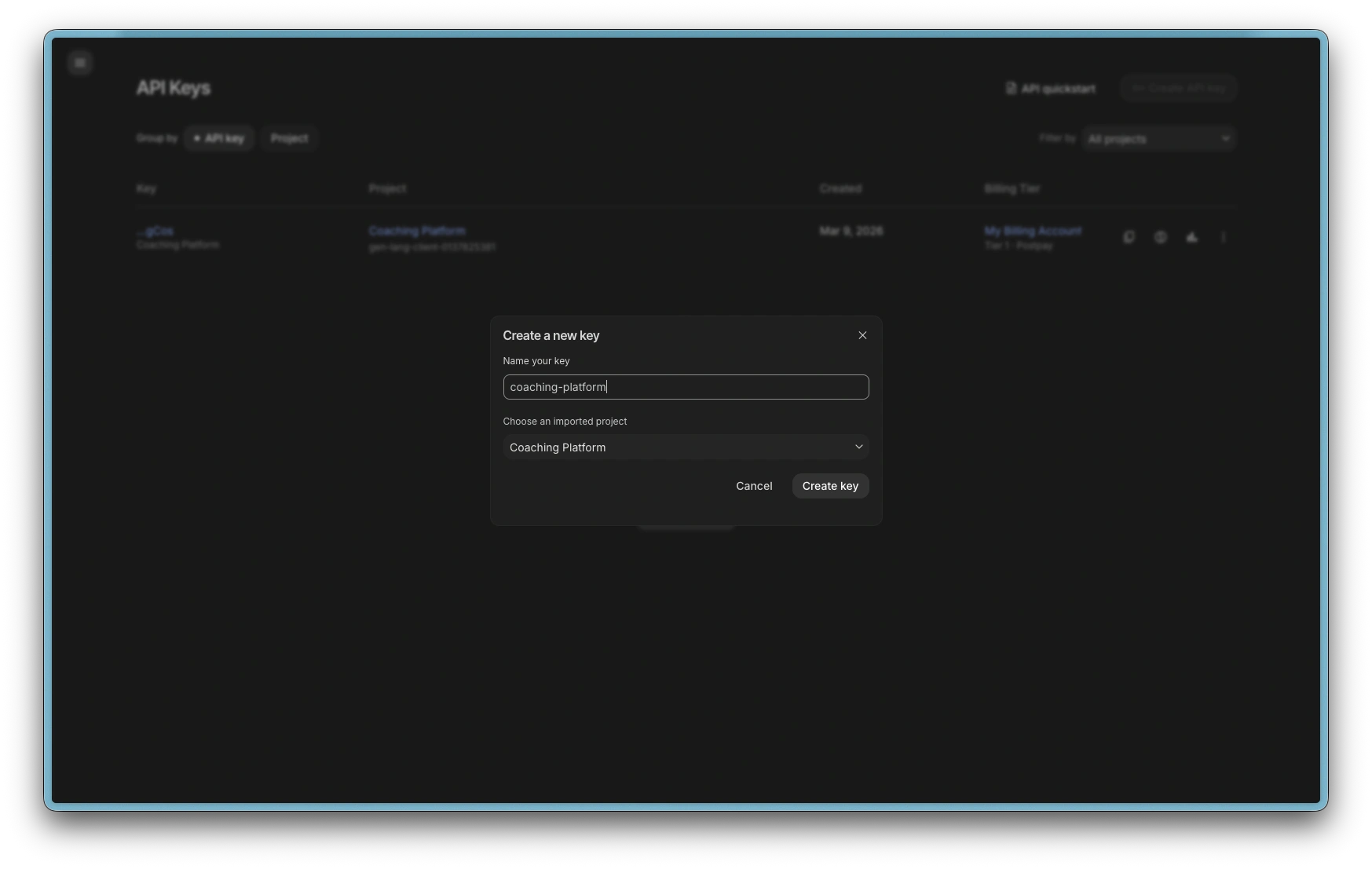
Create API key
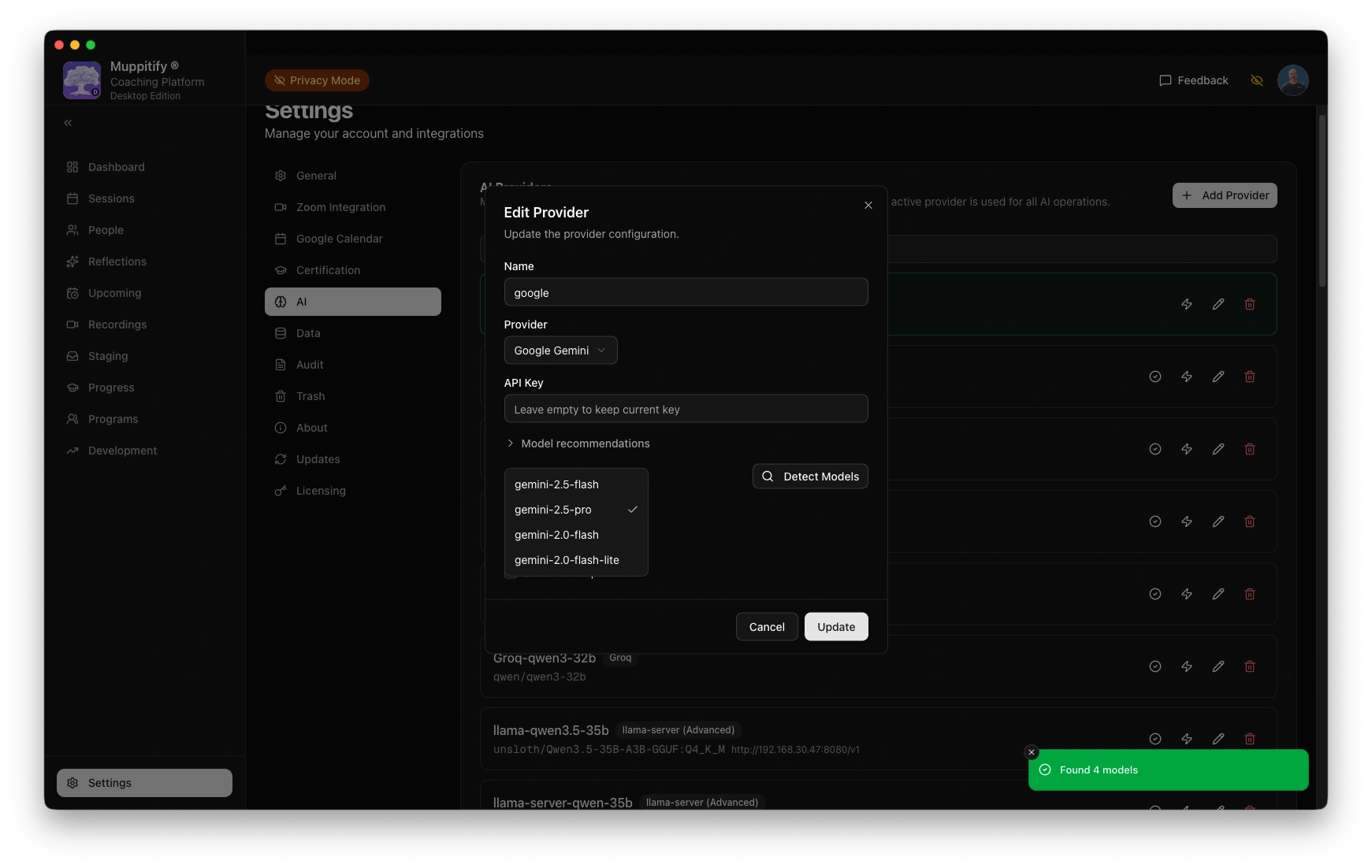
Add Gemini provider and model
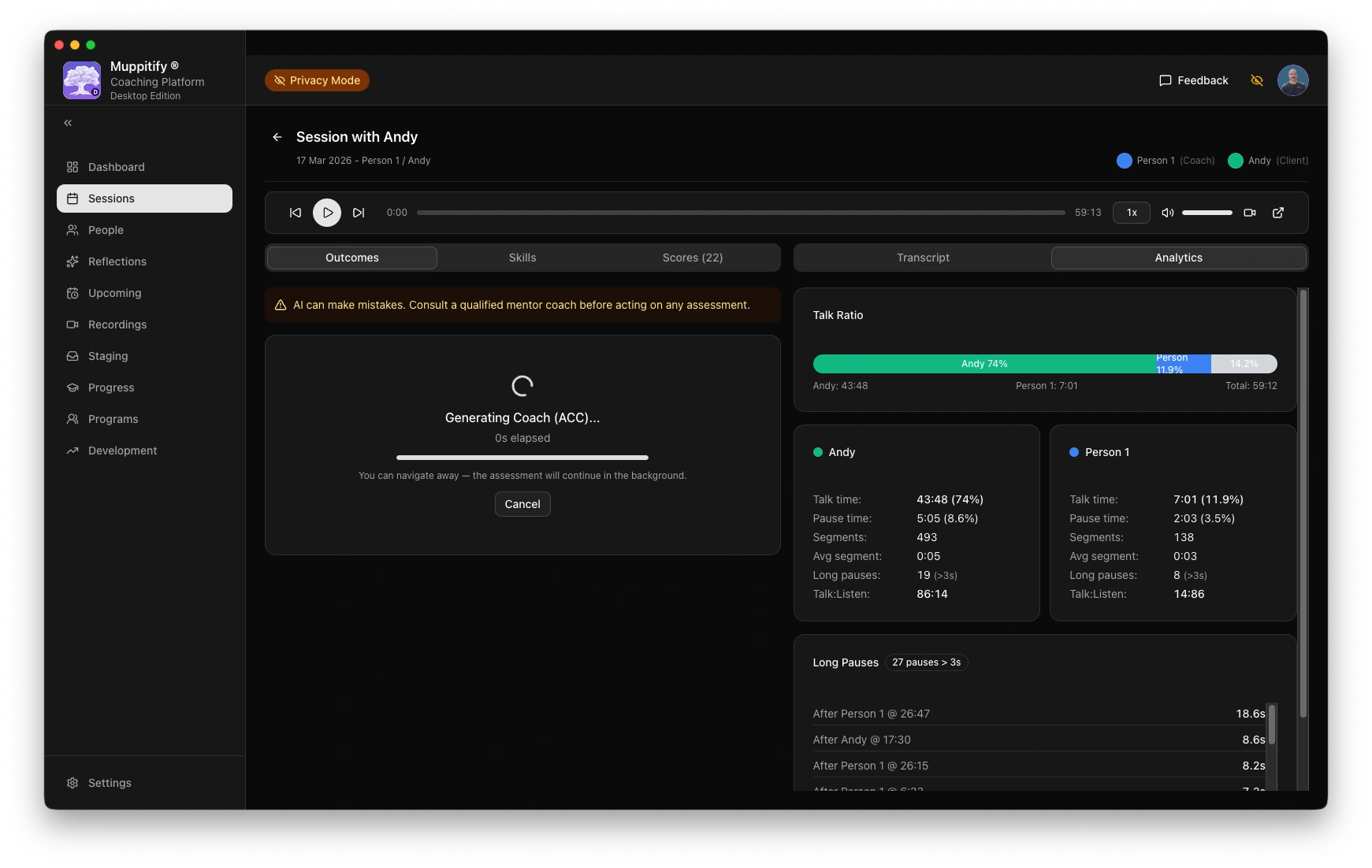
Start ACC AI analysis
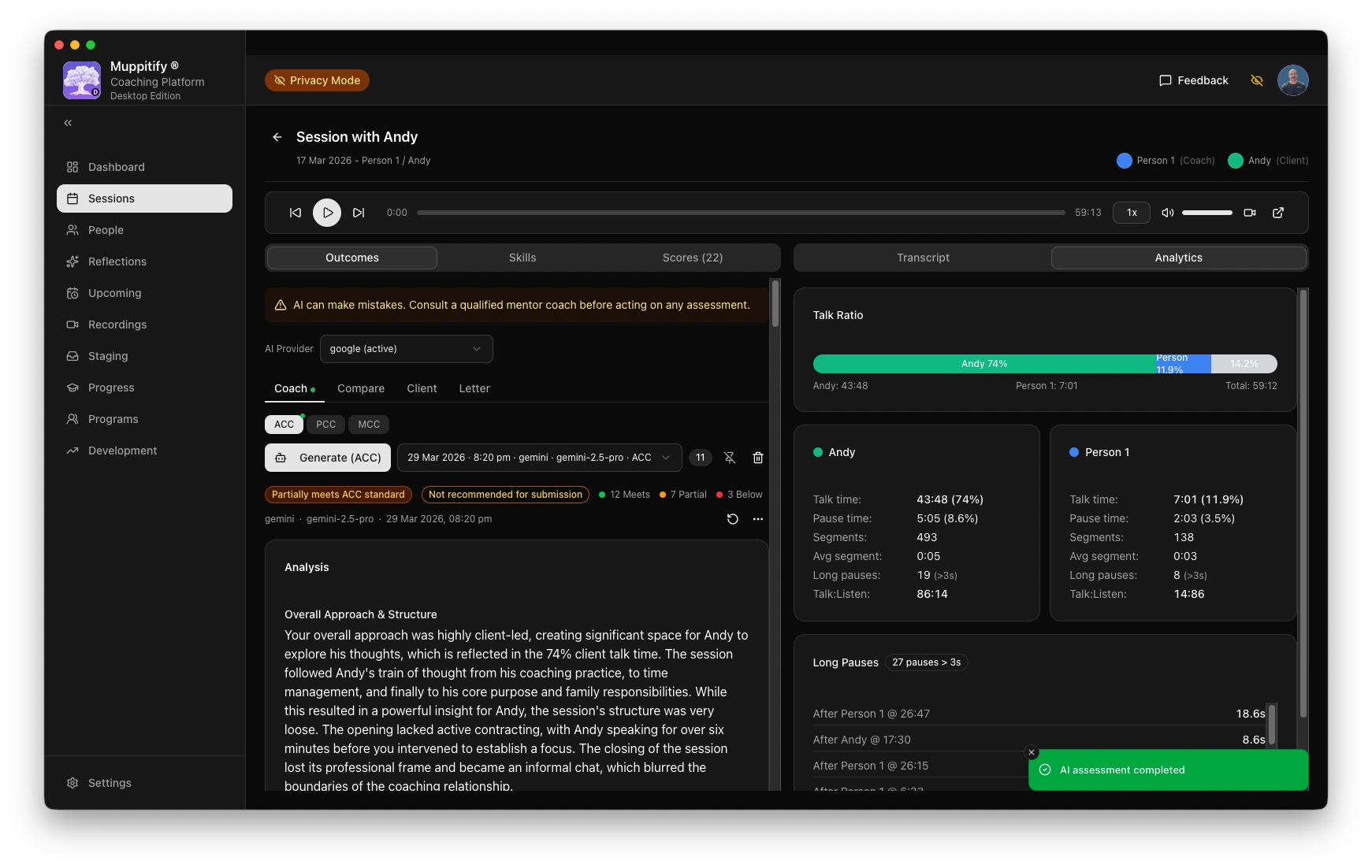
AI assessment completed
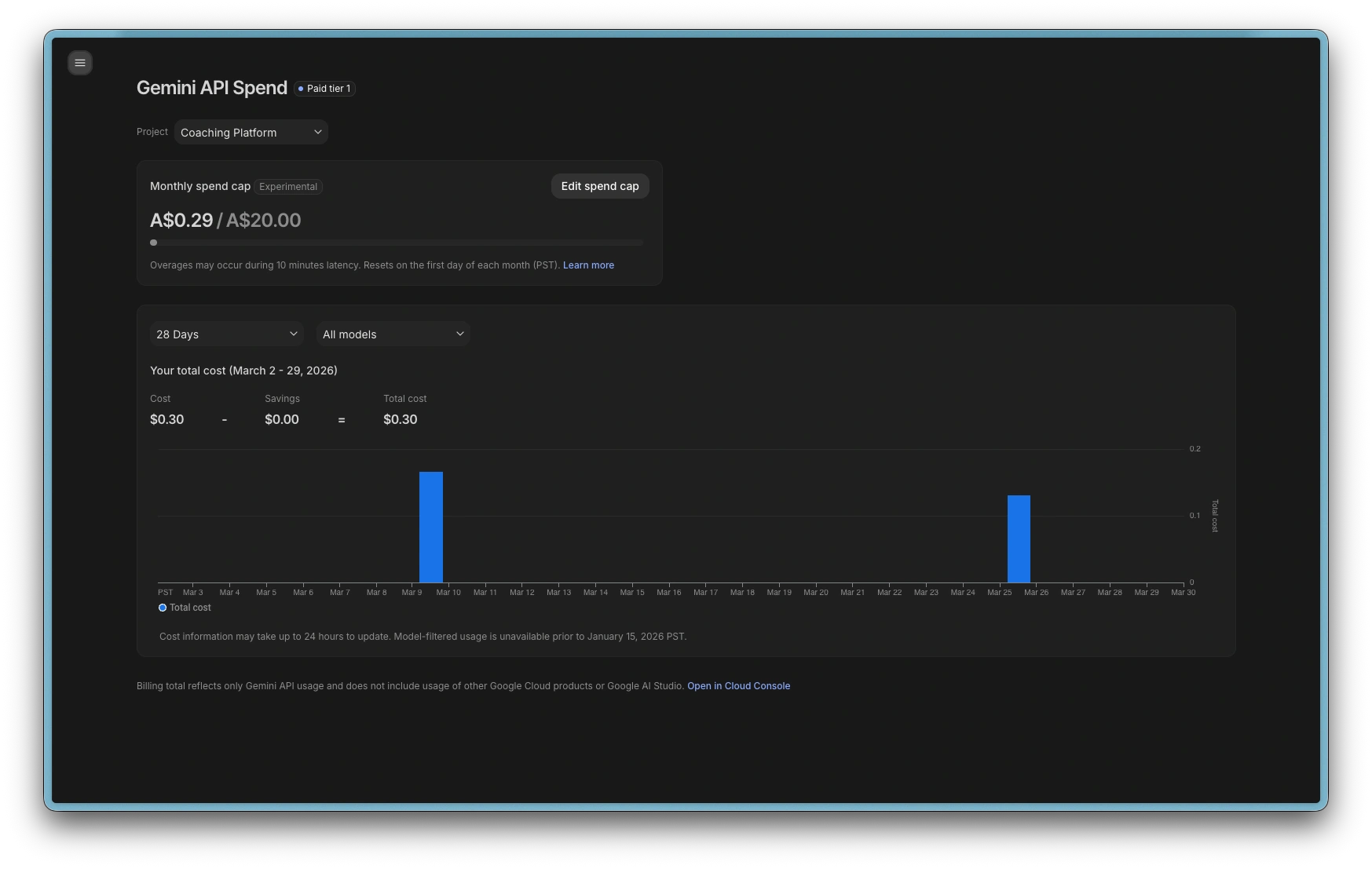
Gemini usage costs
Step 1: Open Google AI Studio
- Go to aistudio.google.com
- Sign in with your Google account
Google AI Studio is the developer portal for Gemini API access. If you have a Gmail account, you already have access.
Step 2: Create an API key
- Click Get API key in the left sidebar
- Click Create API key
- Select a Google Cloud project (or create a new one if prompted)
- Copy the API key immediately
Google AI Studio offers a free tier with rate limits. For occasional coaching assessments, the free tier may be sufficient. If you exceed the free tier, you will need to enable billing in your Google Cloud project.
Step 3: Configure the coaching platform
- Open the coaching platform and go to Settings > AI
- Select Google Gemini as your provider
- Paste your API key into the API Key field
- Choose a model. See Choosing a model for details. Neither Gemini Flash nor Gemini Pro is recommended for coaching assessment.
- Click Save
To test the connection, open any session with a recording and transcript, then click Generate AI Assessment.
For context windows, output token budgets, and rate limits, see API limits.
Troubleshooting
"API key invalid" error
Verify the key is correct. Go to aistudio.google.com, click Get API key, and check that the key exists. If in doubt, create a new key and update it in the coaching platform.
"Quota exceeded" error
You have exceeded the free tier rate limits. Wait a few minutes and try again, or enable billing in your Google Cloud project for higher limits.