Ollama setup
Ollama runs in standard analysis mode by default. Deep analysis (thinking mode) is disabled because local models cannot control their reasoning budget, leading to unpredictable timeouts. For deep analysis with local models, see llama-server. For details, see AI analysis modes.
No terminal, no command line. Just pick a model from the list and start chatting.
Ollama runs AI models locally on your computer. There are no API costs, no account required, and no data leaves your computer. You can also run Ollama on a separate machine in your network.
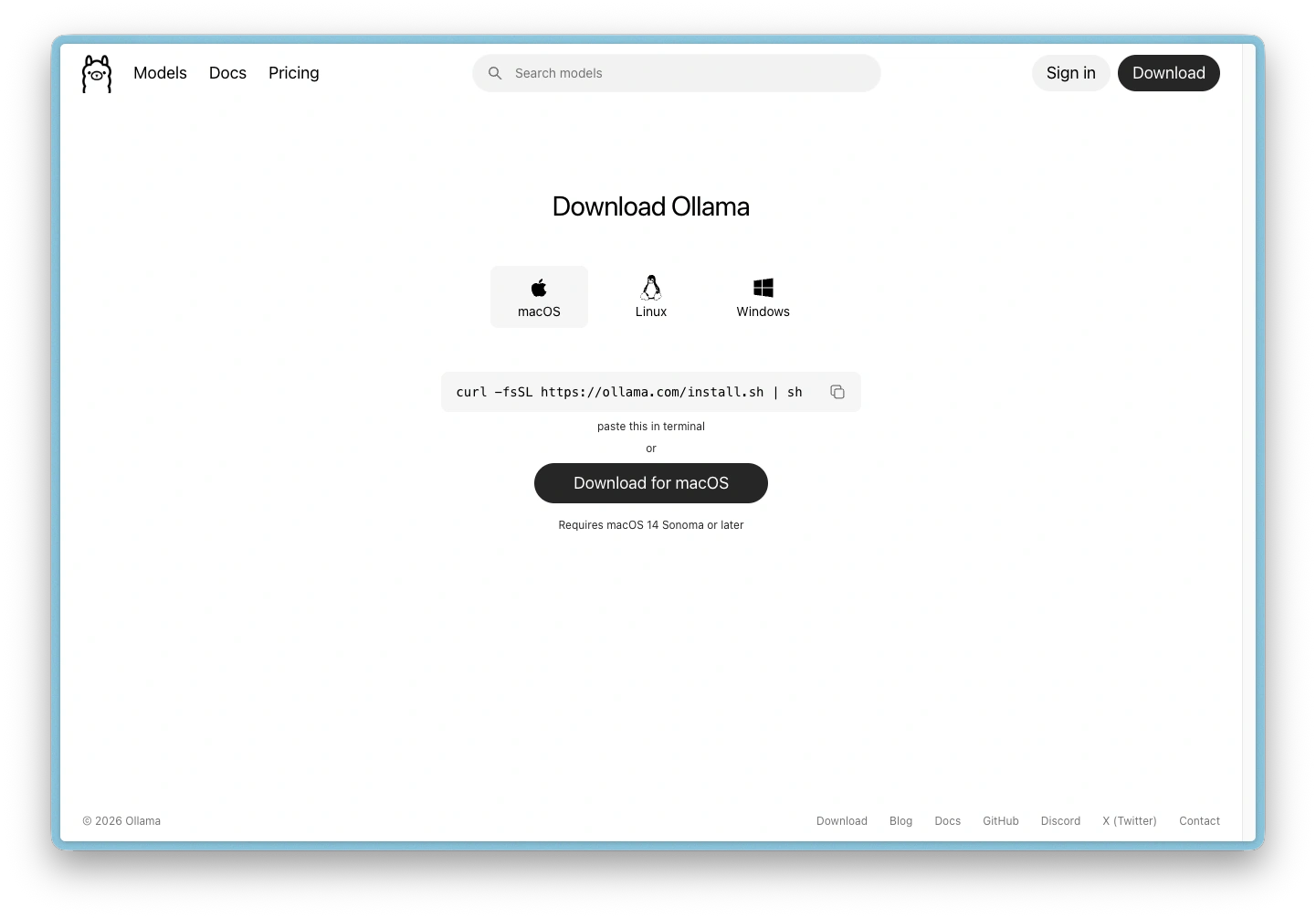
Download Ollama
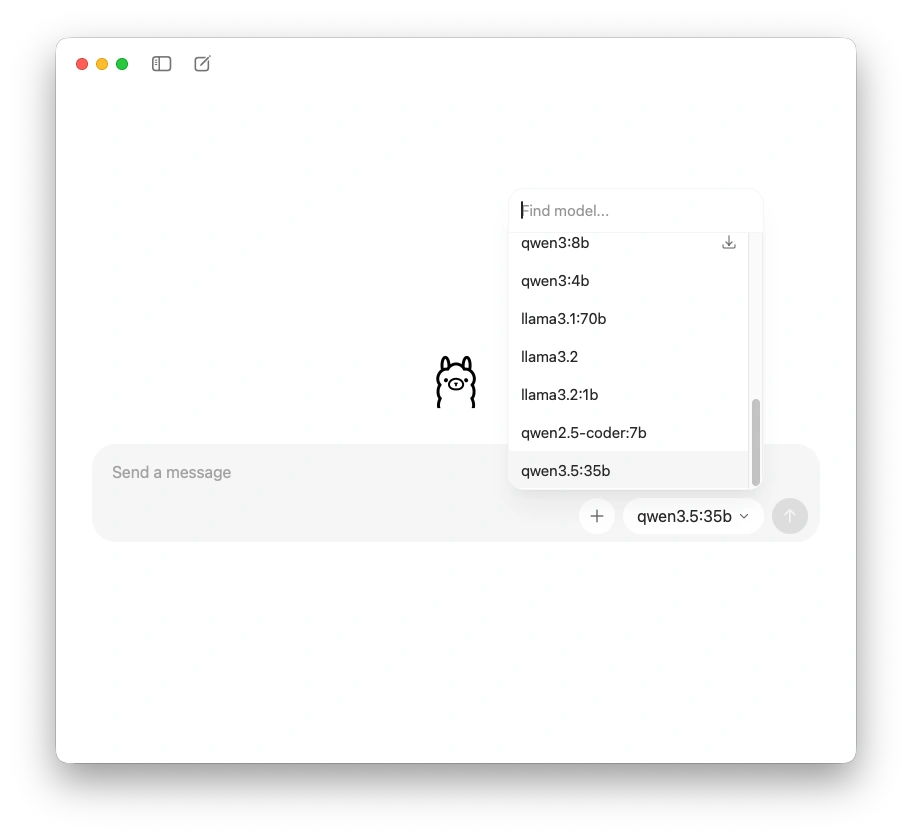
Select a model
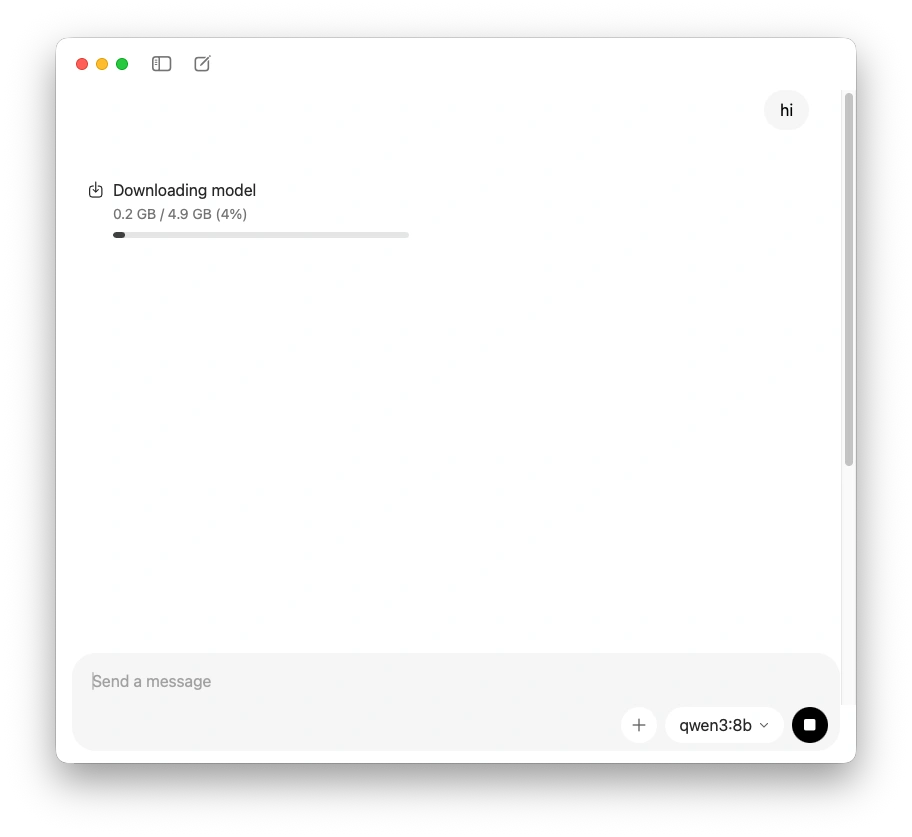
Download a model
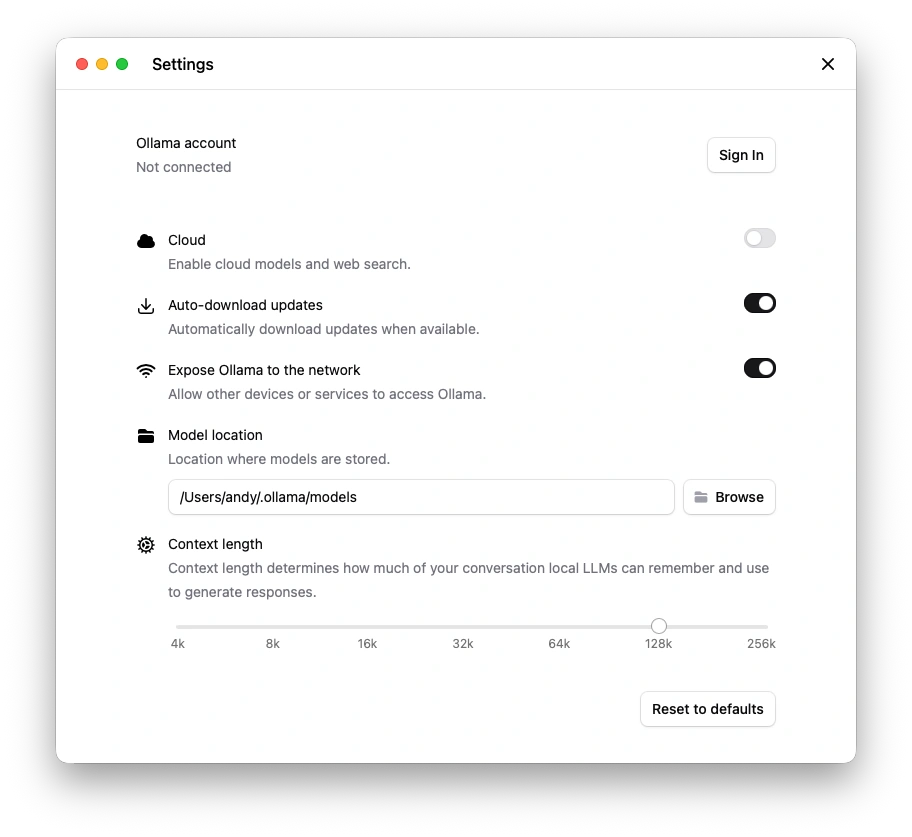
Ollama settings: expose to the network
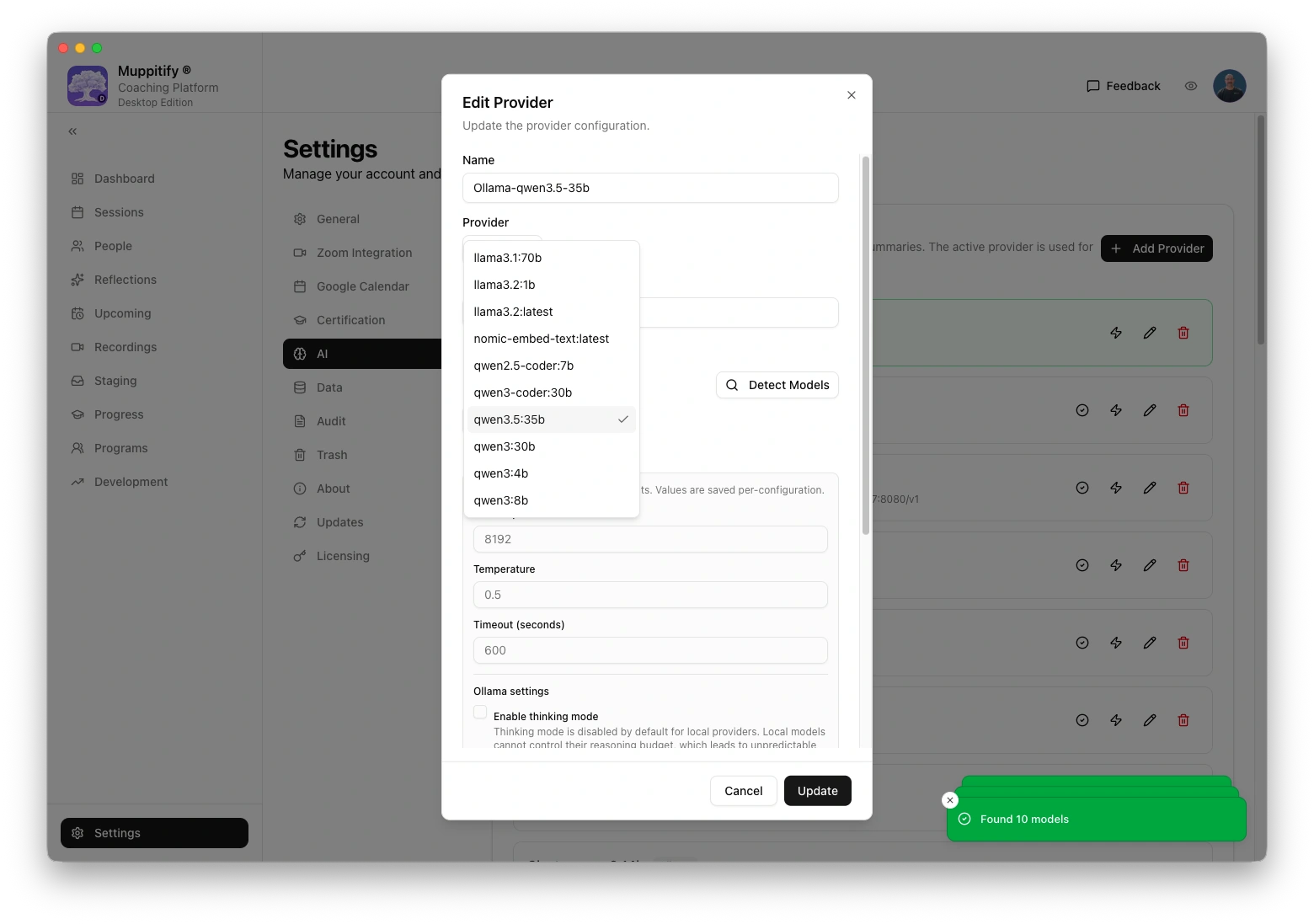
Ollama AI provider added
Step 1: Download and install
- Go to ollama.com/download
- Pick the relevant download for your operating system (macOS, Linux and Windows are supported)
- For example, Download for macOS (requires macOS 14 Sonoma or later)
- Open the downloaded file and drag Ollama to your Applications folder
- Launch Ollama from Applications
Ollama runs as a small icon in your menu bar at the top of the screen. There is no main window. The icon means it is running and ready.
Step 2: Choose a model
- Click the Ollama icon in your menu bar to open the chat window
- Click the model picker in the bottom-right corner to see a list of available models
- Select a reasoning model. See Choosing a model for which model suits your system memory
Models with a download icon next to them have not been downloaded yet. That is fine; the next step handles the download.
Step 3: Download the model
After selecting a model, type any message (even just "hi") and press Enter. Ollama automatically downloads the model before responding. This can take a few minutes depending on the model size and your internet speed. You only need to do this once per model.
Step 4: Enable network access
Right-click the Ollama icon in your menu bar and select Settings. Turn on Expose Ollama to the network.
This allows the coaching platform to connect to Ollama. You do not need to sign in or enable Cloud.
If you use the Desktop Edition on the same Mac as Ollama, network access may not be needed (localhost works). Enable it if the coaching platform reports a connection error.
Ollama's Settings page has a "Context length" slider. You can leave this at the default. The coaching platform automatically manages the context window based on your system memory.
Step 5: Configure the coaching platform
- Open the coaching platform and go to Settings > AI
- Select Ollama as your provider
- Enter the Ollama URL (see the table below)
- Enter your model name (e.g.
qwen3:14b) - Click Save
To test the connection, open any session with a recording and transcript, then click Generate AI Assessment.
Ollama URL by edition
| Edition | Ollama URL | Notes |
|---|---|---|
| Desktop (same Mac) | http://localhost:11434 | Ollama and the coaching platform run on the same machine |
| Server (Docker on same Mac) | http://host.docker.internal:11434 | Docker's special address for reaching the host machine |
| Server (Ollama on a different machine) | http://MACHINE-IP:11434 | Replace with the IP of the machine running Ollama |
For Server Edition users: Ollama can run on the same machine as Docker, on a separate workstation, or on a dedicated server. Use the IP address of whichever machine Ollama is installed on.
Keeping Ollama updated
Ollama updates automatically. When an update is available, click the Ollama icon in your menu bar and click to restart. No manual downloads needed.
Troubleshooting
Ollama not responding
- Check the Ollama icon is visible in your menu bar (if not, launch it from Applications)
- Check Expose Ollama to the network is enabled in Ollama Settings
- For Server Edition, verify the URL matches your setup (see table above)
Model too large for your system
If Ollama runs very slowly or your computer becomes unresponsive, the model may be too large for your available memory. Try a smaller model. See Choosing a model for recommendations by system memory.
Assessment truncated or incomplete
On systems with 16 GB RAM, Ollama may not have enough context for long transcripts. The coaching platform automatically adjusts for this, but very long sessions may produce shorter assessments. Consider using OpenAI for long transcripts.