LM Studio setup
LM Studio runs in standard analysis mode by default. Deep analysis (thinking mode) is disabled because local models cannot control their reasoning budget, leading to unpredictable timeouts. For deep analysis with local models, see llama-server. For details, see AI analysis modes.
LM Studio runs AI models locally on your computer with a graphical interface for browsing, downloading, and managing models. There are no API costs, no account required, and no data leaves your computer. It is similar to Ollama but with a visual model manager instead of a menu bar app.
The coaching platform connects to LM Studio's built-in local server. No API key is needed.
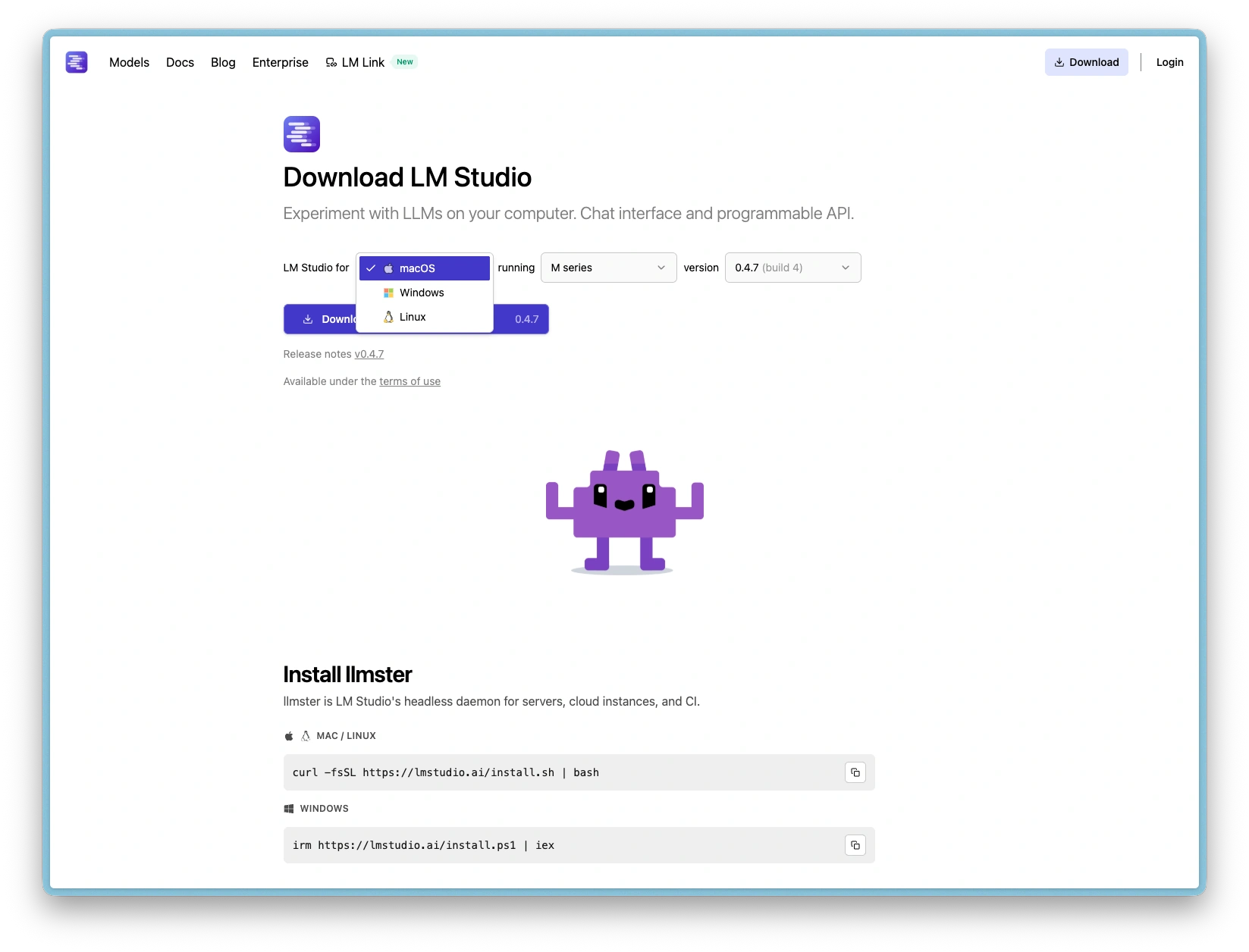
Download LM Studio
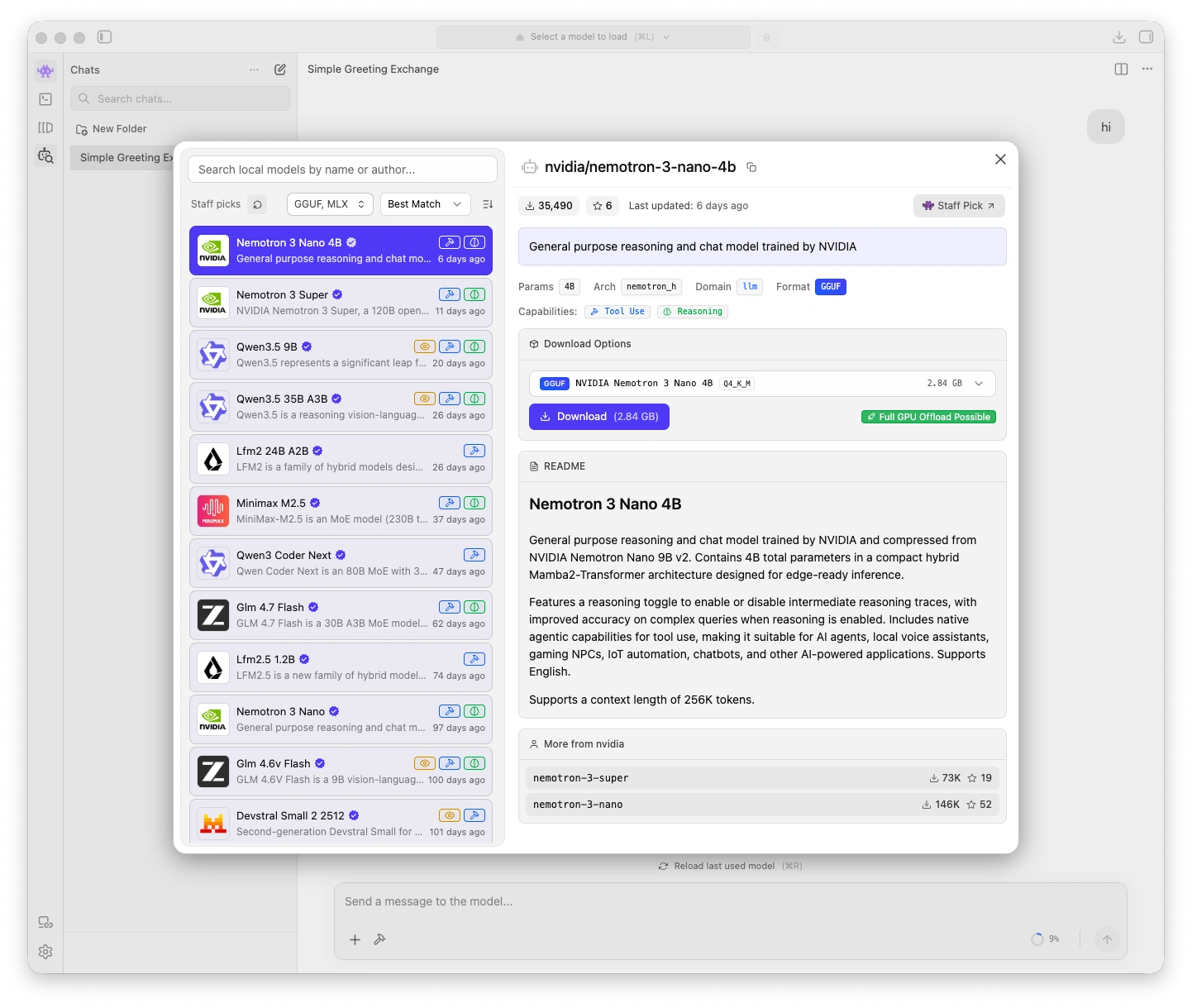
Select a model
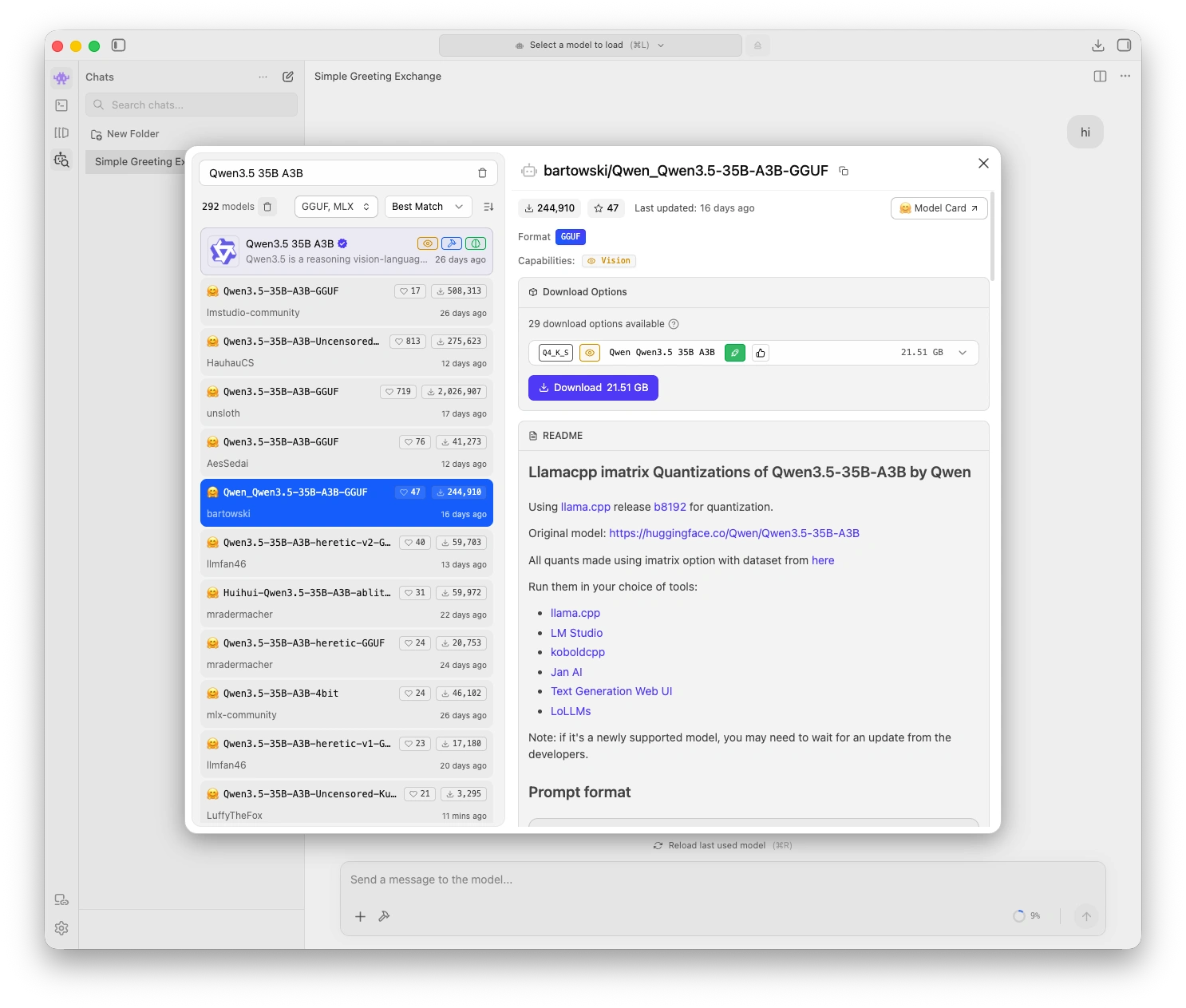
Download a model
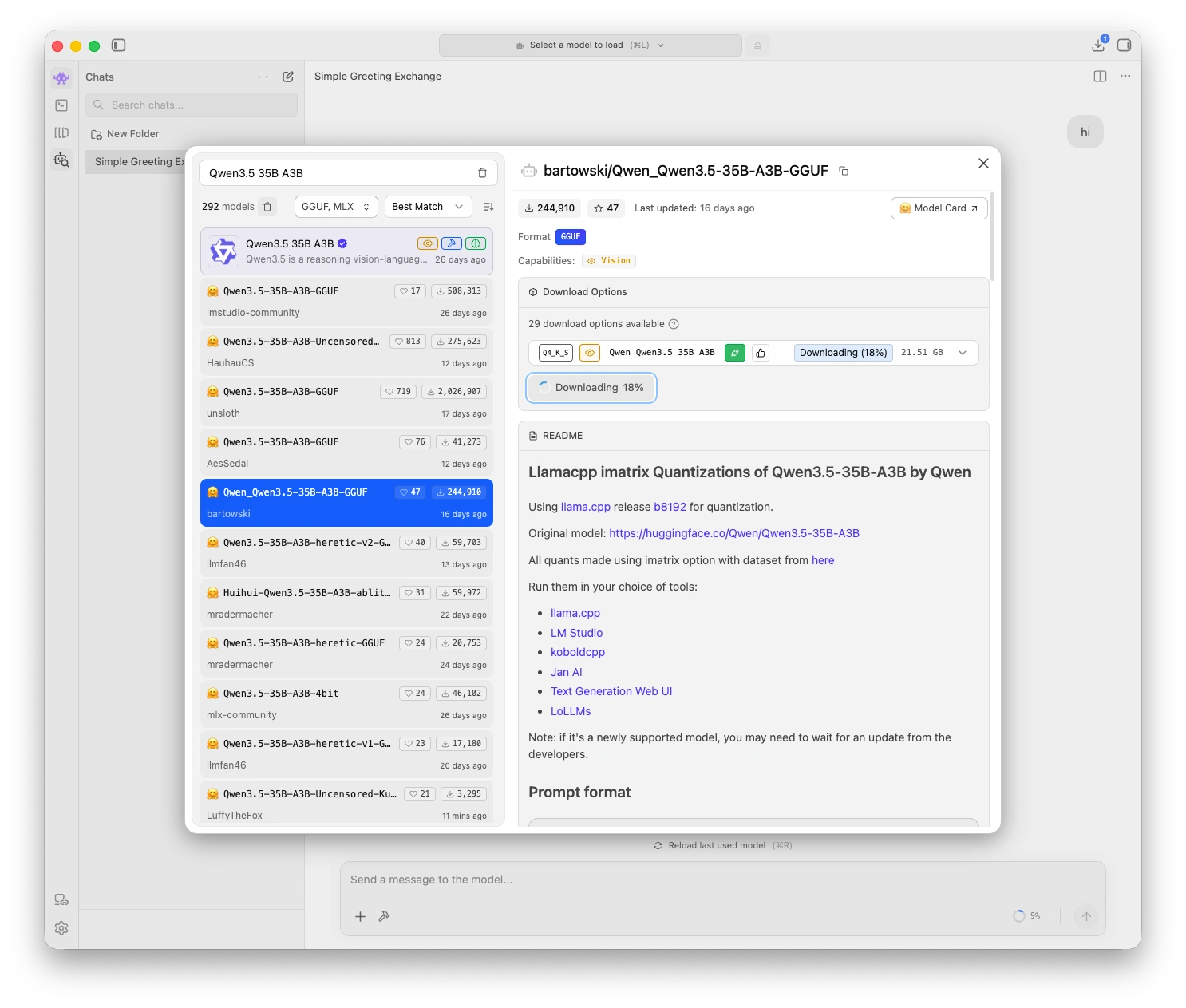
Model download in progress
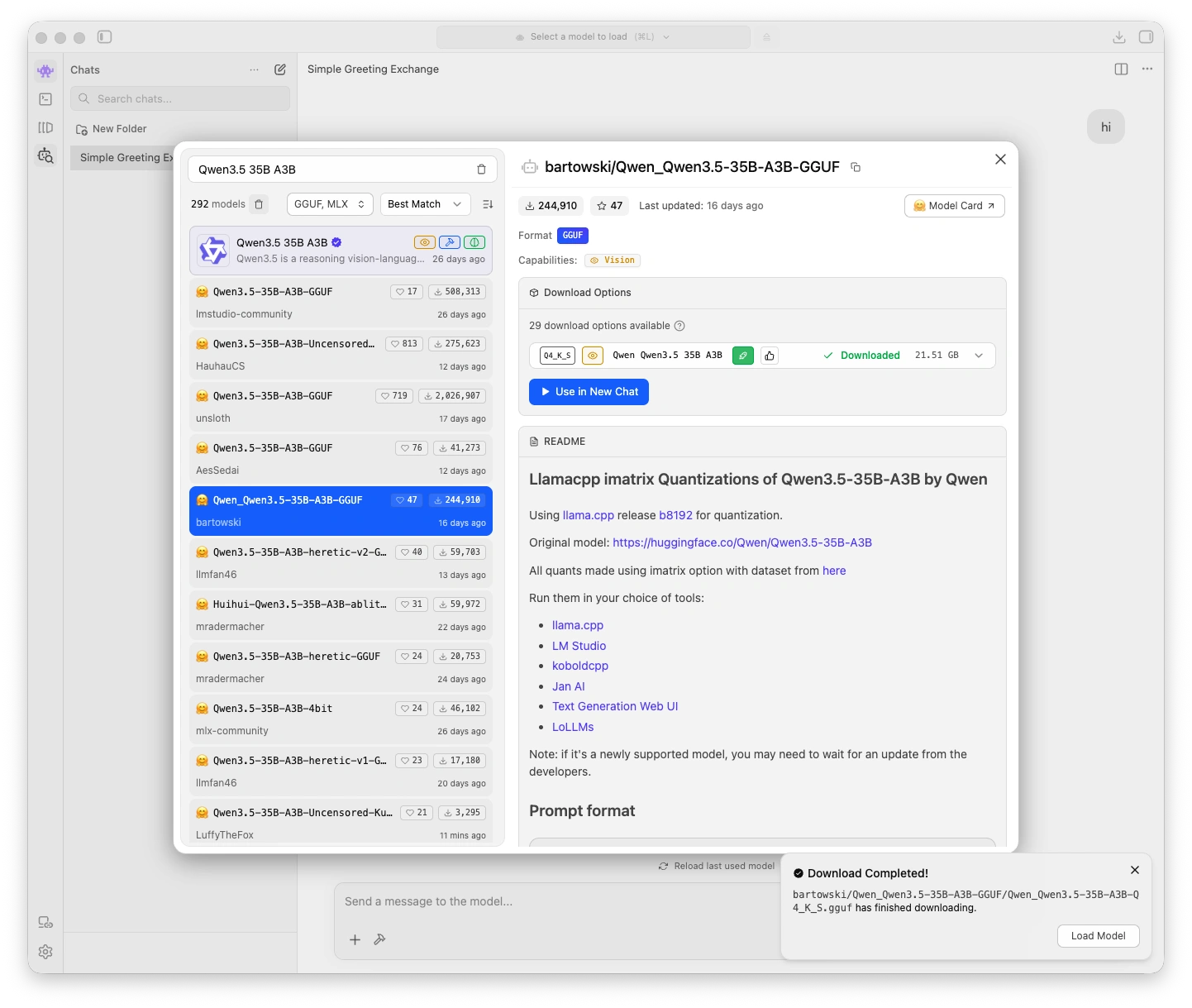
Model download completed
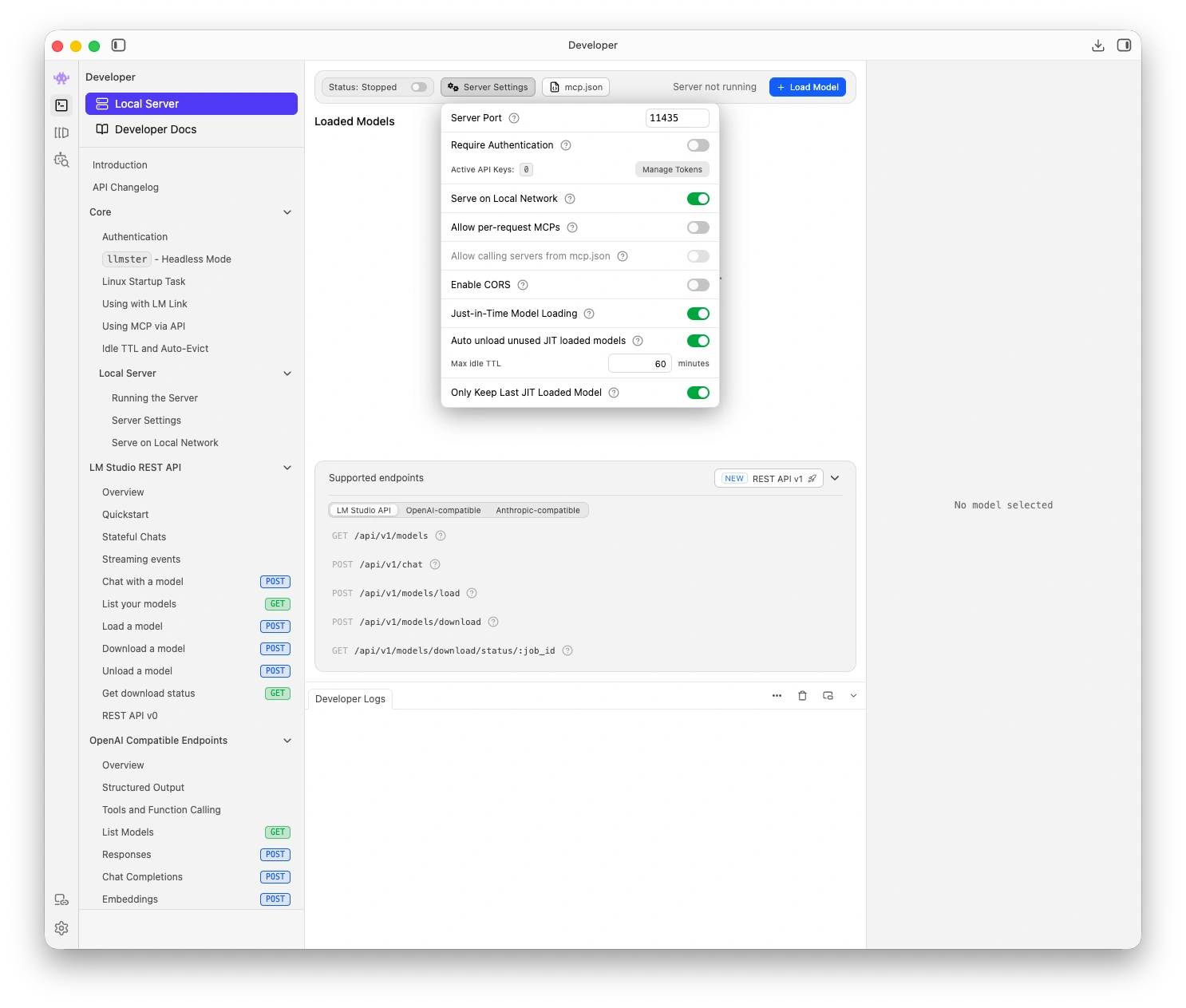
Developer: server settings
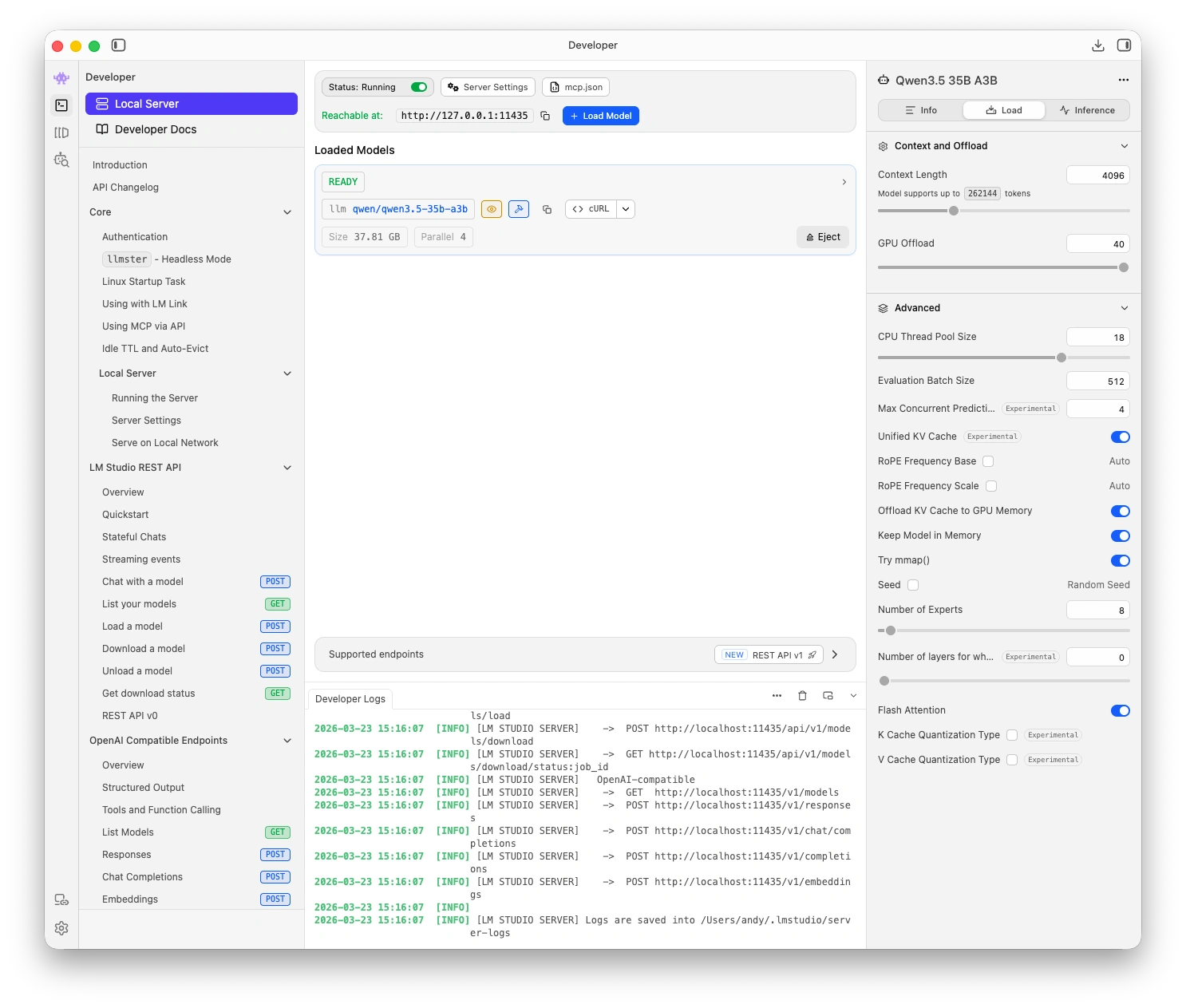
Default context length
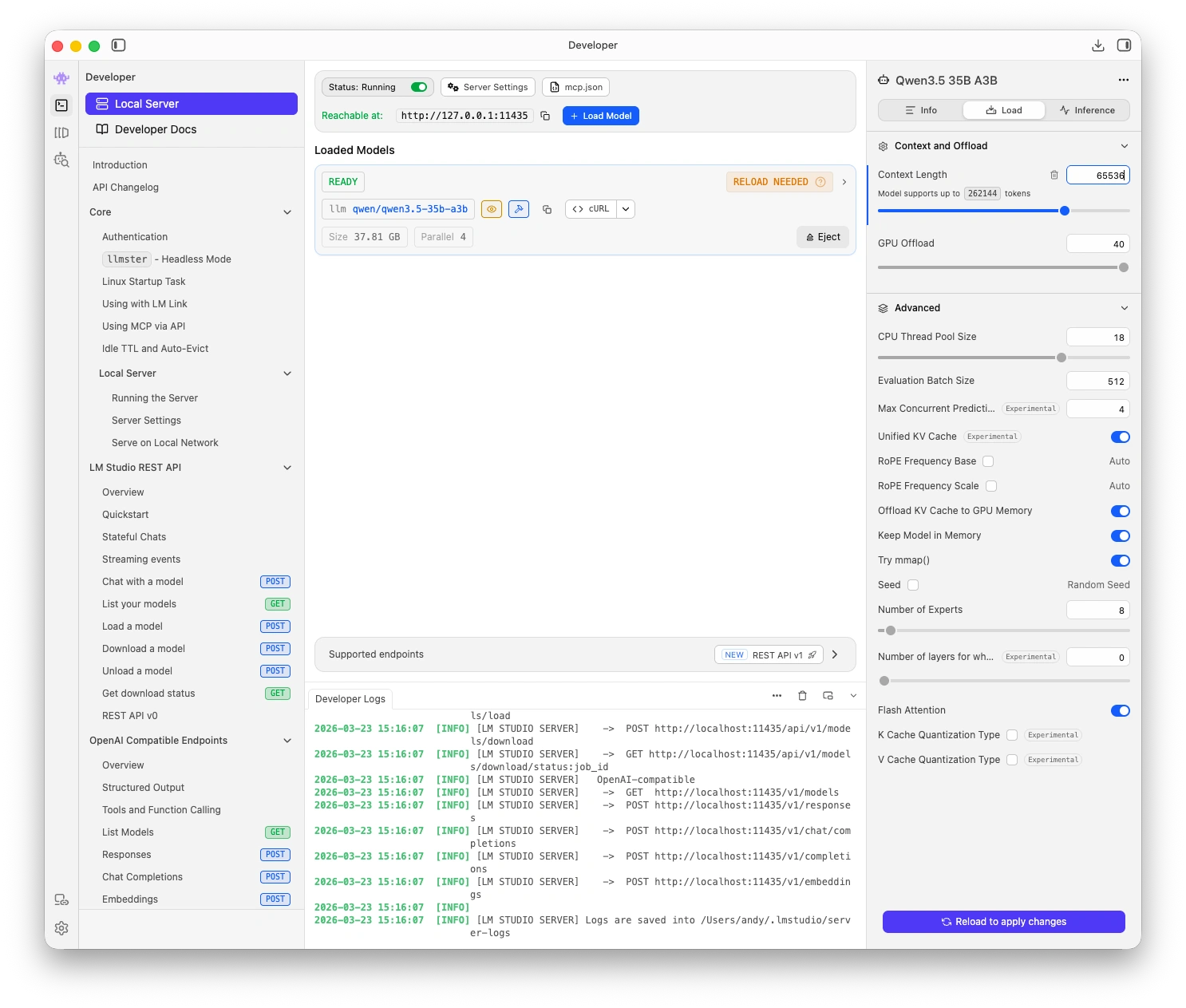
Increase model context length
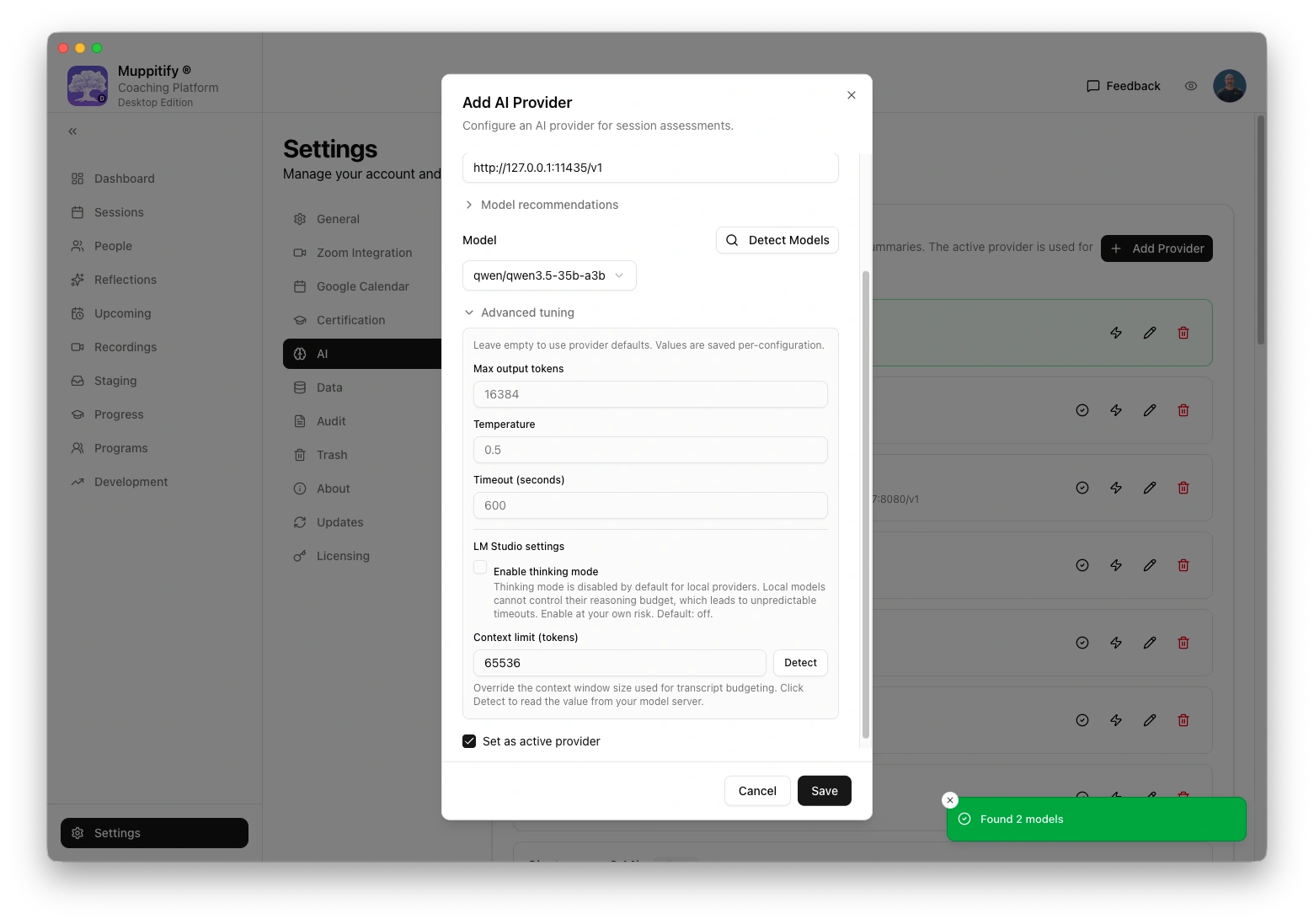
Add LM Studio as AI provider
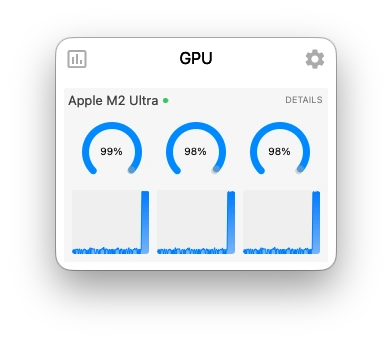
GPU under load during session analysis
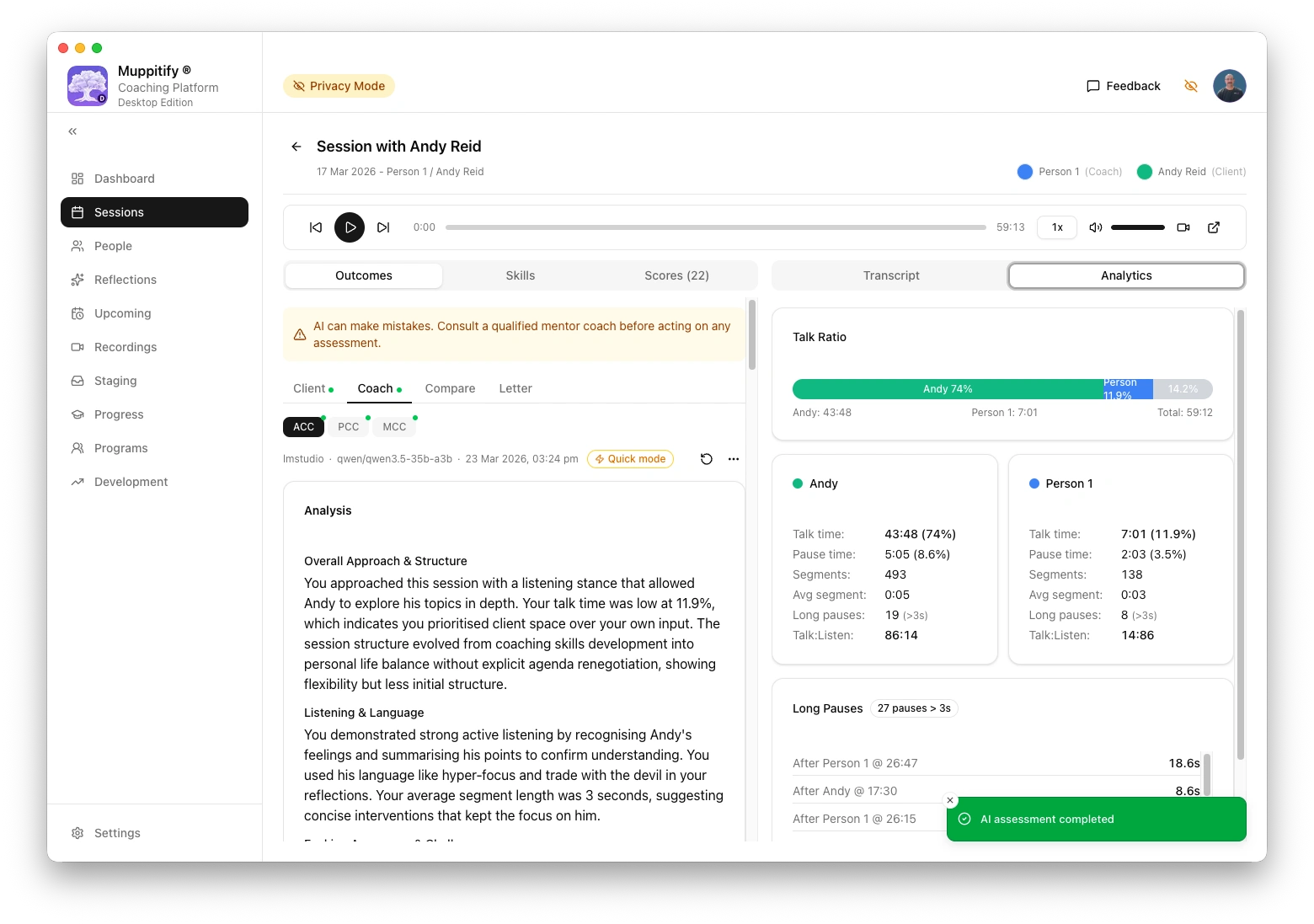
AI assessment completed using LM Studio
Step 1: Download and install
- Go to lmstudio.ai
- Pick the relevant download for your operating system (macOS, Linux and Windows are supported)
- For example, Download for macOS (requires macOS 13 Ventura or later)
- Open the downloaded file and drag LM Studio to your Applications folder
- Launch LM Studio from Applications
Step 2: Download a model
- In LM Studio, click the Model Search tab (magnifying glass icon) in the left sidebar
- Search for a model. See Choosing a model for recommendations. Qwen3.5 35B A3B is a good starting point for systems with 64 GB+ memory.
- Click Download next to your chosen model
- Wait for the download to complete. Model files are large (several GB) so this may take a few minutes.
System requirements
| System memory | Recommended model | Notes |
|---|---|---|
| 64 GB+ | Qwen3.5 35B A3B (Q8_0) | Best quality, MoE architecture keeps active parameters low |
| 16-32 GB | Qwen3.5 9B (Q8_0) | Good balance of quality and memory usage |
Step 3: Start the local server
- Click the Developer tab (code icon) in the left sidebar
- Select your downloaded model from the model dropdown
- Click Start Server
The server runs at http://localhost:1234/v1 by default. You should see a green status indicator when the server is running.
Step 4: Set the context length
LM Studio's default context length (4,096 tokens) is too small for coaching assessments. You must increase it:
- In the Developer tab, click the model settings (gear icon)
- Find Context Length
- Set it to at least 32,768 (32K) for shorter sessions, or 65,536 (64K) for full session transcripts on 64 GB+ systems
| System memory | Recommended context length |
|---|---|
| 16-32 GB | 32,768 tokens (32K) |
| 64 GB+ | 65,536 tokens (64K) |
After changing the context length in LM Studio, set the matching value in the coaching platform under Settings > AI > Advanced tuning > Context limit.
If the context length is too small, long transcripts will be truncated and assessments will be incomplete or shallow. Always increase it from the default.
Step 5: Configure the coaching platform
- Open the coaching platform and go to Settings > AI
- Select LM Studio as your provider
- Enter the base URL:
http://localhost:1234/v1 - Enter your model name (e.g. the model identifier shown in LM Studio's Developer tab)
- No API key is needed. Leave the API Key field empty.
- Click Save
To test the connection, open any session with a recording and transcript, then click Generate AI Assessment.
If you use the Desktop Edition on the same Mac as LM Studio, http://localhost:1234/v1 works directly. For the Server Edition running in Docker, use http://host.docker.internal:1234/v1 instead.
LM Studio models tend to produce more generous overall verdicts than rigorous cloud models. In testing, Qwen3.5 35B A3B rated 37 of 39 markers as "Meets" on a session that Claude Sonnet and xAI recommended against PCC submission. Cross-reference results with a more rigorous model before acting on submission recommendations.
Keeping LM Studio updated
LM Studio checks for updates automatically on launch. When an update is available, it will prompt you to download and install it. You can also check manually from the app menu.
Troubleshooting
"Connection refused" error
- Check that LM Studio is running and the server is started (green status in the Developer tab)
- Verify the URL is
http://localhost:1234/v1(orhttp://host.docker.internal:1234/v1for Server Edition in Docker) - Check that a model is loaded in the Developer tab
Model too large for your system
If LM Studio runs very slowly or your computer becomes unresponsive, the model may be too large for your available memory. Try a smaller model. See the system requirements table above and Choosing a model for recommendations by system memory.
Assessment truncated or incomplete
The context length may be too small. Increase it in LM Studio's model settings (see Step 4). Make sure the matching value is also set in the coaching platform under Settings > AI > Advanced tuning > Context limit.
Assessment takes a long time
Local models are slower than cloud providers. A full PCC assessment with Qwen3.5 35B A3B takes approximately 3 minutes on a 64 GB Mac. This is normal. If it takes significantly longer, check that no other memory-intensive applications are running.