Mistral setup
Mistral is a European AI provider based in Paris. The coaching platform can connect to Mistral's cloud API to analyse your coaching transcripts and generate ICF competency assessments. You need a Mistral account and an API key. Usage is pay-as-you-go.
As a European provider, Mistral processes data within the EU, which may be relevant if you need to comply with GDPR or other European data protection regulations.
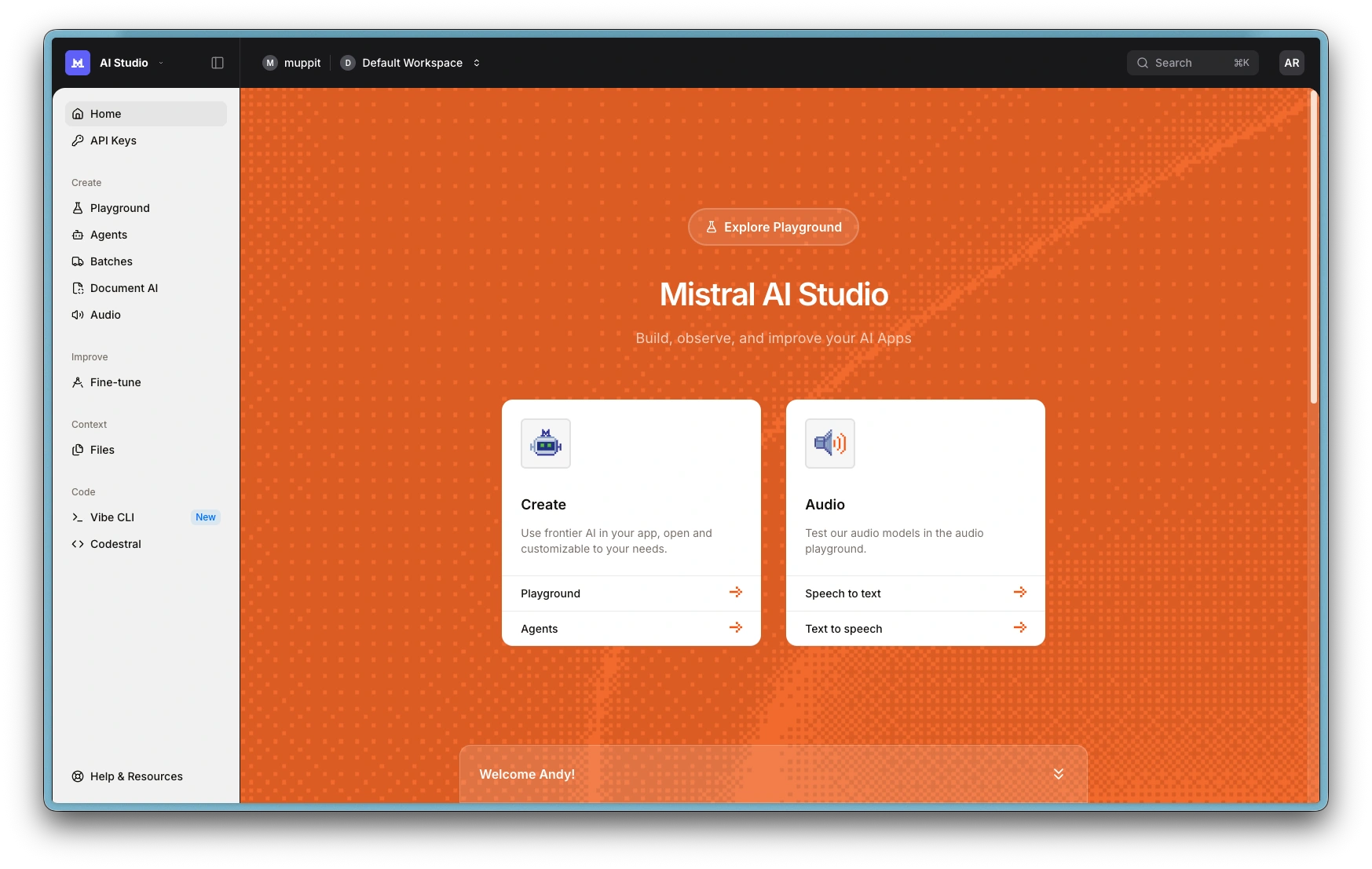
Mistral Dashboard
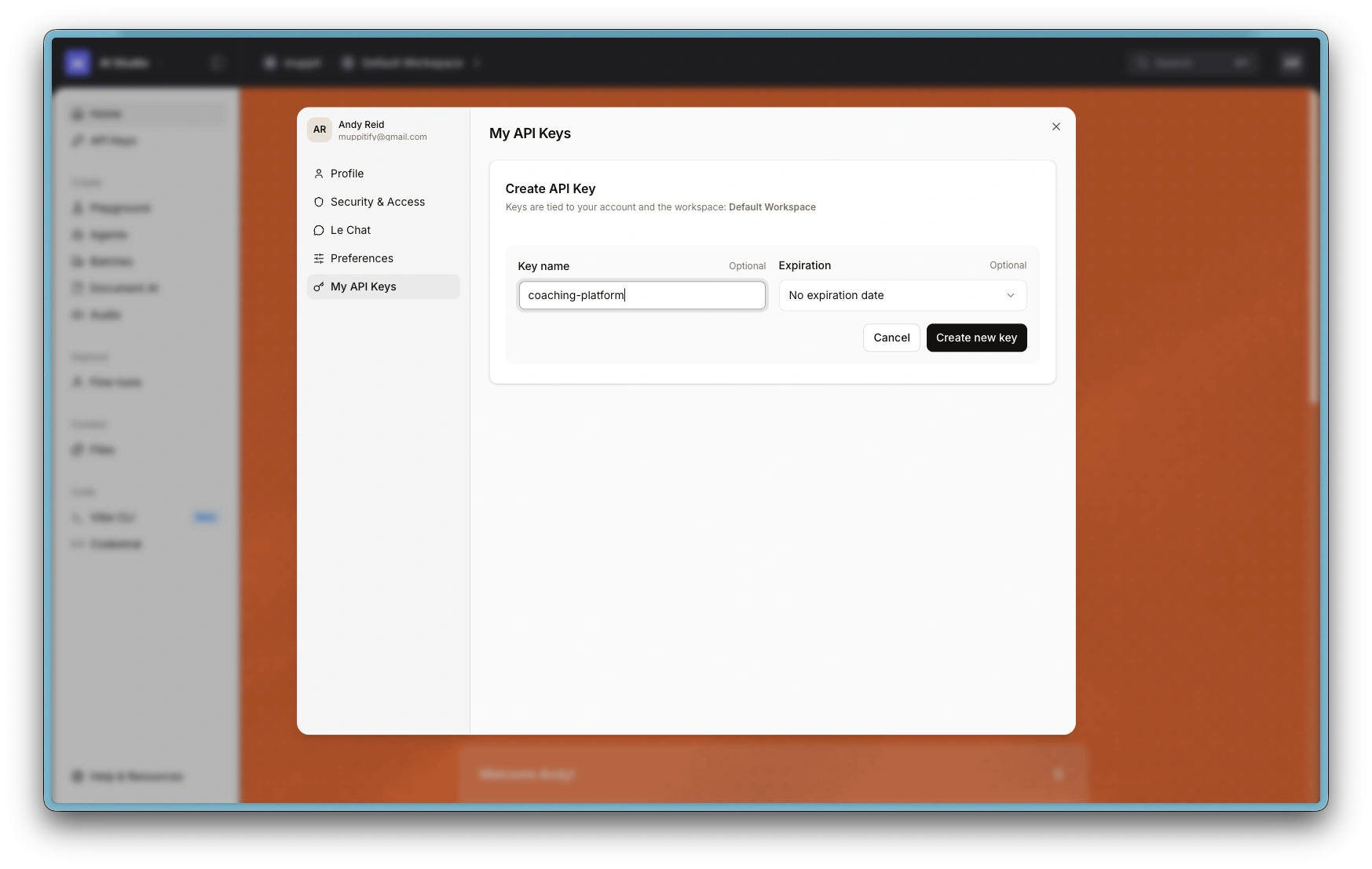
Create API key
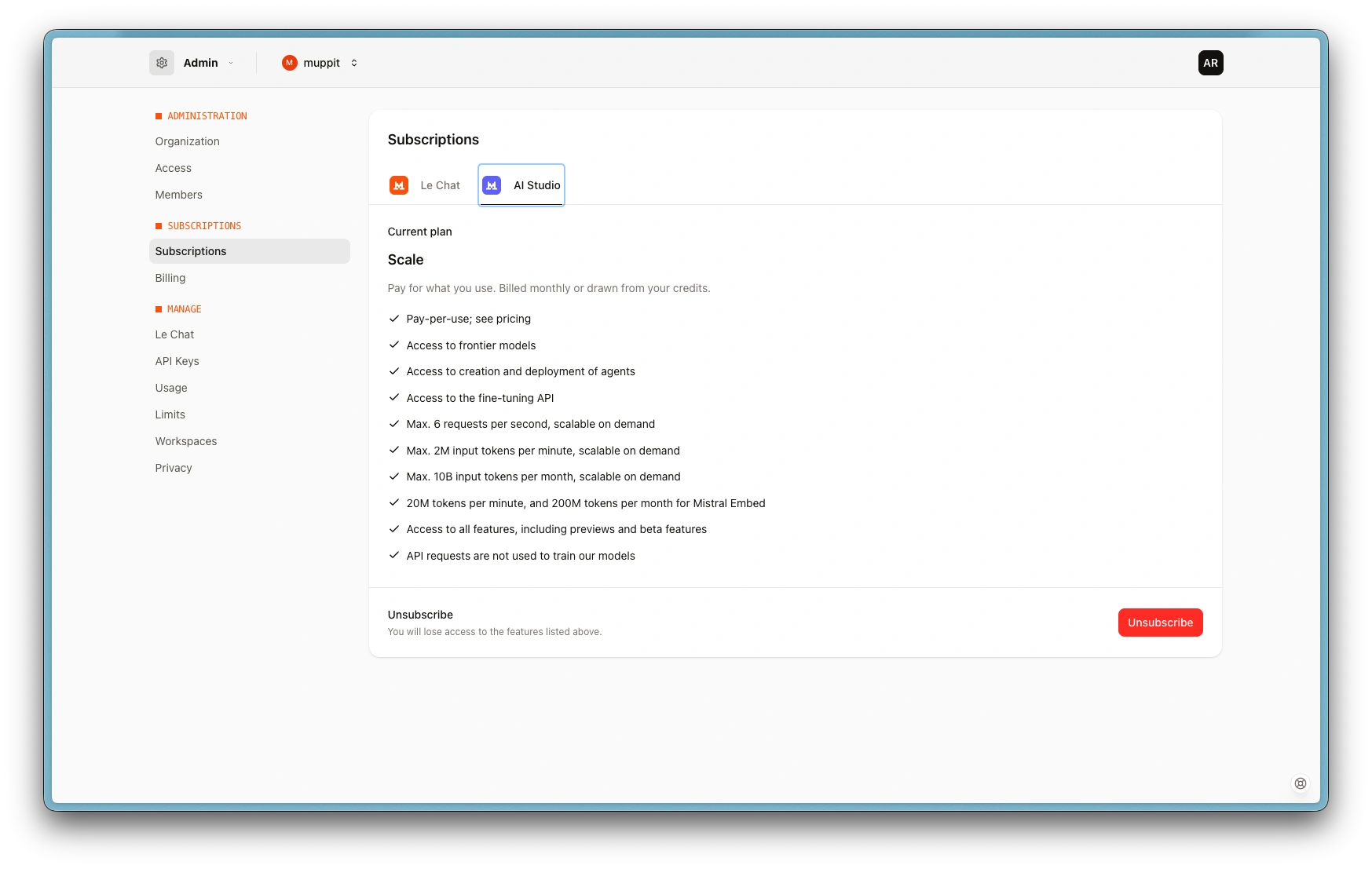
Subscription AI Studio plan
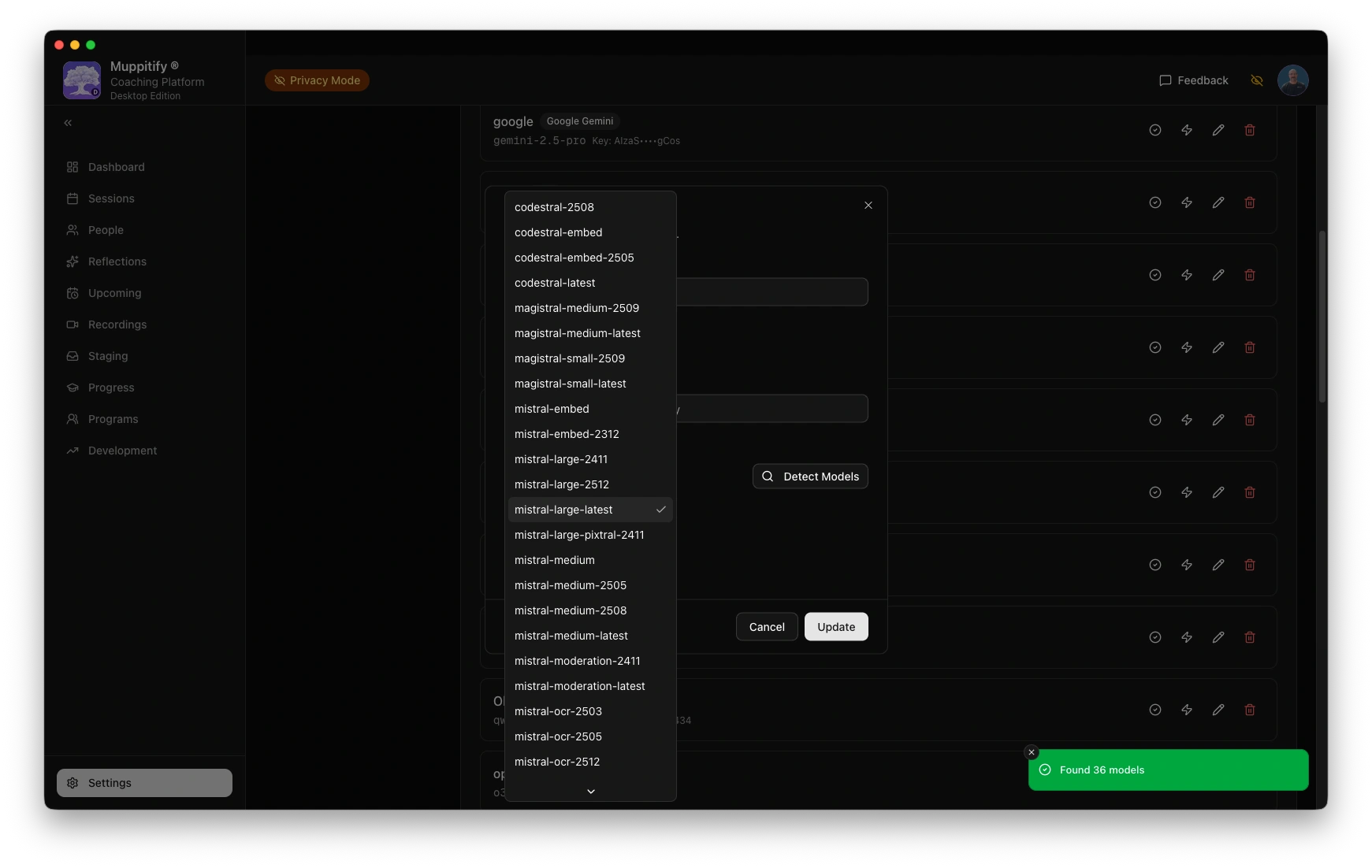
Add Mistral provider and model
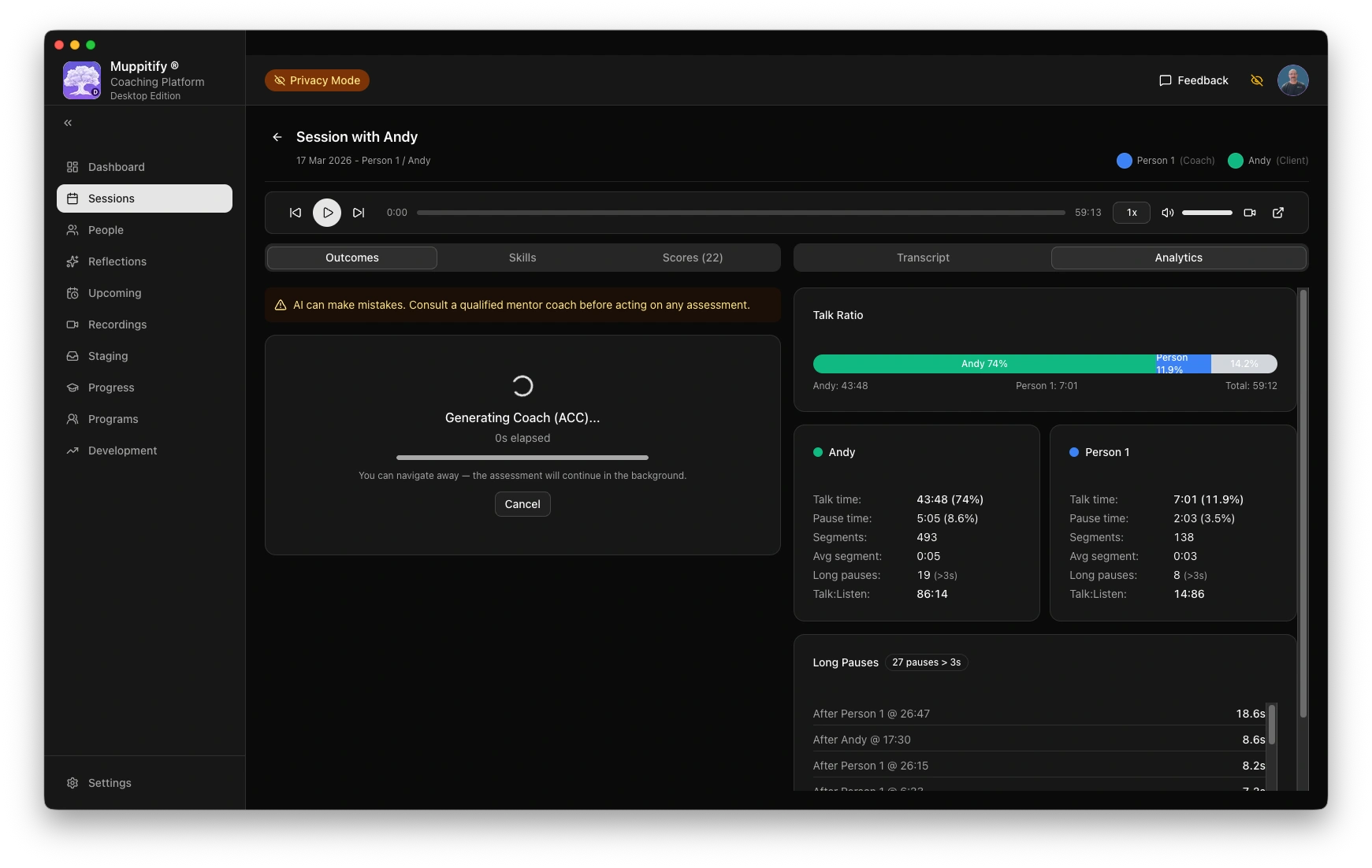
Start ACC analysis
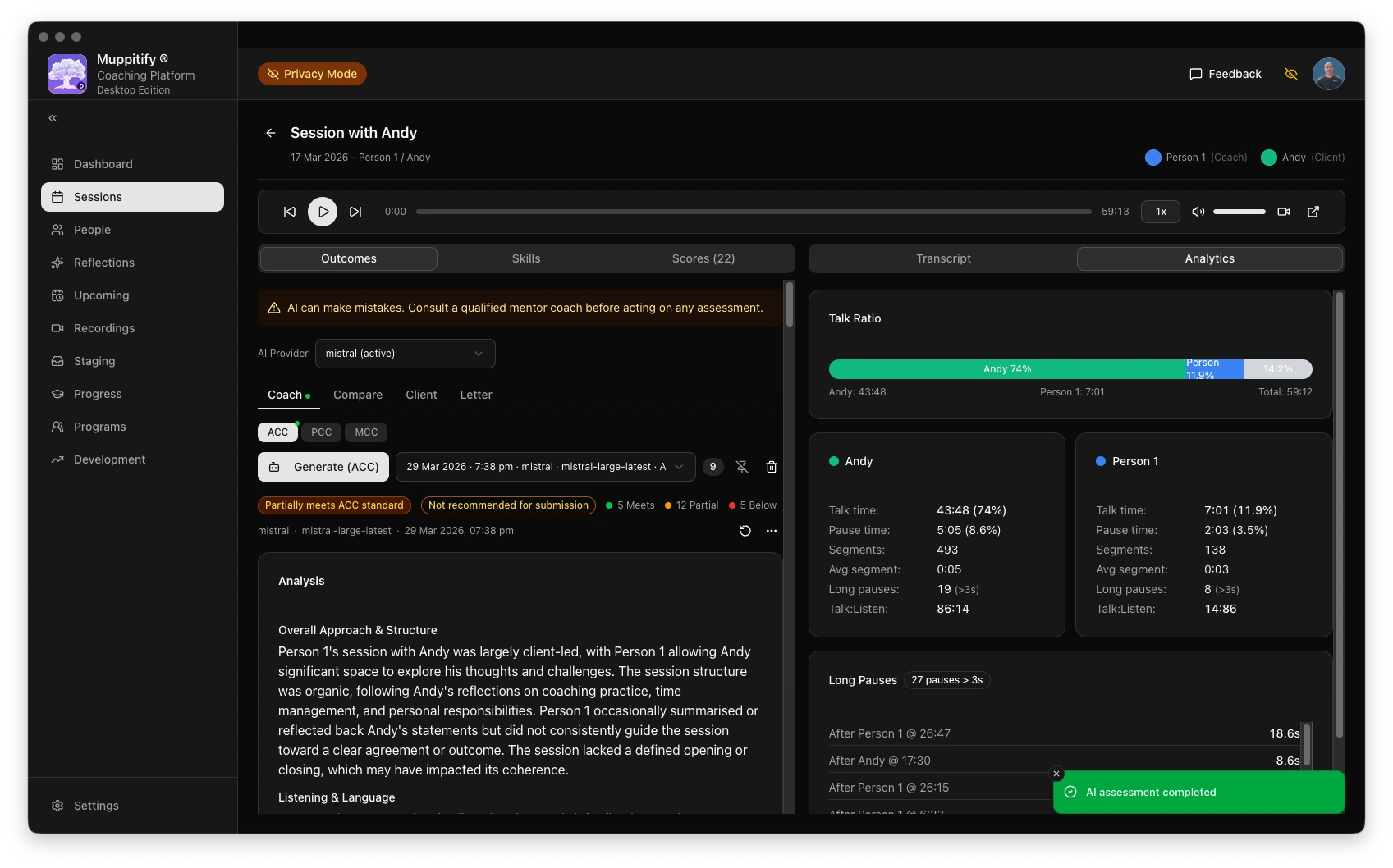
AI assessment completed
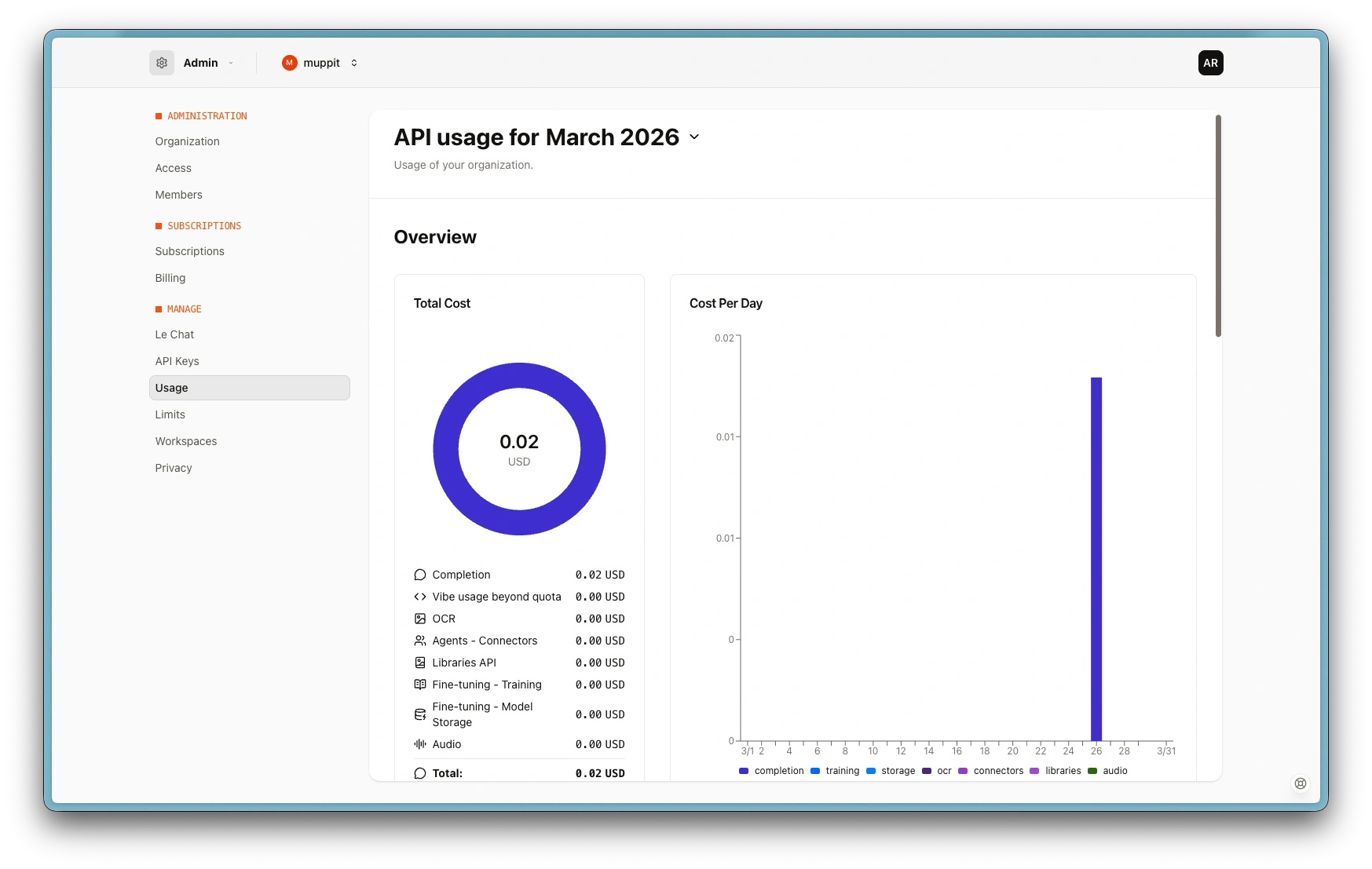
Mistral usage costs
Step 1: Create a Mistral account
- Go to console.mistral.ai
- Click Sign up
- Create an account with your email address, or sign in with Google or GitHub
Step 2: Add a payment method
- Once signed in, go to Billing in the left sidebar
- Click Add payment method and enter your card details
Mistral API access requires a payment method. You are only charged for what you use.
Under Billing > Limits, you can set a monthly budget to avoid unexpected charges.
Step 3: Create an API key
- In the Mistral console, go to API Keys in the left sidebar
- Click Create new key
- Give it a name (e.g. "Coaching Platform")
- Copy the key immediately. It will not be shown again.
If you lose the key, you can always create a new one and update it in the coaching platform.
Step 4: Configure the coaching platform
- Open the coaching platform and go to Settings > AI
- Select Mistral as your provider
- Paste your API key into the API Key field
- Choose a model. See Choosing a model for recommendations. mistral-large is the recommended model.
- Click Save
To test the connection, open any session with a recording and transcript, then click Generate AI Assessment.
Mistral processes API data in the European Union. If you work with European clients or need to comply with GDPR, this can simplify your data processing obligations compared to US-based providers.
For context windows, output token budgets, and rate limits, see API limits.
Troubleshooting
"API key invalid" error
Verify the key is correct. Go to API Keys in the Mistral console and check that the key exists and has not been revoked. If in doubt, create a new key and update it in the coaching platform.
"Insufficient credits" error
Your Mistral account has run out of credits. Go to Billing in the Mistral console and add funds or check your spending limit.
Assessment quality concerns
If assessments seem shallow or overly positive, try switching to a reasoning model from another provider. See Choosing a model for a detailed comparison of assessment quality across providers.